
symcode 1D Laser Yellow
Symcode USB 1D Barcode Scanner User Manual
Model: 1D Laser Yellow
Selelekela
Thank you for choosing the Symcode USB 1D Barcode Scanner. This manual provides comprehensive instructions for setting up, operating, and maintaining your new barcode scanner. Please read this manual thoroughly before use to ensure optimal performance and longevity of the device.
Boitsebiso ba Tšireletseho
Please observe the following safety guidelines to prevent injury or damage to the device:
- Do not stare directly into the laser beam. The laser light is visible and can cause eye damage.
- Keep the device away from water or other liquids to prevent electric shock or damage.
- Do not attempt to disassemble or repair the scanner yourself. Refer all servicing to qualified personnel.
- Use the scanner within the specified operating temperature and humidity ranges.
- Avoid dropping the scanner from excessive heights, although it is designed for durability, extreme impacts can cause damage.
Litaba tsa Sephutheloana
Netefatsa hore lintho tsohle li teng ka har'a sephutheloana:
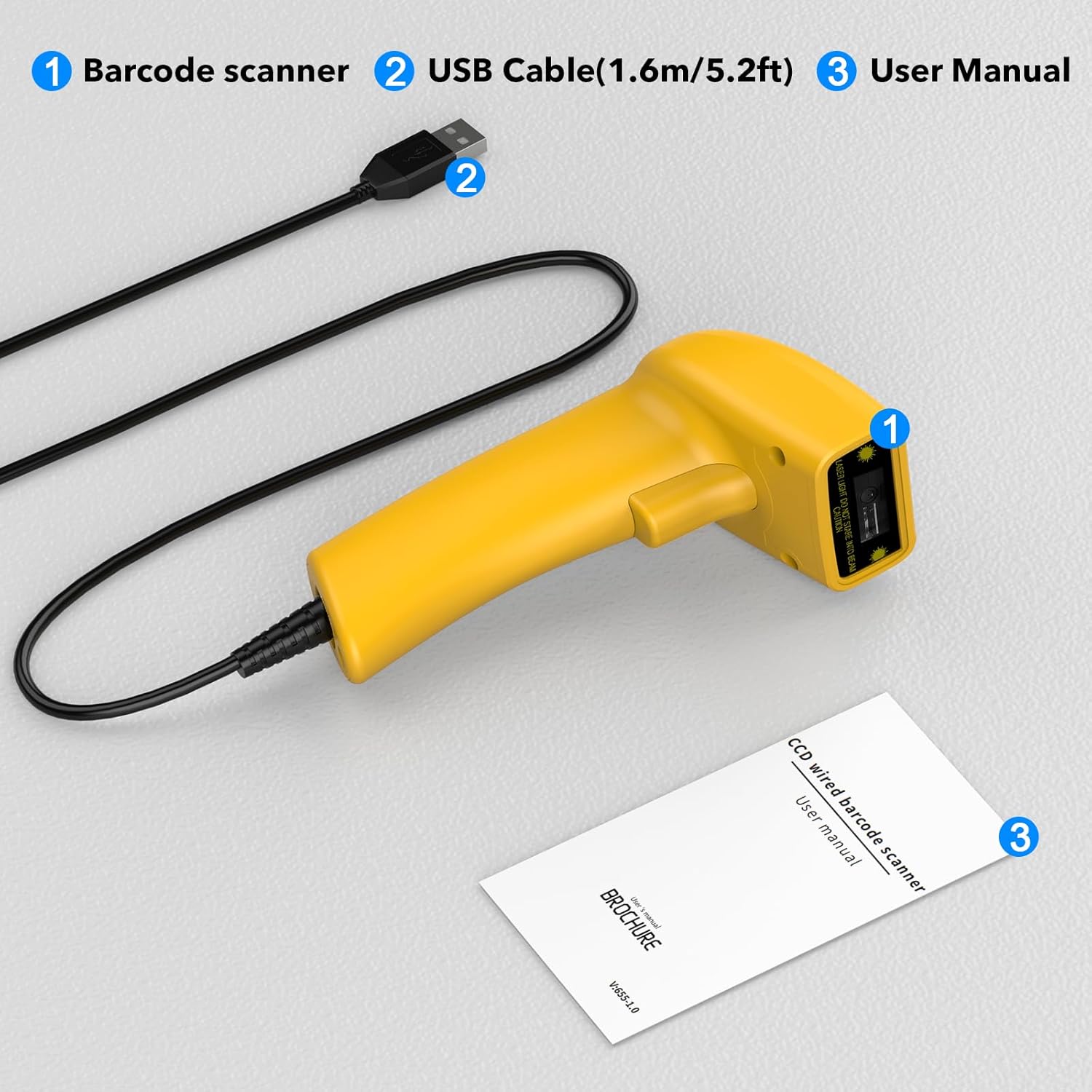
Image showing the Symcode 1D Barcode Scanner, its USB cable, and the included user manual, indicating the complete package contents.
- 1 x Symcode CCD Barcode Scanner
- 1 x USB Cable (1.6m / 5.2ft)
- 1 x Buka ea Mosebelisi
Sehlahisoa se Felletseview
The Symcode 1D Barcode Scanner features a compact and ergonomic design for comfortable handheld use. It is equipped with a CCD sensor for efficient barcode reading.
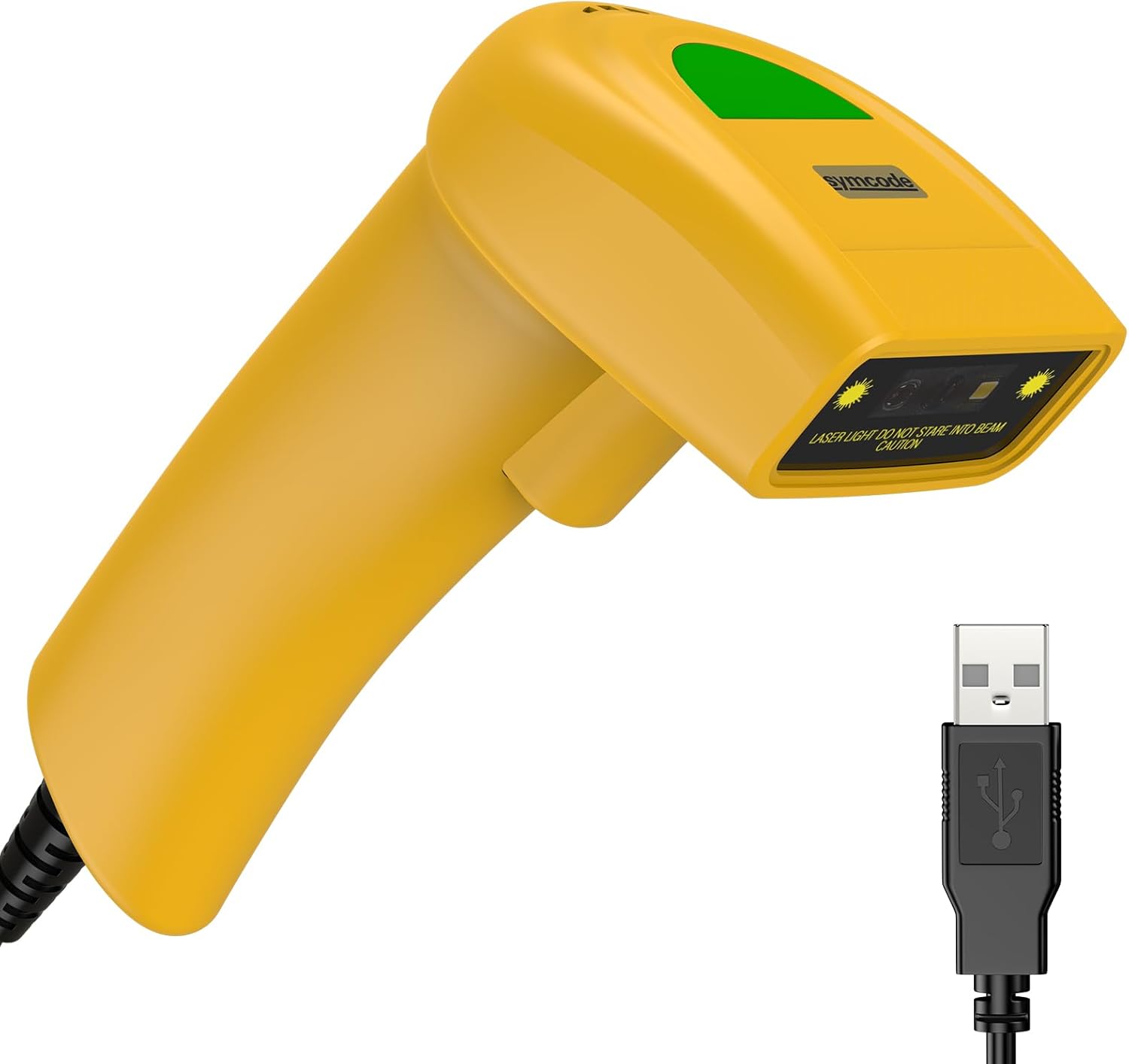
E qaqileng view of the Symcode 1D Barcode Scanner in yellow, highlighting its ergonomic shape and the attached USB cable for connectivity.
Litaelo tsa ho seta
The Symcode barcode scanner is designed for simple plug-and-play operation.
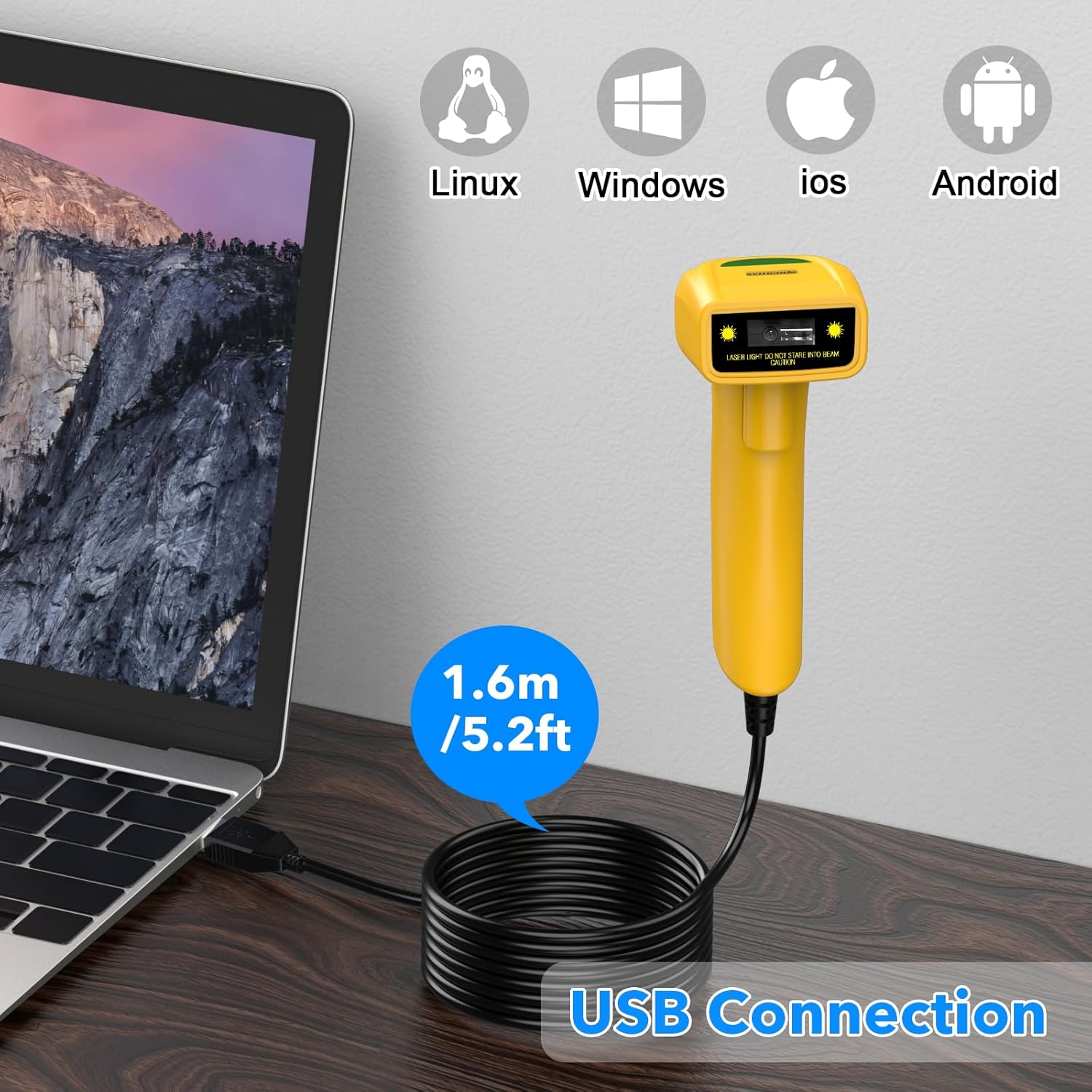
The Symcode barcode scanner connected to a laptop via its USB cable, illustrating its compatibility with Linux, Windows, iOS, and Android operating systems.
- Connect the USB cable from the scanner to an available USB port on your computer (Laptop or Desktop).
- The scanner is compatible with various operating systems including Linux, Windows, iOS, and Android. No additional drivers are typically required.
- Once connected, the scanner will be recognized as a keyboard input device. You can open any text editor, spreadsheet, or POS application and scan a barcode to test. The scanned data will appear as if typed by a keyboard.
Mekhoa ea ho sebetsa
The scanner supports three primary scanning modes to suit different operational needs:
- Key Trigger Mode: Press the trigger button to activate the scan beam and read a barcode. The beam will turn off when the button is released.
- Auto-Induction Mode: The scanner automatically detects a barcode within its scanning range and activates the beam to read it without requiring a trigger press.
- Tsoelang pele Mode: The scan beam remains continuously active, allowing for rapid scanning of multiple barcodes without individual trigger presses.
Refer to the included user manual (physical copy) for specific barcode configurations to switch between these modes.
Lintlha tse tsoetseng pele
Prefix and Suffix Customization
The scanner allows for customization of prefixes and suffixes to be added to the scanned data, providing flexibility for various applications.
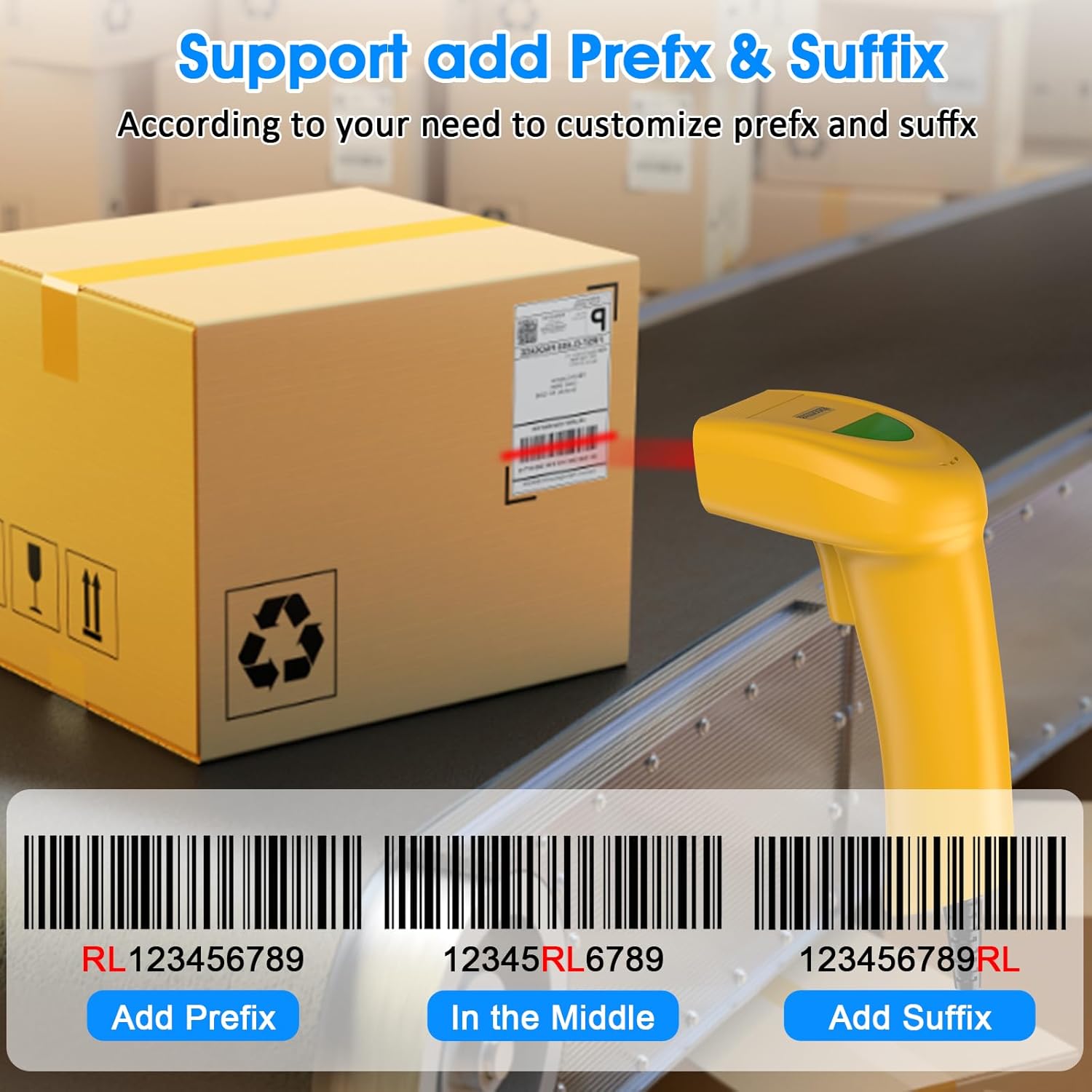
An illustration demonstrating how the Symcode barcode scanner can add custom prefixes (e.g., RL123456789), suffixes (e.g., 123456789RL), or insert characters in the middle (e.g., 12345RL6789) of scanned barcode data.
This feature is useful for integrating scanned data into specific software systems or for data organization. Consult the physical user manual for programming barcodes to configure these options.
Litlhophiso tsa Molumo
The scanner provides audible feedback upon successful scans. The sound can be turned on or off according to your preference and working environment.
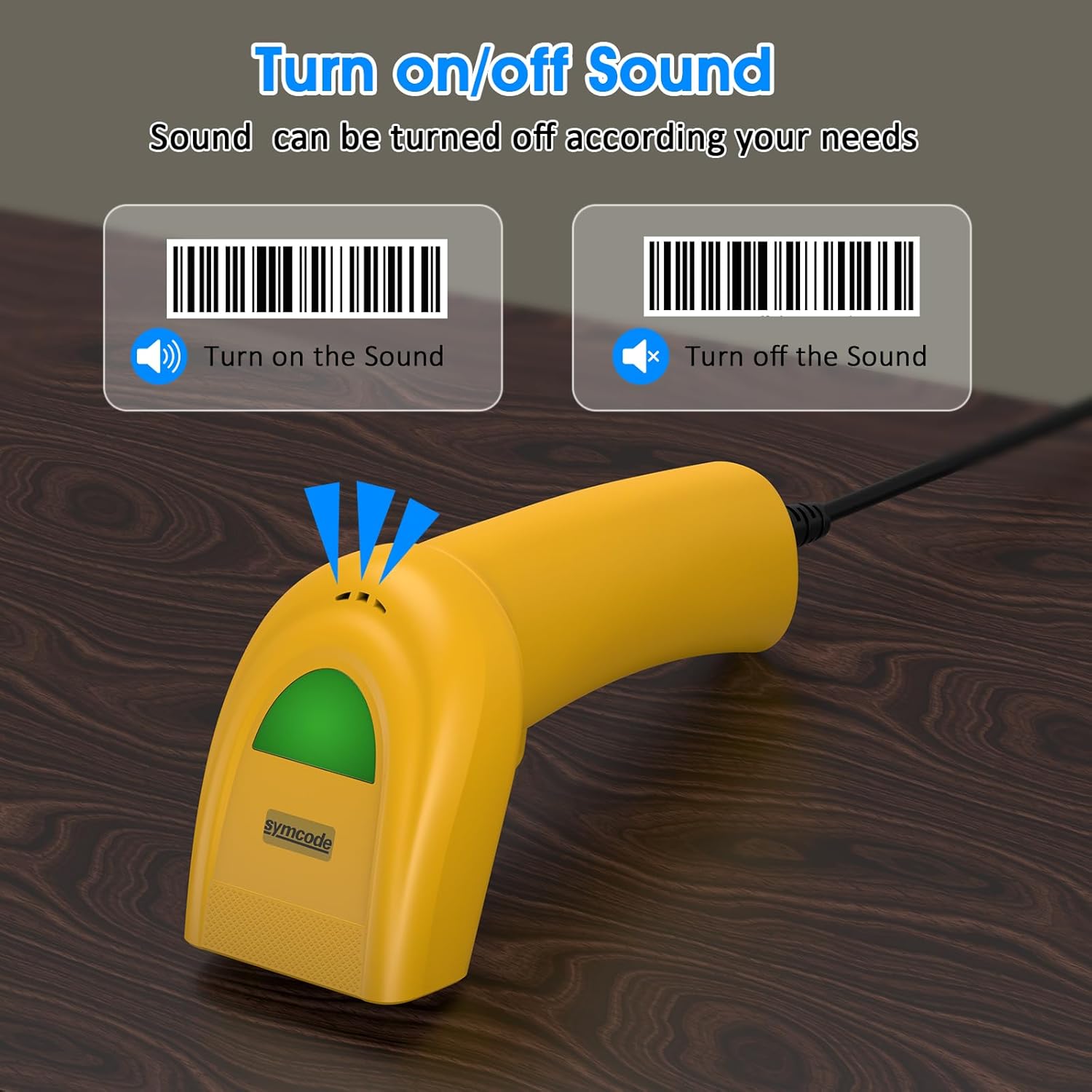
An image illustrating the option to turn the scanner's sound on or off, with visual cues for both states, allowing users to customize audible feedback.
Scan the appropriate configuration barcode from the user manual to toggle the sound feature.
Li-barcode tse tšehelitsoeng
The Symcode 1D Barcode Scanner is equipped with advanced CCD sensor technology, enabling it to accurately read a wide range of 1D barcodes from both paper and digital screens. It can even decode smudged, damaged, fuzzy, or reflective barcodes.
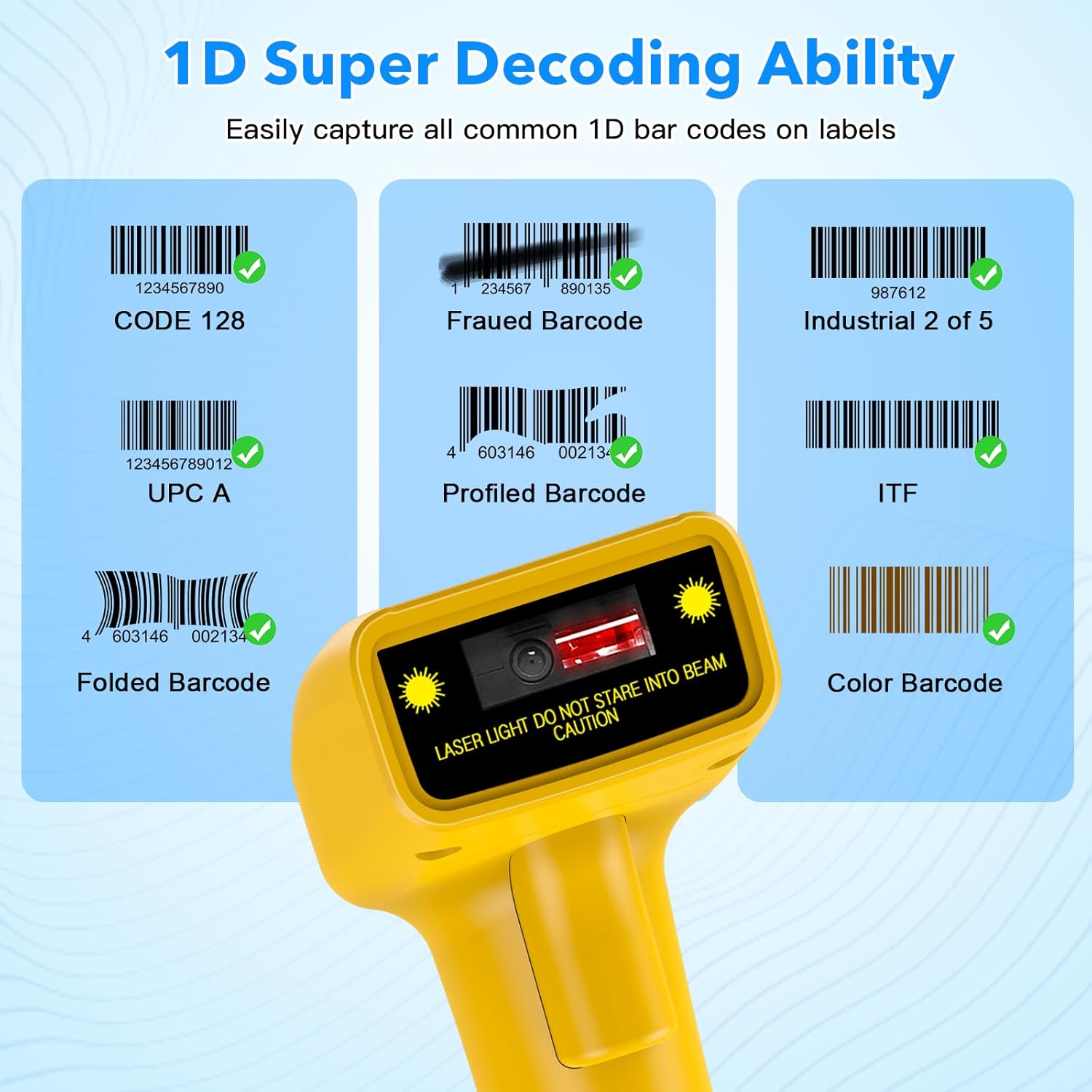
Pono ea peleamples of various 1D barcodes that the Symcode scanner can decode, including CODE 128, Frauded Barcode (e.g., 1234567890135), Industrial 2 of 5, UPC A (e.g., 0123456789012), Profiled Barcode (e.g., 4603146002134), ITF, Folded Barcode (e.g., 6234567890178), and Color Barcode, demonstrating its super decoding ability.
Supported 1D Barcode Symbologies include:
- EAN-8 / EAN-13
- UPC-A / UPC-E
- Code 39 / Code 93 / Code 128
- EA-128
- Codabar
- Indasteri 2 ho tse 5
- Kena ka 2 ho tse 5
- Matrix 2 ho tse 5
- MSI
- Khoutu 11
- RSS variants
- Sechaena 2 ho tse 5
The scanner also supports 180 configurable options for prefix, suffix, and termination strings.
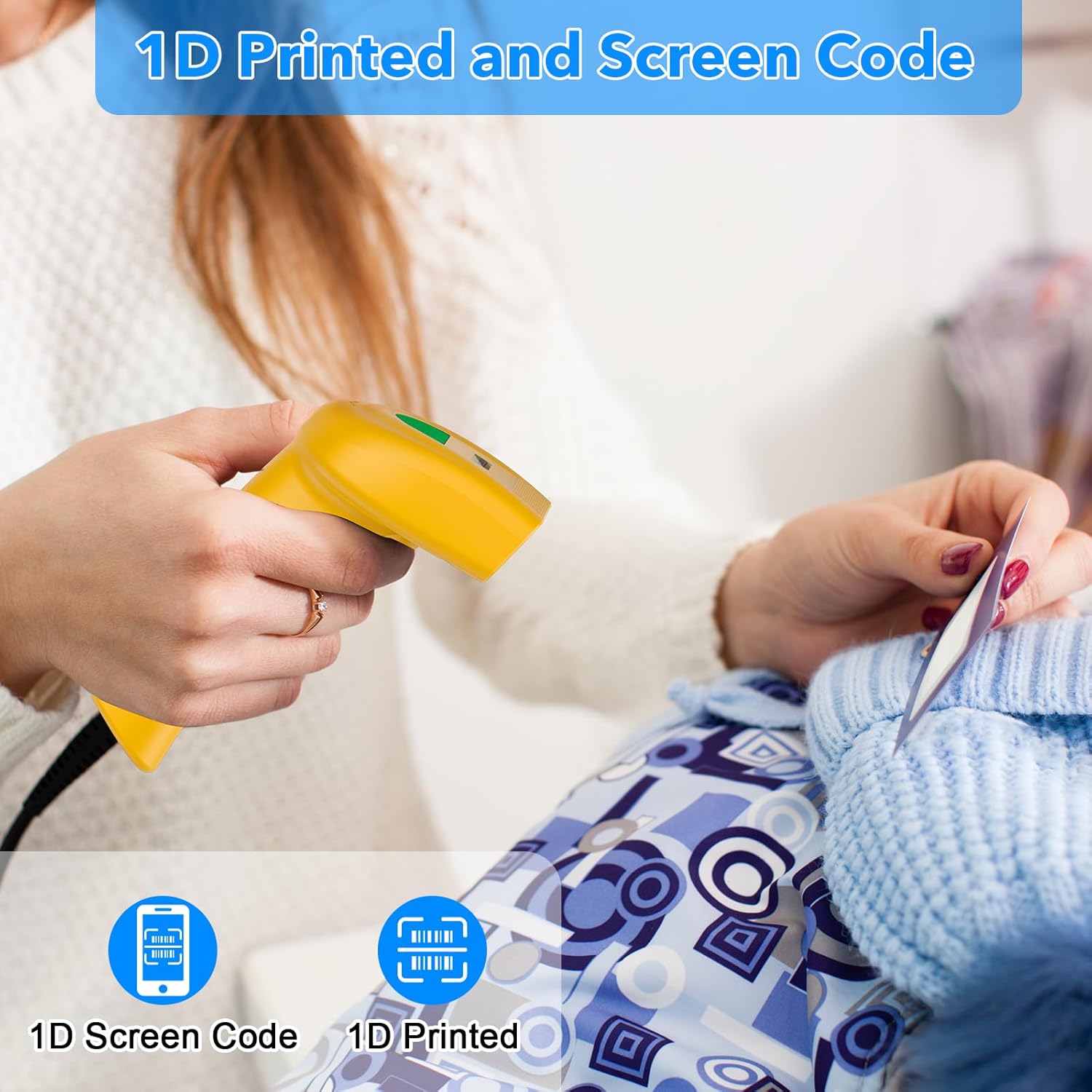
The Symcode barcode scanner in use, demonstrating its capability to scan both 1D printed barcodes and 1D barcodes displayed on screens, highlighting its versatility.
Tlhokomelo
Proper maintenance ensures the longevity and optimal performance of your barcode scanner.
- Ho hloekisa: Use a soft, dry cloth to clean the scanner's exterior. For the scanning window, use a lens cleaning cloth or a soft cloth lightly dampened with a non-abrasive cleaner. Do not use harsh chemicals or abrasive materials.
- Polokelo: Boloka sekena sebakeng se phodileng, se omileng hole le letsatsi le mocheso o feteletseng.
- Tlhokomelo ea Lithapo: Qoba ho koba kapa ho sotha thapo ya USB ka ho feteletseng, kaha sena se ka senya dithapo tsa kahare.
Ho batle phoso
If you encounter issues with your scanner, refer to the table below for common problems and solutions.
| Bothata | Lebaka le ka khonehang | Tharollo |
|---|---|---|
| Scanner ha e sebetse. | Thapo ea USB ha e hokahane hantle kapa koung ea USB e na le phoso. | Ensure the USB cable is securely plugged into both the scanner and the computer. Try a different USB port. |
| Sekenara ha se bale di-barcode. | Incorrect scanning mode, barcode type not supported, or damaged barcode. | Check the scanning mode (trigger, auto-induction, continuous). Ensure the barcode symbology is supported. Try scanning a known good barcode. Clean the scanning window. |
| Lintlha tse skenileng li hlaha ka phoso. | Keyboard language settings mismatch or incorrect prefix/suffix settings. | Ensure your computer's keyboard language matches the scanner's default. Reset prefix/suffix settings if recently changed. |
| No sound feedback. | Sound feature is turned off. | Scan the 'Turn on Sound' configuration barcode from the user manual. |
Litlhaloso tsa Tekheniki
| Sebopeho | Tlhaloso |
|---|---|
| Litekanyo | 165 x 63 x 87 limilimithara |
| Boima ba 'mele | 156g (6.4 ounces) |
| Mohloli oa Leseli | 650nm~670nm visible laser |
| Lebelo la ho Hlakola | 100 scans/mots |
| Read Preciseness | 0.1mm (4mil) |
| Phapang ea khatiso | 30% mets |
| Botebo ba Tšimo | 0~600mm (0.33mm, PCS 90%) |
| Scan Scope | 10mm ~ 250mm |
| Sebaka sa ho Bala | 2.5~600mm (100% UPC/EAN) |
| Sekhahla sa Phoso ea Bit | 1/5 milione |
| Hona joale | 85mA (working), 36mA (storage) |
| Sehokedi | USB |
| Mocheso oa ho sebetsa | 0 ~45 (32 ~113 ) |
| Mocheso oa polokelo | -20 ~60 (-4 ~140 ) |
| Mongobo | 5% ~ 95% e sa fokotseng |
| Lintho tse bonahalang | ABS + PC |
| Theknoloji ea Khokahano | Cable ea USB |
| Lisebelisoa tse lumellanang | Laptop, Desktop |
| Mohloli oa Matla | Motlakase oa Corded |
Warranty le Tšehetso
Symcode products are manufactured to high-quality standards. For warranty information and technical support, please refer to the documentation included with your purchase or visit the official Symcode store.
For further assistance, you may contact Symcode support directly through their official store page: Symcode Official Store
Ask a question about this manual
Ask about setup, troubleshooting, compatibility, parts, safety, or missing instructions. Manuals+ will review the question and use this page’s manual context to help answer it.