
symcode USA-6709DA-Green
Symcode Wireless Bluetooth Barcode Scanner User Manual
Model: USA-6709DA-Green
1. Selelekela
This user manual provides comprehensive instructions for the Symcode Wireless Bluetooth Barcode Scanner, Model USA-6709DA-Green. This device is designed for accurate and efficient data capture, supporting various 1D and 2D barcode types. It offers versatile connectivity options including Bluetooth, 2.4G wireless, and USB wired connections, making it suitable for a wide range of business applications.

Image 1: Symcode Wireless Bluetooth Barcode Scanner and accessories.
2. Likahare tsa Sephutheloana
Ka kopo, netefatsa hore lintho tsohle li teng ka har'a sephutheloana sa hau:
- Symcode Barcode Scanner (Model: USA-6706DA-Green)
- USB Charging Cable
- 2.4G USB Dongle
- Bukana ea Mosebelisi

Image 2: Components included with the Symcode Barcode Scanner.
3. Likarolo tsa lihlahisoa
- Theknoloji e tsoetseng pele ea ho hlahloba: CMOS optical imaging for quick and precise scanning of 1D and 2D barcodes (QR, DataMatrix, PDF417, Aztec, Hanxin, etc.) even on damaged or poorly printed labels.
- Triple Connectivity Modes: Supports Bluetooth, 2.4G wireless, and USB wired connections for maximum flexibility.
- Range e Atolositsoeng ea Wireless: Up to 200m in open environments and 30m indoors with the 2.4G USB dongle.
- Bophelo bo Bolelele ba Battery: 2000mAh battery provides up to 30 hours of continuous scanning, with a full recharge in approximately 2 hours.
- Tlhophiso e fapaneng: Features include hands-free intelligent sensor mode, trigger scan mode, vibration/buzzer settings, data storage/instant upload modes, multiple keyboard languages, and customizable prefix/suffix options.
- Ho tšoarella ho Phahameng: Constructed with strong ABS material, designed to withstand drops of up to 2.4 meters (8 ft) and features an integrated dustproof housing (IP67 rated).
4. Seta le Khokahano
The scanner offers three primary connection methods:
4.1. 2.4G Khokahano e se nang Waele
- Plug the 2.4G USB dongle into an available USB port on your computer.
- Turn on the scanner. It will automatically pair with the dongle.
- A successful connection is indicated by a specific beep sound and LED indicator.
4.2. Khokahano ea Bluetooth
- Ensure your device (smartphone, tablet, computer) has Bluetooth enabled.
- Scan the Bluetooth pairing barcode (usually found in the user manual or on a setup card).
- On your device, search for Bluetooth devices and select "Symcode Scanner" (or similar name).
- Netefatsa ho para.
4.3. Kgokelo ya Thapo ya USB
- Hokela scanner khomphuteng ea hau u sebelisa thapo e fanoeng ea USB.
- The scanner will function as a wired device and also charge simultaneously.

Image 3: Connectivity options for the Symcode Barcode Scanner.

Image 4: Operating system compatibility.
5. Litaelo tsa Ts'ebetso
5.1. Ts'ebetso ea Motheo ea ho Sekena
To scan a barcode, point the scanner's window at the barcode and press the trigger button. A successful scan will be indicated by a beep and/or vibration, and the data will be transmitted to your connected device.
5.2. Data Upload Modes
Sekenara se tshehetsa mekgwa e mmedi ya ho kenya data:
- Mokhoa oa ho Kenya ka Potlako: Data is transmitted to the connected device immediately after each scan. This is the default mode.
- Offline Storage Mode: Scanned data is stored in the scanner's internal memory (up to 10,000 codes). To upload stored data, scan the specific setup code for 'Upload Data' found in your detailed user manual.

Image 5: Instant Upload Mode vs. Offline Storage Mode.
5.3. Decoding Capabilities
The scanner can decode a wide array of barcode types, including:
- Likhoutu tsa 1D: UPC/EAN, Code 39, Code 128, Codabar, Interleaved 2 of 5, Code 93, MSI, Code 11, RSS variants, etc.
- Likhoutu tsa 2D: QR Code, Data Matrix, PDF417, Aztec, Hanxin.
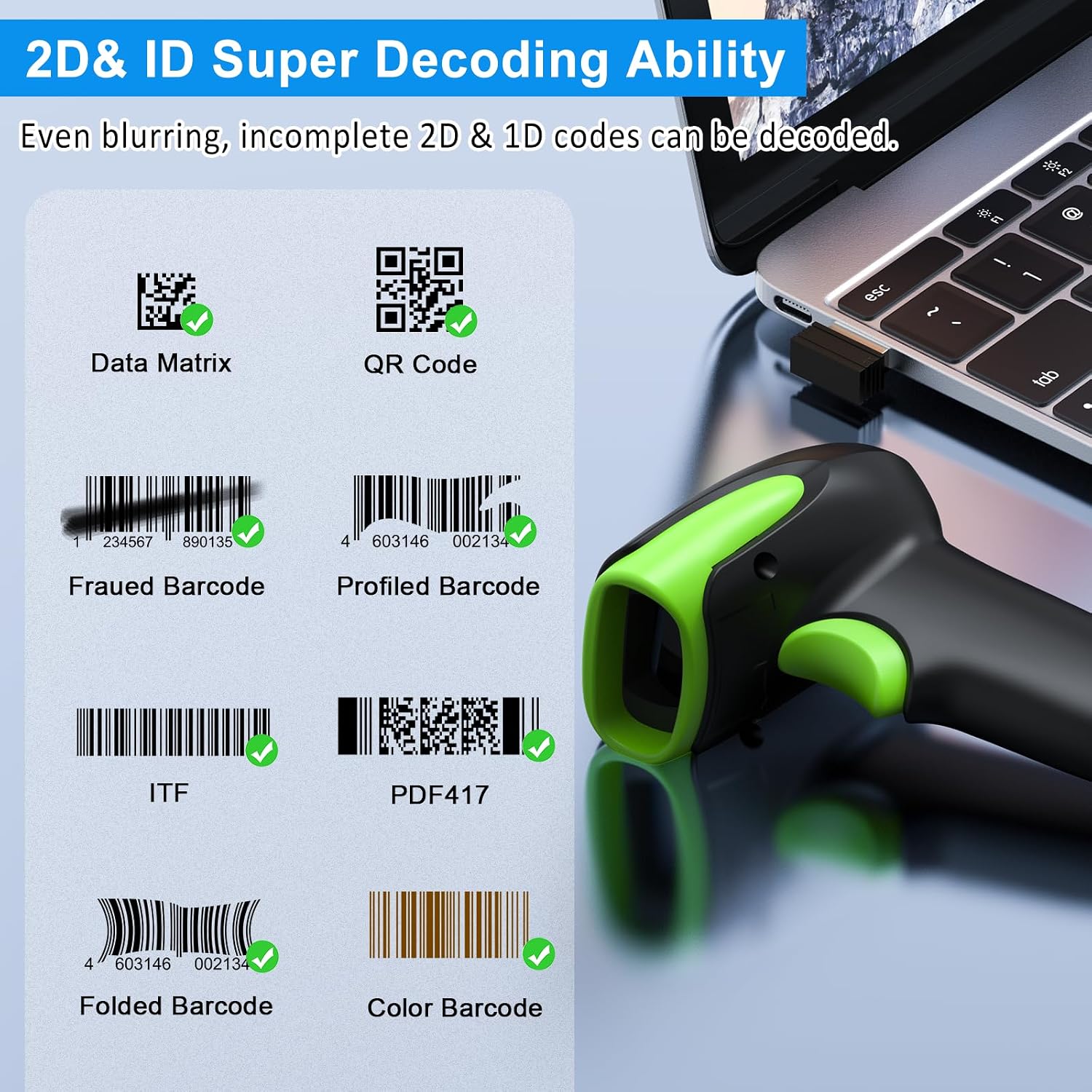
Setšoantšo sa 6: Examples of decodable 1D and 2D barcodes.
6. Tlhokomelo
To ensure optimal performance and longevity of your scanner:
- Ho hloekisa: Use a soft, dry cloth to clean the scanner's exterior. For the scanning window, use a lens cleaning cloth to avoid scratches. Do not use abrasive cleaners or solvents.
- Ho tjhaja: Recharge the battery using the provided USB cable. Avoid overcharging or completely draining the battery for extended periods.
- Polokelo: Boloka sekena sebakeng se phodileng, se omileng hole le letsatsi le mocheso o feteletseng.
- Nako e telele: While rugged, avoid intentional drops or impacts. The scanner is designed to withstand accidental drops up to 2.4 meters.

Image 7: The scanner's rugged design and drop resistance.
7. Ho rarolla mathata
If you encounter issues with your scanner, please refer to the following common problems and solutions:
- Scanner not connecting:
- Netefatsa hore sekene se tjhajilwe.
- Verify the correct connection mode (Bluetooth, 2.4G, USB) is selected and properly set up.
- For 2.4G, ensure the dongle is securely plugged in. For Bluetooth, ensure your device's Bluetooth is on and the scanner is paired.
- Try restarting both the scanner and the host device.
- Scanner not reading barcodes:
- Ensure the barcode is not excessively damaged, smudged, or poorly printed.
- Check the distance and angle of the scanner to the barcode.
- Verify that the barcode type is supported by the scanner.
- Clean the scanning window if it is dirty.
- Data not transmitting:
- Confirm the scanner is successfully connected to your device.
- Check if the scanner is in 'Offline Storage Mode' and needs to be manually uploaded.
- Ensure the application on your device is ready to receive input.
For further assistance, please refer to the comprehensive troubleshooting section in the full user manual or contact Symcode customer support.
8. Litlhaloso
| Sebopeho | Tlhaloso |
|---|---|
| Nomoro ea Mohlala | USA-6709DA-Green |
| Keletso Voltage | DC5V±0.25v |
| Current (Work/Instantaneous) | 25 MA / 95 MA |
| Decoding Speed | 100 linako / sec |
| Wireless Range (2.4G) | Up to 200m (open air), 30m (indoors) |
| Nako ea ho tjhaja | Hoo e ka bang. Lihora tse 2.5 |
| Bophelo ba Battery | Up to 30 Hours (continuous scanning) |
| Mofuta oa Leshala | 1 betri ea lithium Polymer (e kenyelelitsoe) |
| Khokahano | Bluetooth 6.1, Wireless 2.4G, USB Cable |
| Lisebelisoa tse lumellanang | Desktop, Laptop, Smartphone, POS systems |
| Sistimi ea Ts'ebetso | Windows 11/10/8/7/XP, Mac OS, iOS, Android, Linux |
| Boima ba Ntho | 10.2 lik'hilograma |
| Litekanyo tsa sephutheloana | 6.89 x 4.49 x 3.31 lisenthimithara |

Image 8: Wireless transmission range.
9. Tiisetso le Tšehetso
This Symcode product is manufactured by USA Scanner. For any product inquiries, technical support, or warranty claims, please contact USA Scanner directly. Refer to the contact information provided in your product packaging or visit the official Symcode brand store on Amazon for support resources.
Etela ho Symcode Store bakeng sa lintlha tse ling.
Ask a question about this manual
Ask about setup, troubleshooting, compatibility, parts, safety, or missing instructions. Manuals+ will review the question and use this page’s manual context to help answer it.