
1. Selelekela
Thank you for choosing the Edifier WH950NB Wireless Headphones. These headphones are designed to provide a high-quality audio experience with advanced features such as Active Noise Cancellation, Hi-Res Audio support, and Google Fast Pairing. This manual provides detailed instructions for setup, operation, and maintenance to ensure optimal performance and longevity of your device.
2. Likahare tsa Sephutheloana
Ka kopo netefatsa hore lintho tsohle li teng ka har'a sephutheloana:
- Edifier WH950NB Wireless Headphones
- Cable ea molumo
- USB Charging Cable
- Carrying Case (if included with your specific model)
- Bukana ea mosebelisi (tokomane ena)
3. Sehlahisoa Overview
Familiarize yourself with the main components and controls of your Edifier WH950NB headphones.

Setšoantšo sa 1: A pair of black Edifier WH950NB over-ear wireless headphones, showcasing moralo oa bona o boreleli.
Likarolo tsa Bohlokoa:
- Molumo o se nang mohala oa Hi-Res: Supports LDAC certification for detailed and clear sound.
- Ho Hlakolla Lerata (ANC): Two modes for ambient sound or wind reduction.
- Mehala e hlakileng ea Crystal: Integrated 4-microphone system for enhanced voice clarity.
- 40mm Dynamic Driver: Delivers natural and balanced audio.
- Google Fast pairing: Quick and effortless Bluetooth pairing with Android devices.
- Nako e telele ea ho bapala: Ho fihlela lihora tse 55 tsa ho bapala.
- Khokahano ea lisebelisoa tse peli: Hokela disebedisweng tse pedi ka nako e le nngwe.
4. Seta
4.1 Ho tjhaja Li-headphone
- Hokela thapo ea ho tjhaja ea USB koung ea ho tjhaja ho li-headphone.
- Hokela ntlha e 'ngoe ea thapo ho adaptara ea matla ea USB (ha e kenyelelitsoe) kapa koung ea USB ea komporo.
- The indicator light will show charging status. A full charge typically takes approximately 2 hours.
- A 10-minute charge can provide up to 7 hours of playtime.

Setšoantšo sa 2: This image emphasizes the headphones' extended playtime and fast charging capability, providing 7 hours of listening from just 10 minutes of charging.
4.2 Ho hokahanya ha Bluetooth
- Netefatsa hore li-headphone li tima.
- Tobetsa o be o tshware konopo ya ho tima ho fihlela lebone la sesupo le bonesa ka potlako, le bontshang mokgwa wa ho kopanya.
- Sesebedisweng sa hao (smartphone, tablet, komporo), bula Bluetooth mme o batle disebediswa tse teng.
- Select "Edifier WH950NB" from the list of devices.
- Once connected, the indicator light will stop flashing and remain solid blue.
Google Fast pairing:
For Android devices, the WH950NB supports Google Fast Pairing. Simply turn on the headphones near your Android device, and a pairing notification will appear on your screen for quick connection.

Setšoantšo sa 3: The headphones are shown alongside a smartphone, indicating the Google Fast Pairing feature for quick and effortless Bluetooth connection with Android devices.
5. Litaelo tsa Ts'ebetso
5.1 Ho Hlakola ha Lerata le Matla (ANC) le Molumo o Ambient
The WH950NB offers two active noise cancellation modes and an ambient sound mode to adapt to your environment.
- Press the ANC button to cycle through modes: ANC On, Ambient Sound, and Standard (ANC Off).
- ANC E Buletsoe: E fokotsa lerata la kantle bakeng sa boiphihlelo ba ho mamela ka botebo.
- Ambient Sound: E u lumella ho utloa tikoloho ea hau ha u ntse u mametse molumo.
- Tloaelo: Disables noise cancellation and ambient sound.

Setšoantšo sa 4: This image demonstrates the active noise cancellation feature and the 4-microphone system designed for clear voice calls, effectively reducing environmental noise for both listening and speaking.
5.2 Mesebetsi ea Call
The integrated 4-microphone system ensures clear voice calls.
- Araba/Khaola mohala: Tobetsa konopo ea li-multi-function hang.
- Hana Mohala: Tobetsa o hatelle konopo ea li-multi-function metsotsoana e 2.
5.3 Dual-Device Connection
The headphones can be connected to two Bluetooth devices simultaneously.
- Connect the headphones to the first device as described in section 4.2.
- Disconnect the headphones from the first device (or put them back into pairing mode).
- Hokela di-headphone ho sesebediswa sa bobedi.
- Reconnect the headphones to the first device. The headphones will now be connected to both devices.
- Audio playback will switch automatically between devices.
5.4 Edifier Connect App
Download the Edifier Connect app from your device's app store to unlock additional features and customization options, including:
- Equalizer (EQ) adjustments.
- ANC mode customization.
- Lisebelisoa tsa Firmware.

Setšoantšo sa 5: This image illustrates the headphones' support for Hi-Res Audio Wireless with LDAC certification, allowing for detailed and clear sound. Users can customize their audio experience via the Edifier app.
6. Tlhokomelo le Tlhokomelo
Tlhokomelo e nepahetseng e netefatsa nako e telele le ts'ebetso ea li-headphone tsa hau.
- Clean the headphones regularly with a soft, dry cloth. Do not use liquid cleaners.
- Avoid exposing the headphones to extreme temperatures, humidity, or dust.
- Store the headphones in their carrying case when not in use to protect them from damage.
- O se ke wa leka ho qhaqholla kapa ho fetola di-headphone, kaha sena se tla hlakola tiisetso.
- Keep the charging port free of debris.
7. Ho rarolla mathata
Haeba u kopana le mathata, sheba mathata a latelang a tloaelehileng le tharollo.
| Bothata | Tharollo |
|---|---|
| Ha ho molumo | Ensure headphones are charged and connected. Check volume levels on both headphones and device. |
| Ha e khone ho para ka Bluetooth | Ensure headphones are in pairing mode. Turn off and on Bluetooth on your device. Clear previous Bluetooth connections. |
| Ho hlakola lerata ha ho sebetse | Ensure ANC mode is activated. Adjust headphone fit for a proper seal. |
| Boleng bo bobe ba mohala | Ensure microphone is not obstructed. Move to a quieter environment. |
| Li-headphone ha li tjhaje | Check charging cable and power source. Ensure charging port is clean. |
8. Litlhaloso
Technical specifications for the Edifier WH950NB Wireless Headphones.
- Mohlala: WH950NB
- Mofuta oa Bluetooth: 5.3
- Audio Driver: 40mm Dynamic Driver
- Hangata Karabo: 20Hz - 20kHz
- Nako ea ho tjhaja: Hoo e ka bang lihora tse 2
- Nako ea ho bapala: Up to 55 hours (ANC off), up to 34 hours (ANC on)
- Khokahano: Jacke ea molumo ea Bluetooth 5.3, 3.5mm
- Taolo ea Lerata: Ho Hlakola ha Lerata
- Boima ba 'mele: 1.54 liponto (hoo e ka bang.)
- Boitsebiso: Plastiki
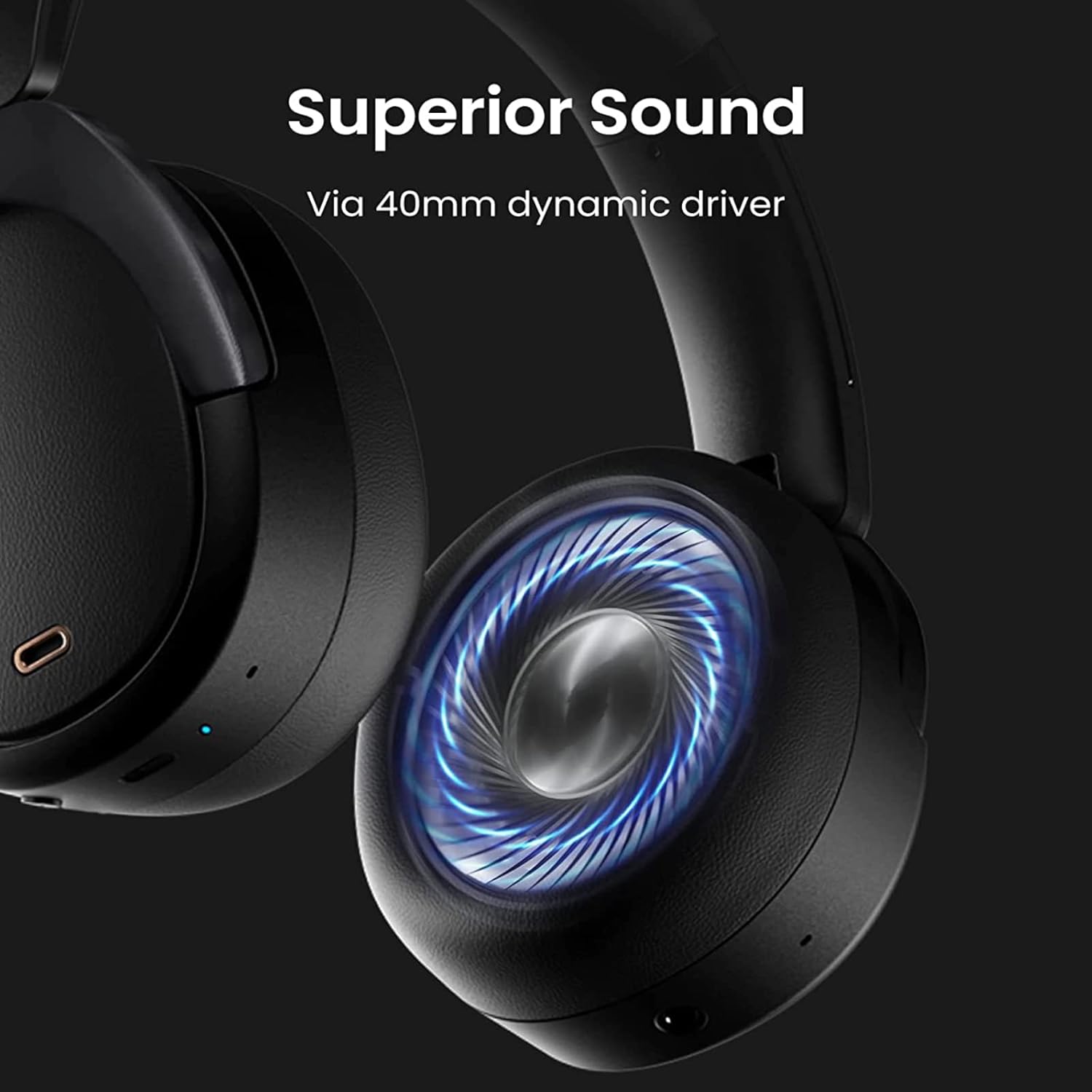
Setšoantšo sa 6: E haufi-ufi view of the headphone's ear cup, highlighting the 40mm composite titanium film dynamic driver responsible for delivering exceptional and balanced audio across all music genres.
9. Boitsebiso ba Tšireletseho
Please read and follow these safety guidelines:
- Do not use headphones at high volume for extended periods to prevent hearing damage.
- Do not use headphones in situations where inability to hear ambient sounds could be dangerous (e.g., driving, cycling, walking in traffic).
- Boloka sehlahisoa hole le metsi le mongobo.
- Lahla sehlahisoa le betri ea sona ka boikarabelo ho latela melao ea lehae.
10. Tiisetso le Tšehetso
Bakeng sa tlhaiso-leseling e mabapi le tiisetso, tšehetso ea tekheniki, kapa lipotso mabapi le litšebeletso, ka kopo sheba ho Setsi sa semmuso websaete kapa ikopanye le litšebeletso tsa bareki ka kotloloho. Boloka bopaki ba hau ba theko bakeng sa likopo tsa waranti.