
1. Selelekela
Thank you for choosing the Podofo 1 Din Android Car Stereo. This device integrates advanced features such as a 7-inch retractable touch screen, Android operating system, Bluetooth, GPS navigation, Wi-Fi connectivity, FM/RDS radio, Mirror Link, AUX-in, and support for a backup camera. This manual provides essential information for installation, operation, maintenance, and troubleshooting to ensure optimal performance and user experience.

Image 1.1: Podofo 1 Din Android Car Stereo with its main components and accessories.
2. Likahare tsa Sephutheloana
Ka kopo sheba sephutheloana ka hloko ho netefatsa hore lintho tsohle li teng:
- 1 x Single DIN Car Stereo Unit
- 1 x bekapo Khamera
- 1 x GPS Antenna
- 1 x Power Cable Harness
- 1 x Speaker Cable Harness
- Linotlolo tse 2 tsa ho qhaqha
- 1 x Buka ea Mosebelisi
- 1 x Sete ea Bracket e Behang

Image 2.1: Visual representation of the package contents.
3. Litlhaloso
| Tsamaiso | Android 10.0 |
| Boholo ba skrine | 7-inch Retractable Touch Screen |
| Qeto | 1024 x 600 |
| Bluetooth Version | 4.2 |
| Mokhahlelo oa seea-le-moea oa FM | EA-87.5 ~ 108 MHz |
| Mocheso oa ho sebetsa | -10 ℃ ~ +60 ℃ |
| Sesebelisoa sa USB | USB 2.0 |
| Moqtage | 12V |
| Matla a Output | 60W |
| Polokelo | 1GB RAM + 16GB ROM |
| Lisebelisoa tsa Audio | MP3 / WMA / WA / OGG / FLAC / APE |
| Liforomo tsa Video | RM / RMVB / MP4 / FLV / MKV / 3GP / AVIASF / SWFMP1 |
| Sebopeho sa setšoantšo | JPG |
| Khokahano | WiFi |
| Litekanyo tsa Sehlahisoa (L x W x H) | 18.8cm x 5.8cm x 16.5cm |
| Boima ba 'mele | 1660 lik'hilograma |

Image 3.1: Product details including dimensions and rear panel connections.
4. Ho seta le ho kenya
Before installation, ensure your vehicle's power is disconnected. Professional installation is recommended.
4.1 Mahokelo a Wiring
- Khokelo ea Matla: Connect the power cable harness to your vehicle's power supply (ACC, B+, GND). Ensure correct polarity.
- Khokahano ea Sebui: Connect the speaker cable harness to your vehicle's speakers. Match positive and negative terminals.
- GPS Antenna: Connect the GPS antenna to the dedicated port on the back of the unit and mount it in a location with a clear view ea leholimo.
- Backup Camera: Connect the backup camera's video output to the 'CAMERA IN' port on the stereo. Connect the camera's power to your vehicle's reverse light circuit for automatic activation.
- AUX-in/USB: Connect external devices via the AUX-in port or USB ports as needed.
- Taolo ea Wheel Wheel (SWC): If your vehicle supports SWC, connect the SWC wires (KEY1, KEY2) to the corresponding wires from your vehicle's harness. Configuration will be done in the settings menu.

Image 4.1: Backup camera wiring diagram.
4.2 Ho theha Sehlopha
Insert the single DIN unit into your vehicle's dashboard opening. Secure it using the provided mounting brackets and screws. Ensure the retractable screen mechanism has enough clearance to operate freely.
5. Litaelo tsa Ts'ebetso
5.1 Ts'ebetso ea Motheo
- Tlosa/Tima: Press the power button (usually labeled SRC or PWR) to turn the unit on or off.
- Taolo ea Bolumo: Use the rotary knob or on-screen controls to adjust the volume.
- Screen Retraction: Manually adjust the screen's angle or retract it into the unit as desired.
5.2 Bluetooth Connectivity (Bluetooth 4.2)
Pair your mobile phone with the car stereo for hands-free calling and audio streaming.
- Go to the Bluetooth menu on the car stereo.
- Enable Bluetooth on your mobile phone and search for available devices.
- Select "MY PODOFO" or a similar name from the list on your phone.
- Netefatsa khoutu ea ho para ha o laetsoe.
- Once paired, you can make/receive calls and play music through the car stereo.

Image 5.1: Bluetooth connection and FM/RDS radio interface.
Radio ea 5.3 FM/RDS
Access the Radio application to listen to FM broadcasts. The RDS function displays station names and program information where available.
- Open the "Radio" app from the main menu.
- Use the on-screen controls to scan for stations, manually tune, or select preset stations.
5.4 GPS Navigation
The unit supports both online and offline navigation. Ensure the GPS antenna is properly connected.
- Open the "Navigation" or "Maps" app.
- For offline maps, download them via Wi-Fi before driving.
- Enter your destination and follow the voice-guided directions.
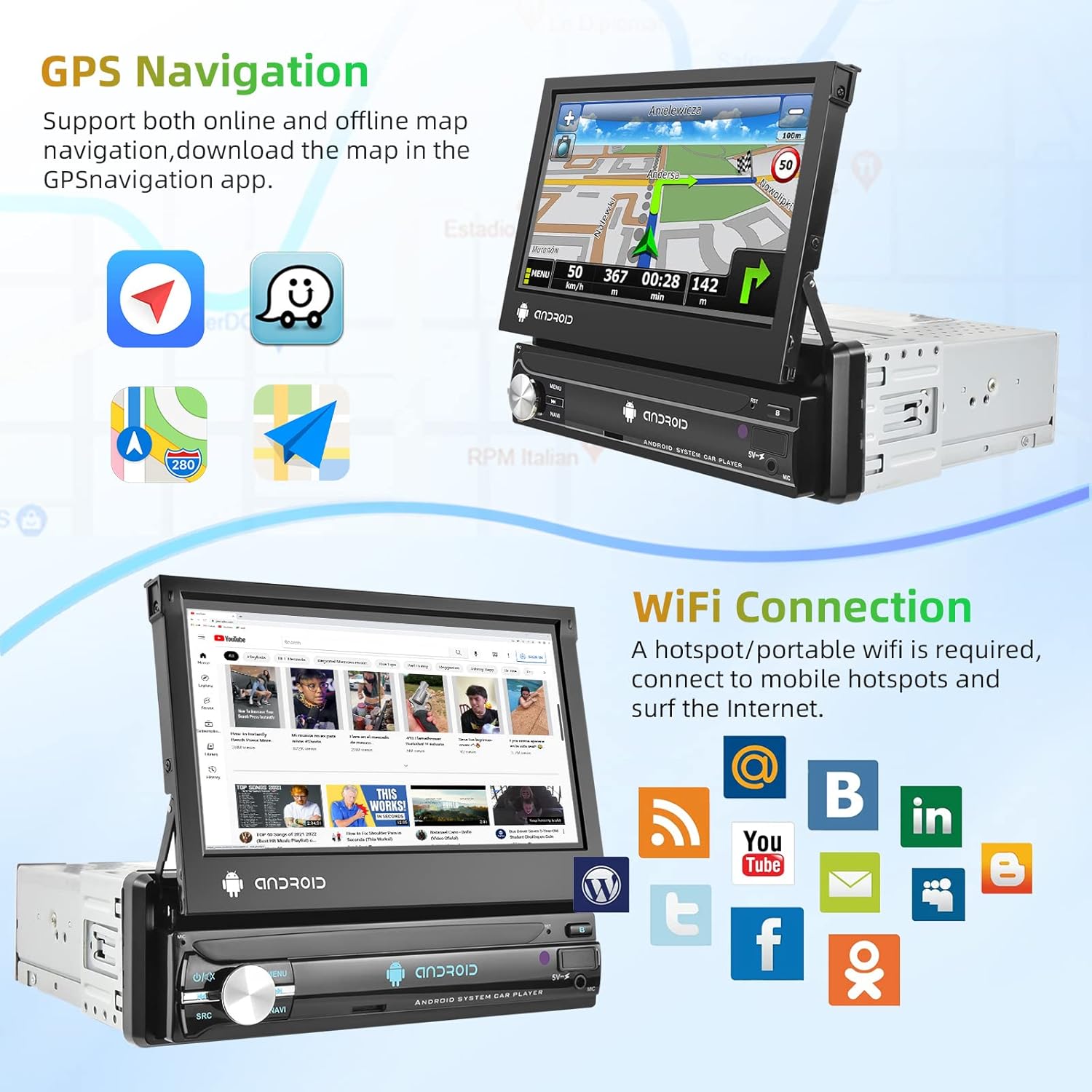
Image 5.2: GPS navigation and Wi-Fi connection features.
5.5 Khokelo ea Wi-Fi
Connect to a mobile hotspot or Wi-Fi network to access online features, download apps, and browse the internet.
- Go to "Settings" and select "Wi-Fi".
- Turn on Wi-Fi and select your desired network.
- Kenya phasewete haeba ho hlokahala.
5.6 Sehokelo sa Seipone
Project your smartphone screen onto the car stereo display. Supports both Android and iOS devices via USB connection.
- Connect your smartphone to the car stereo via a USB cable.
- Follow the on-screen prompts on both your phone and the stereo to establish the connection.

Image 5.3: Split screen, EQ settings, Mirror Link, and Steering Wheel Control features.
5.7 Backup Camera Display
When the vehicle is shifted into reverse gear, the car stereo will automatically display the view from the connected backup camera.
5.8 Taolo ea Lebili la Setere (SWC)
Configure your vehicle's steering wheel buttons to control the car stereo functions.
- Go to "Settings" and find the "Steering Wheel Control" or "SWC Learning" option.
- Follow the on-screen instructions to assign functions to each button.
5.9 EQ Setting
Adjust audio equalization for a personalized sound experience.
- Access the "EQ" or "Sound Settings" menu.
- Choose from preset equalizer modes or manually adjust frequency bands.
5.10 Arola skrine
Run two applications simultaneously on the screen for enhanced multitasking.
- While an app is open, long-press the recent apps button or drag an app to one side of the screen (depending on Android version).
- Select another app to open on the other side.
6. Tlhokomelo
- Ho hloekisa skrini: Use a soft, lint-free cloth to gently wipe the touch screen. Avoid abrasive cleaners or solvents.
- Tlhoekiso e Akaretsang: Keep the unit free from dust and debris. Use a dry cloth for the main body.
- Lintlafatso tsa Software: Nako le nako hlahloba lintlafatso tsa software ka litlhophiso tsa sistimi ho netefatsa ts'ebetso e ntle le phihlello ea likarolo tse ncha.
7. Ho rarolla mathata
| Bothata | Lebaka le ka khonehang | Tharollo |
|---|---|---|
| Yuniti ha e sebetse. | Incorrect wiring, blown fuse, no power supply. | Check power cable connections (ACC, B+, GND). Verify vehicle fuse. Ensure vehicle battery is charged. |
| Ha ho molumo. | Speaker wires disconnected, volume too low, incorrect audio source. | Check speaker wiring. Increase volume. Select correct audio source (FM, Bluetooth, USB, AUX). |
| Letšoao la GPS le lahlehile kapa le fosahetse. | GPS antenna improperly connected or obstructed. | Ensure GPS antenna is securely connected and mounted in a clear location (e.g., dashboard, not under metal). |
| Bluetooth ha e hoketsoe. | Bluetooth off on either device, incorrect pairing process. | Ensure Bluetooth is enabled on both the stereo and phone. Delete previous pairings and try pairing again. |
| bekapo khamera ha e hlahe. | Camera not powered, video cable disconnected, reverse trigger wire not connected. | Check camera power and video connections. Ensure the reverse trigger wire is correctly connected to the vehicle's reverse light. |
8. Tiisetso le Tšehetso
8.1 Boitsebiso ba Tiisetso
Sehlahisoa sena se tla le a Tiisetso ea lilemo tse 2 ea moetsiKa kopo boloka bopaki ba theko ea hau bakeng sa likopo tsa waranti. Tiisetso e koahela liphoso thepa le moetso tlas'a ts'ebeliso e tloaelehileng.
8.2 Tšehetso ea Bareki
For technical assistance, troubleshooting beyond this manual, or warranty inquiries, please contact Podofo customer support through the retailer where the product was purchased or visit the official Podofo websaete bakeng sa lintlha tsa ho ikopanya.