
Selelekela
This manual provides essential information for the safe and efficient use of your ONN 42-Inch Full HD LED Smart TV, Model 100018254. Please read these instructions thoroughly before operating your television and retain them for future reference.
Se ka Lebokoseng
Netefatsa hore likarolo tsohle li teng pele o tsoela pele ka ho seta.
- ONN 42-Inch Full HD LED Smart TV
- Remote Control
- Seteishene sa TV (likotoana tse 2)
- Likokoana-hloko tsa Seteishene sa TV
- Mohala oa Matla
- Tataiso ea ho Qala ka Potlako (ha e kenyelelitsoe bukeng ena)

Setšoantšo: Pele view of the ONN 42-inch Smart TV displaying the Roku TV home screen with various streaming app icons like Netflix, Disney+, Apple TV, Hulu, Peacock, and Roku Channel. The TV is black with slim bezels and two stand feet.
Tlhophiso
1. Ho hokela Seteishene sa TV
- Beha skrine ea TV ka hloko holim'a sebaka se bonolo, se hloekileng ho thibela tšenyo.
- Lokisa karolo e 'ngoe le e 'ngoe ea setofo le masoba a screw a tsamaisanang le botlaaseng ba TV.
- Sireletsa sekoahelo se seng le se seng ka li-screws tse fanoeng. Netefatsa hore li tiisitsoe ka thata.

Image: A diagram illustrating the dimensions of the ONN 42-inch TV, showing its width as 43 inches and height as 37 inches when placed on its stand.
2. Ho Beha Lebota (Ha ho boikhethelo)
This TV is compatible with VESA standard wall mounts. Refer to your wall mount's instructions for proper installation. Ensure the wall mount can support the weight of the television.

Setšoantšo: Ka morao view of the ONN 42-inch TV, highlighting the VESA mounting screw holes in a square pattern and various input ports on the side and bottom right.
3. Ho Hokela Lisebelisoa
Connect your external devices such as cable boxes, gaming consoles, or Blu-ray players to the TV's input ports.
- HDMI: For high-definition audio and video. Use an HDMI cable to connect devices like set-top boxes, game consoles, or streaming sticks.
- USB: Bakeng sa ho hokela lisebelisoa tsa polokelo ea USB ho bapala media files.
- WiFi: For internet connectivity to access smart TV features and streaming services.
4. Motlakase oa ho Qala le ho Seta Wizate
- Hokela thapo ea motlakase ka har'a TV ebe u e kenya leboteng.
- Tobetsa konopo ea matla ho remote control kapa ho TV ka boeona.
- Follow the on-screen instructions to complete the initial setup, including language selection, network connection (Wi-Fi), channel scanning, and linking to your Roku account (if applicable).
Ho tsamaisa TV
1. Remote Control Overview
The remote control allows you to navigate the TV's interface and control various functions.
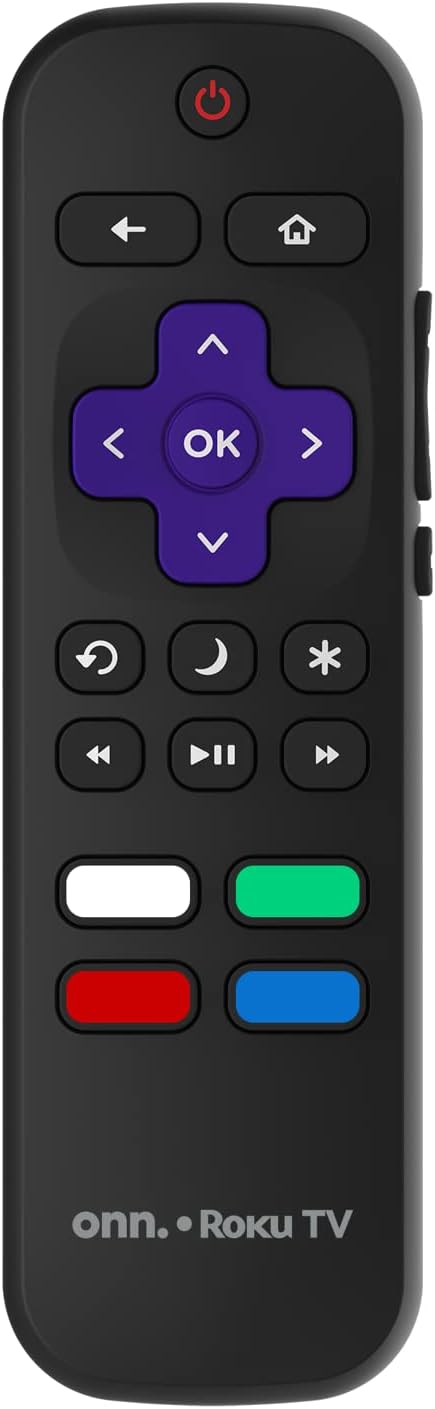
Image: The ONN Roku TV remote control, featuring a power button, directional pad, OK button, home button, back button, volume controls, and dedicated buttons for popular streaming services.
- Konopo ea Matla: E bulela kapa e tima TV.
- Directional Pad (D-Pad) & OK: E tsamaisa ka har'a limmapa ebe e netefatsa likhetho.
- Konopo ea Lehae: Returns to the Roku TV home screen.
- Konopo ea ho Khutlela: E khutlela skrineng kapa lethathamong le fetileng.
- Phahamiso ea Phahamiso / Tlase: E fetola molumo oa molumo.
- Konopo ea Limumu: E khutsisa kapa e khutsisa molumo.
- Channel Holimo/tlase: E fetola dikanale (bakeng sa di-input tsa antenna/cable).
- Likonopo tsa App tse inehetseng: Quick access to popular streaming services like Netflix, Hulu, etc.
2. Lisebelisoa tsa Smart TV
Your ONN Smart TV provides access to a wide range of streaming content and smart functionalities.
- Litšebeletso tsa ho phallela: Access pre-installed apps like Netflix, YouTube, and many more through the Roku Channel Store.
- Taolo ea Lentsoe: Compatible with Alexa and Google Assistant for hands-free control (requires a separate compatible voice assistant device).
- Lintlafatso tsa Software tse Iketsang: The TV will automatically update its software when connected to the internet, ensuring you have the latest features and security.
3. Khetho ea ho kenya
To switch between connected devices (e.g., cable box, game console), use the Kenyeletso button on your remote or select the desired input from the Roku TV home screen.
4. Litlhophiso tsa Setšoantšo le Molumo
Access the TV's settings menu to customize picture and sound preferences. Navigate to Settings > TV picture settings or Lisebelisoa> Audio to adjust options like brightness, contrast, color, sound mode, and equalizer settings.
Tlhokomelo
1. Ho hloekisa Screen
- Always turn off the TV and unplug it before cleaning.
- Sebelisa lesela le bonolo, le se nang linte, hanyenyane dampe kentsoeng ka metsi kapa sehloekisi se khethehileng sa skrine.
- Se ke oa fafatsa sehloekisi ka kotloloho skrineng. E sebelise lesela pele.
- Avoid using abrasive cleaners, alcohol, benzene, or thinners, as these can damage the screen.
2. Lintlafatso tsa Software
Ensure your TV is connected to the internet to receive automatic software updates. These updates improve performance, add features, and enhance security. You can manually check for updates in the Di-setting > Sistimi > Ntlafatso ya sistimi menu.
Ho batle phoso
Haeba u kopana le mathata ka TV ea hau, sheba litharollo tse latelang tse tloaelehileng:
Ha ho Matla
- Sheba hore na thapo ea motlakase e hoketsoe ka mokhoa o sireletsehileng TV le leboteng.
- Netefatsa hore sehokelo sa lebota sea sebetsa ka ho hokela sesebelisoa se seng.
- Leka ho tobetsa konopo ea matla ho TV ka boeona, eseng feela remote.
Ha ho Setšoantšo / Sets'oants'o se Sothehileng
- Ensure the correct input source is selected (e.g., HDMI 1, HDMI 2).
- Sheba likhokahano tsohle tsa lithapo lipakeng tsa TV le lisebelisoa tsa kantle.
- Try a different HDMI cable if possible.
- Adjust picture settings (brightness, contrast) in the TV menu.
Ha ho Molumo / Molumo o tlase
- Check if the TV is muted or if the volume is turned down.
- Ensure external audio devices (soundbars, receivers) are properly connected and powered on.
- Check audio settings in the TV menu.
Mathata a Khokahano ea Marang-rang
- Verify your Wi-Fi router is powered on and functioning.
- Qala hape router ea hau le modem.
- Eya ho Litlhophiso > Marang-rang > Hlahloba khokahano on your TV to diagnose the issue.
- Netefatsa hore o kenya phasewete e nepahetseng ea Wi-Fi.
Litlhaloso
| Sebopeho | Lintlha |
|---|---|
| Nomoro ea Mohlala | 100018254 |
| Boholo ba skrine | 42 lisenthimithara |
| Bontša Theknoloji | LED |
| Qeto | 1080p (HD e felletseng) |
| Refresh Rate | 60 Hz |
| Khokahano | USB, Wi-Fi |
| Litšebeletso tsa Inthanete tse tšehelitsoeng | Netflix, YouTube (and others via Roku platform) |
| Mokhoa oa ho Laola | Voice (via Alexa & Google Assistant compatible devices), Remote Control |
| Mofuta oa ho Beha | Wall Mount (VESA e lumellana) |
| Mmala | Ntsho |
| UPC | 671227025567 |

Image: Energy Guide label for Television Model 100018254, indicating an estimated yearly energy cost of $11 based on 12 cents per kWh and 5 hours use per day.
Warranty le Tšehetso
For warranty information and technical support, please refer to the documentation included with your purchase or visit the official ONN support websebaka. Boloka rasiti ea hau ea theko bakeng sa likopo tsa tiisetso.