
JEYI I9-Seal
JEYI I9-Seal M.2 NVMe SSD Enclosure User Manual
Model: I9-Seal
Selelekela
This manual provides comprehensive instructions for the installation, operation, and maintenance of your JEYI I9-Seal M.2 NVMe SSD Enclosure. This device converts an NVMe M.2 solid-state drive into a portable external storage solution with high-speed USB 3.2 Gen 2 connectivity.
Litaba tsa Sephutheloana
Ka kopo netefatsa hore lintho tsohle tse thathamisitsoeng ka tlase li kenyelelitsoe ka har'a sephutheloana sa hau:
- JEYI M.2 NVMe SSD Enclosure
- Thermal Pads
- Screwdriver
- USB-A to USB-C Cable (10Gbps)
- USB-C to USB-C Cable (10Gbps)
- Lanyard

Litaelo tsa ho seta
Follow these steps to install your NVMe M.2 SSD into the JEYI I9-Seal enclosure:
- Prepare the Enclosure: Gently slide open the enclosure to reveal the internal PCB.
- Apply Thermal Pad: Peel off the protective films from both sides of a thermal pad and carefully place it onto the NVMe SSD chip area. This aids in heat dissipation.
- Insert NVMe SSD: Align your NVMe M.2 SSD (2280 form factor only) with the M-Key slot on the PCB. Insert the SSD firmly but gently into the slot at an angle.
- Sireletsa SSD: Once inserted, gently push down the SSD and secure it with the provided screw using the included screwdriver. Ensure the SSD is flat and securely fastened.
- Close the Enclosure: Carefully slide the enclosure cover back into place until it clicks securely.


Litaelo tsa Ts'ebetso
Once your NVMe SSD is securely installed, connect the enclosure to your device:
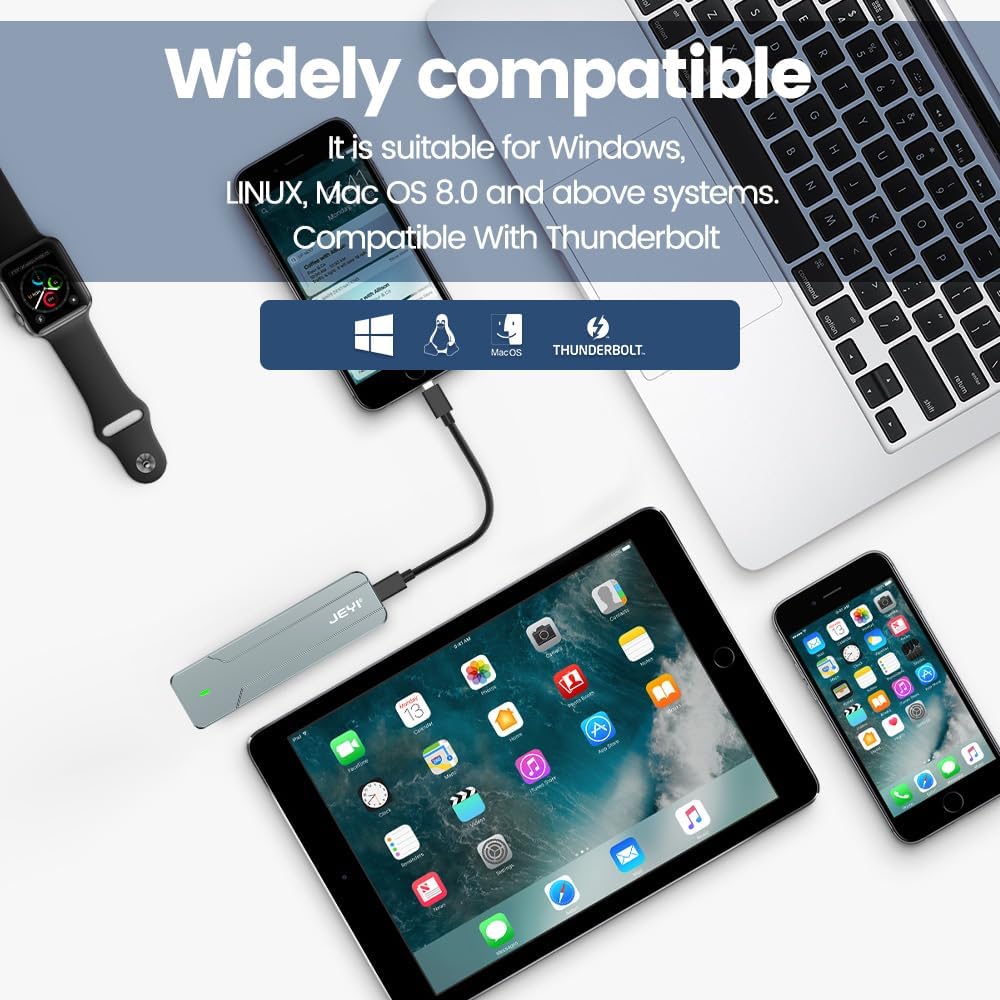
- Hokela ho Sesebediswa: Use either the provided USB-C to USB-C cable or the USB-A to USB-C cable to connect the enclosure to a compatible USB port on your computer, smartphone, tablet, or game console.
- Lesupa la Matla: A small LED indicator on the enclosure will illuminate, signifying that the device is powered on and connected.
- Disk Recognition: Your operating system (Windows, macOS, Linux, Android, iOS) should automatically detect the new storage device. If it's a new SSD, you may need to initialize and format it through Disk Management (Windows) or Disk Utility (macOS) before use.
- Phetisetso ea Lintlha: You can now perform data backup, file transfers, disk upgrades, data recovery, or use it for storage expansion. The enclosure supports USB 3.2 Gen 2 speeds up to 10Gbps.

Tlhokomelo
To ensure optimal performance and longevity of your JEYI I9-Seal enclosure:
- Taolo ea Mocheso: Aluminium casing and thermal pads are designed for efficient heat dissipation. During prolonged high-speed data transfers, the enclosure may become warm to the touch. This is normal and indicates effective heat transfer from the SSD.
- Ho hloekisa: Use a soft, dry cloth to clean the exterior of the enclosure. Avoid using liquid cleaners or solvents.
- Polokelo: When not in use, store the enclosure in a cool, dry place away from direct sunlight and extreme temperatures.
- Tlhokomelo ea Lithapo: Handle the USB cables carefully. Avoid sharp bends or excessive pulling to prevent damage.
Ho batle phoso
| Bothata | Lebaka le ka khonehang | Tharollo |
|---|---|---|
| Enclosure not detected by computer. |
|
|
| Mabelo a liehang a phetiso ea data. |
|
|
| Enclosure gets very hot. |
|
|
Litlhaloso
| Sebopeho | Lintlha |
|---|---|
| Mohlala | I9-Seal |
| Brand | JEYI |
| Sesebelisoa sa Hardware | USB 3.2 Gen 2 (USB-C) |
| Sekhahla sa Phetiso ea Lintlha | Ho fihlela ho 10 Gbps |
| Compatible SSD Type | NVMe M.2 (PCI-E M-Key) |
| Supported SSD Form Factor | 2280 (80mm) only |
| Bokhoni ba ho Boloka bo Phahameng | 4 TB |
| Chipset | JMS583 A3 |
| Likaroloana | UASP Support, TRIM Support, Win to Go (WTG) Support |
| Lintho tse bonahalang | Aluminium Alloy |
| Mmala | Silevera |
| Litekanyo tsa Sehlahisoa | 4.06 x 1.02 x 0.39 inches (103 x 26 x 10 mm) |
| Boima ba Ntho | 0.317 ounces (9 dikgerama) |
| Litsamaiso tsa Ts'ebetso tse tsamaellanang | Windows, macOS, Linux, iOS, Android |

Warranty le Tšehetso
For warranty information or technical support, please refer to the official JEYI website or contact their customer service directly. Details regarding specific warranty periods and support channels are typically provided with your purchase documentation or on the manufacturer's websebaka.
Moetsi: JEYI
Websebaka: Visit the JEYI Store on Amazon
Ask a question about this manual
Ask about setup, troubleshooting, compatibility, parts, safety, or missing instructions. Manuals+ will review the question and use this page’s manual context to help answer it.