
1. Selelekela
Thank you for choosing the LDNIO SCW1050 WiFi Smart Plug. This manual provides essential information for the safe and efficient use of your smart plug. Please read it thoroughly before installation and operation, and retain it for future reference.
2. Sehlahisoa Overview
The LDNIO SCW1050 is a smart electric plug designed to integrate seamlessly into your smart home ecosystem. It features WiFi connectivity for remote control, a timing function for scheduled operations, and multiple safety protections. Its fire-resistant polycarbonate structure ensures durability and safety.
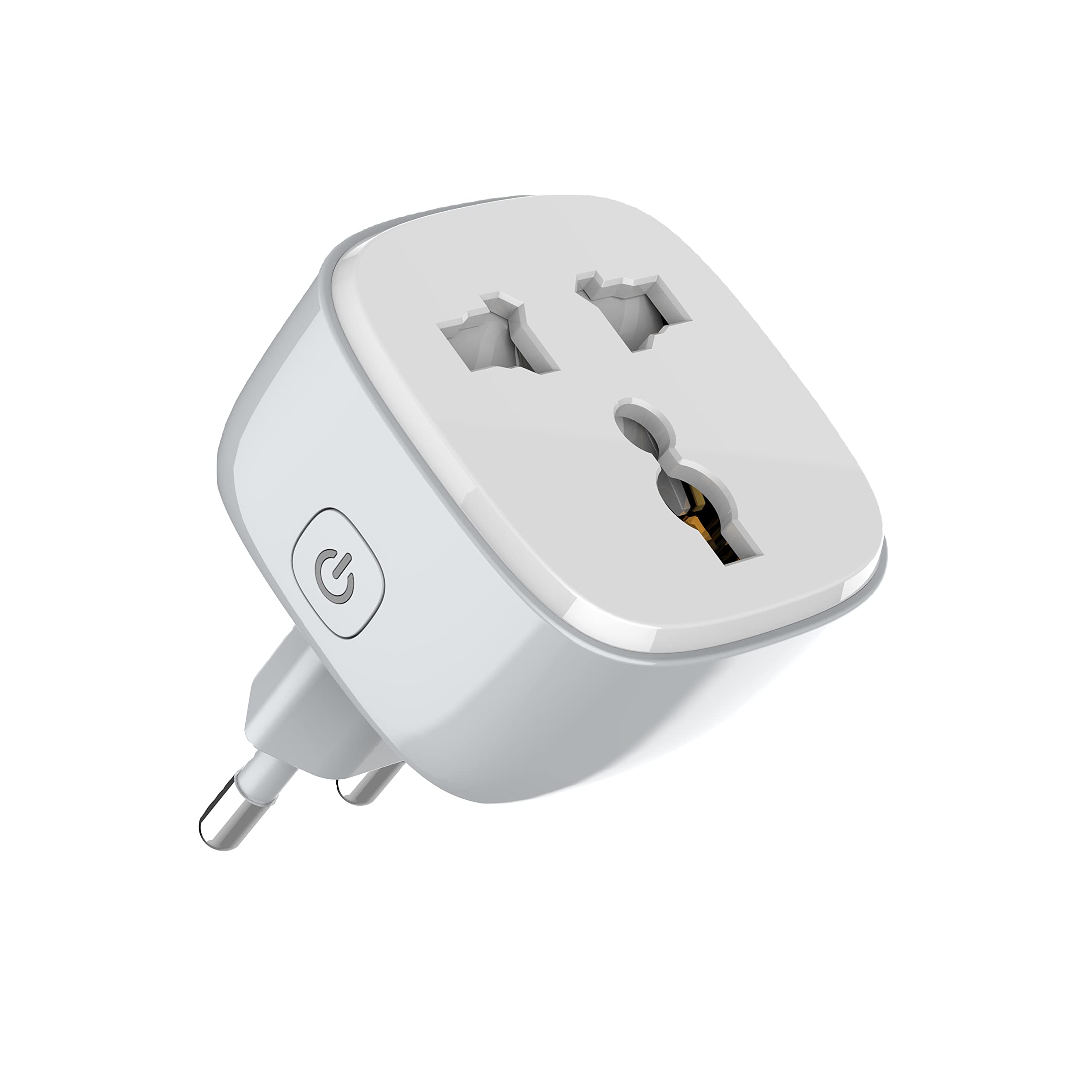
Setšoantšo sa 1: Pele view of the LDNIO SCW1050 WiFi Smart Plug.

Setšoantšo sa 2: Angled view of the LDNIO SCW1050 WiFi Smart Plug, highlighting its compact design.
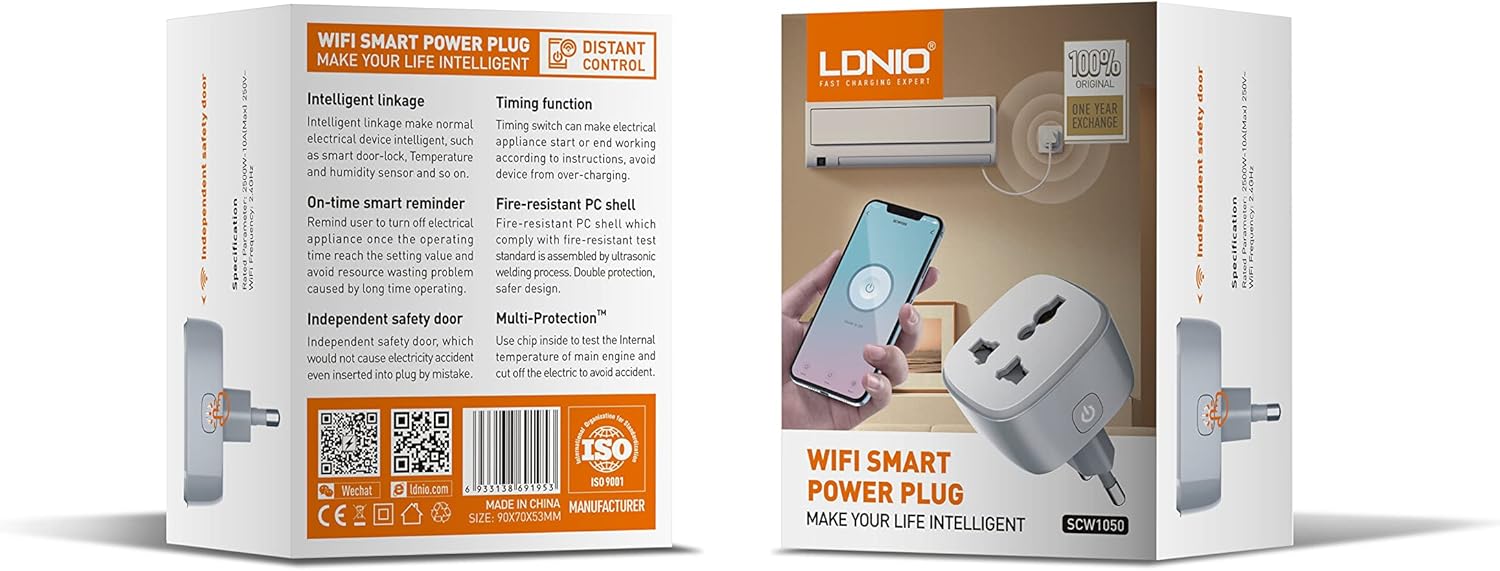
Figure 3: Product packaging illustrating key features such as intelligent linkage, timing function, on-time smart reminder, independent safety door, fire-resistant PC shell, and multi-protection. For more information, visit www.siyoteam.com.
3. Boitsebiso ba Tšireletseho
- Se ke oa qhaqha kapa oa fetola sesebelisoa.
- Netefatsa hore polaka e kentsoe ka botlalo ka har'a sokete ea lebota.
- Do not overload the smart plug beyond its rated capacity (2500W, 10A).
- Boloka sesebelisoa hole le metsi, mongobo le mocheso o phahameng.
- Sehlahisoa sena ke sa tšebeliso ea ka tlung feela.
- If the device is damaged, discontinue use immediately and contact support.
4. Seta
4.1 Khokahano ea Pele
- Plug the LDNIO SCW1050 Smart Plug into a standard wall outlet.
- Ensure the indicator light on the smart plug is blinking, indicating it is in pairing mode. If not, press and hold the power button for 5-10 seconds until it blinks rapidly.
4.2 Ho Kenya App le ho Kopanya
- Download the compatible smart home application (e.g., Tuya Smart or Smart Life app) from your mobile device's app store.
- Ngolisa kapa kena akhaonteng ea hau ka har'a sesebelisoa.
- Tap the "+" icon or "Add Device" to begin the pairing process.
- Khetha "Sesebelisoa sa Motlakase" kapa "Smart Plug" lenaneng la disebediswa.
- Follow the on-screen instructions to connect the smart plug to your 2.4GHz WiFi network. Ensure your phone is connected to the same 2.4GHz network during setup.
- Once successfully paired, you can rename the device and assign it to a room.

Figure 4: Remote control of the smart plug using a mobile application.
5. Litaelo tsa Ts'ebetso
5.1 Taolo ea matsoho
Press the power button on the smart plug to manually turn the connected appliance on or off.
5.2 Taolo ea App
- Bula/E tima: Tap the power icon next to the device in the app to toggle power.
- Mosebetsi oa Nako: Set schedules for the smart plug to turn on or off automatically at specific times. This is useful for managing lighting or other appliances.
- Smart Reminders: Configure smart reminders within the app to receive notifications or automate actions based on usage patterns or set conditions.
- Khokahano e Bohlale: Connect your smart plug with other smart devices or sensors to create automated scenarios (e.g., turn on a lamp when a motion sensor is triggered).
6. Tlhokomelo
- To clean the smart plug, disconnect it from the power outlet and wipe it with a dry, soft cloth.
- Se ke oa sebelisa metsi kapa aerosol cleaners.
- Kamehla hlahloba matšoao leha e le afe a ho senyeha kapa ho senyeha.
7. Ho rarolla mathata
- Sesebelisoa ha se hoketsoe ho WiFi: Ensure your WiFi network is 2.4GHz. Check that the smart plug is within range of your router. Restart the smart plug and your router, then try pairing again.
- Taolo ea lisebelisoa ha e sebetse: Verify your phone has an active internet connection. Ensure the smart plug is connected to WiFi and its indicator light is solid. Update the app to the latest version.
- Appliance not turning on/off: Check if the appliance is properly plugged into the smart plug and if the appliance itself is functional. Ensure the smart plug is receiving power.
- Indicator light behavior:
- Ho panya ka potlako: Itokiselitse ho kopanya.
- Ho panya butle: Disconnected from WiFi.
- E tiileng: Connected to WiFi and operating normally.
8. Litlhaloso
| Sebopeho | Tlhaloso |
|---|---|
| Nomoro ea Mohlala | SCW1050 |
| Rated Power | 2500W |
| E lekantsoe Hona Joale | 10A (Boholo) |
| E lekantsoe Voltage | 250V ~ |
| WiFi Frequency | 2.4GHz |
| Litekanyo tsa Sehlahisoa | 7.62 x 5.08 x 5.08 cm, |
| Boima ba Sehlahisoa | 70 dikgerama |
| Shell Material | Fire-resistant Polycarbonate |
9. Tiisetso le Tšehetso
LDNIO offers a One Year Exchange warranty for this product, as indicated on the packaging. For technical support, warranty claims, or further inquiries, please visit the official LDNIO website at www.siyoteam.com kapa ikopanye le morekisi oa lehae oa hau.
You may also find additional resources and community support through the WeChat platform by scanning the QR code found on the product packaging (refer to Figure 3).