
Selelekela
The ViewSonic X11-4K projector offers true 4K Ultra HD resolution with HDR/HLG support, advanced LED technology, and smart capabilities in a portable design. This manual provides essential information for setting up, operating, maintaining, and troubleshooting your projector to ensure an optimal cinematic experience in any home environment.
Se ka Lebokoseng
- ViewSonic X11-4K Projector
- Motlakase oa Motlakase
- Remote Control
- Tataiso ea ho Qala ka Potlako
Likarolo tsa Sehlahisoa
- 4K UHD LED Projection: Delivers bright 1000 ANSI lumens with a short throw lens for supersized movies and games.
- Vivid Colors: Achieves 125% Rec. 709 color accuracy and supports HDR/HLG content for lifelike visuals.
- Molumo oa Premium: Features built-in Dual Harman Kardon Bluetooth speakers for room-filling sound.
- Tlhophiso e Bonolo: Includes 0.8x-1x digital zoom, instant auto focus, vertical/horizontal keystone, and 4-corner adjustment for flexible placement.
- Tsebo ea ho phallela: Supports livestreaming and content consumption from various platforms by adding a compatible dongle (not included).
- Khokahano ea Flexible: Compatible with most media players, PCs, Macs, and mobile devices via Wi-Fi, HDMI, and USB-C inputs.
Tlhophiso
The ViewSonic X11-4K is designed for effortless setup. Place the projector on a stable surface a few feet from your desired projection area. The short throw lens can project images up to 100 inches from a short distance. Utilize the instant auto focus, H/V keystone, and 4-corner adjustments to achieve a perfectly aligned and sharp image.
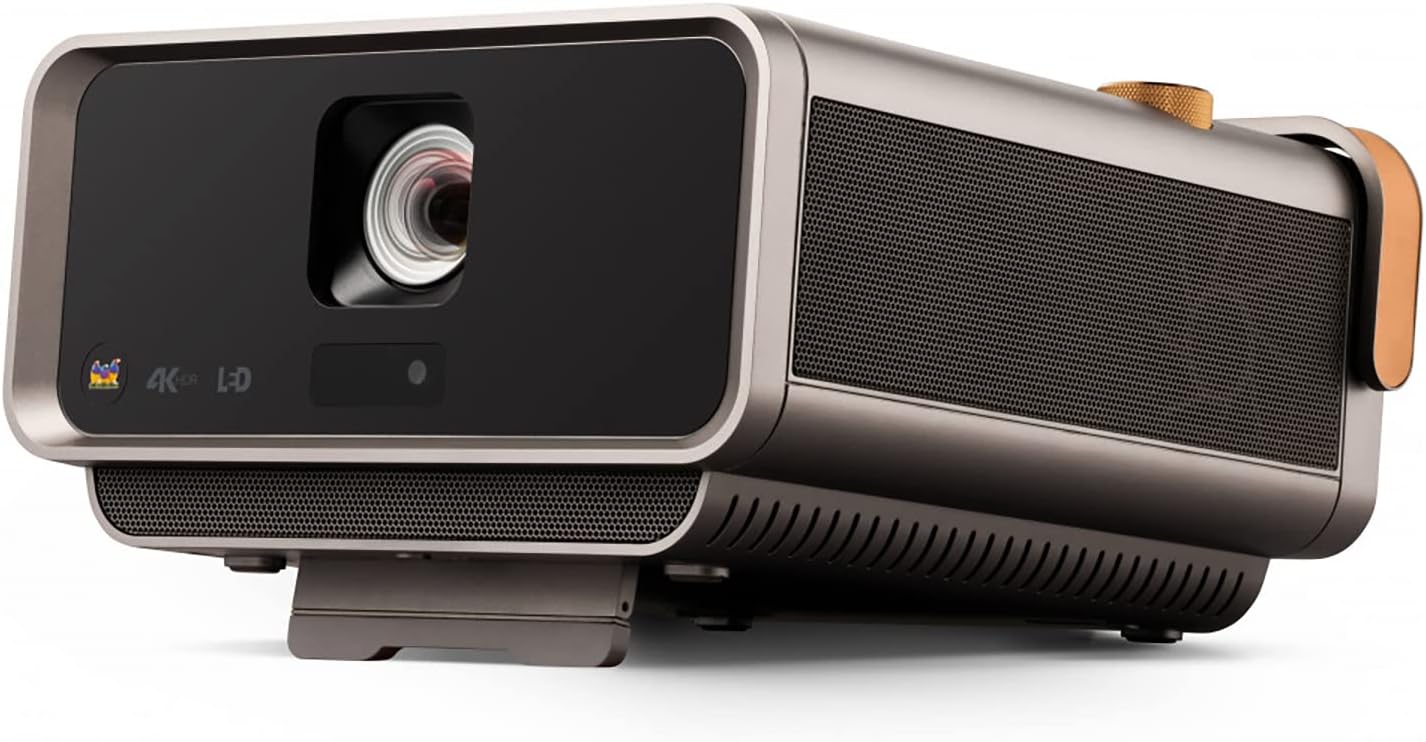
Setšoantšo sa 1: Pele view tsa ViewSonic X11-4K projector, showcasing the lens and sleek design.

Figure 2: Visual representation of the autofocus, digital zoom, 4-corner keystone, and auto keystone adjustment features for easy setup.
Litaelo tsa Ts'ebetso
Power on the projector using the dedicated button or remote control. Navigate the on-screen menu using the remote to select input sources, adjust picture settings, and manage audio options. The intuitive interface allows for quick access to all functionalities.

Setšoantšo sa 3: Holimo view of the projector showing the integrated control knob for power and volume, along with other control buttons.
Khokahano
The X11-4K offers diverse connectivity options:
- HDMI: Connect external devices such as Blu-ray players, gaming consoles, or set-top boxes.
- USB-C: Directly connect compatible mobile devices, laptops, or gaming consoles like the Nintendo Switch for video streaming and power delivery.
- WiFi: Enable wireless screen mirroring from your smartphone, tablet, or computer.
- Bluetooth: Connect to external Bluetooth speakers or headphones for enhanced audio, or use the projector's built-in Harman Kardon speakers.

Setšoantšo sa 4: Ka morao view of the projector displaying various input and output ports including HDMI, USB-C, and audio jacks.

Figure 5: Illustration of USB-C connectivity with various devices like smartphones, tablets, laptops, and a Nintendo Switch.
Setšoantšo sa Phetoho
Achieve the perfect picture with the following adjustment features:
- Instant Auto Focus: The projector automatically adjusts for optimal clarity.
- H/V Keystone: Corrects distorted images when the projector is not perfectly centered.
- 4-Corner Adjustment: Fine-tune each corner of the image independently for a precise fit on any surface.
- Digital Zoom: Fetola boholo ba setšoantšo ntle le ho tsamaisa projektara.

Figure 6: Diagram illustrating the short throw capability, showing screen sizes (80", 100", 120") at various distances (4.7', 5.8', 7').
Audio
Experience rich and immersive sound with the integrated Harman Kardon speakers. For private listening or connecting to external audio systems, utilize the Bluetooth connectivity or audio output ports.

Figure 7: Image depicting the projector with sound waves emanating from it, highlighting the Harman Kardon speakers and Bluetooth connectivity.
Litlhaloso
| Sebopeho | Lintlha |
|---|---|
| Nomoro ea Mohlala | X11-4K |
| Qeto ea Pontšo | 3840 x 2160 (4K UHD) |
| Khanya | Lumens tse 1000 tsa ANSI |
| Mebala e Nepahetseng | 125% Rec. 709 |
| Khokahano | Wi-Fi, HDMI, USB-C, Ethernet, USB 2.0 Type A |
| Likarolo Tse Khethehileng | Short Throw, H/V Keystone, 4-Corner Adjustment, Instant Auto Focus, Dual Harman Kardon Speakers |
| Litekanyo tsa Sehlahisoa | 10.3 x 10.7 x 2.7 lisenthimithara |
| Boima ba Ntho | 9.9 liponto |

Figure 8: Image detailing the physical dimensions of the ViewSonic X11-4K projector.
Tlhokomelo
Ho netefatsa bophelo bo bolelele le ts'ebetso e nepahetseng ea hau ViewSonic X11-4K projector, follow these maintenance guidelines:
- Tlhoekiso ea Lense: Gently wipe the projector lens with a soft, lint-free cloth designed for optical surfaces. Avoid abrasive materials or harsh chemicals.
- Ho Hloekisa Ka Ntle: Use a soft, dry cloth to clean the exterior of the projector. For stubborn marks, slightly dampen lesela ka metsi.
- Moea oa moea: Ensure that the projector's ventilation openings are clear and unobstructed to prevent overheating.
- Polokelo: Ha e sa sebelisoe ka nako e telele, boloka projektara sebakeng se pholileng, se omileng, haholo-holo ka har'a sephutheloana sa eona sa pele kapa ka har'a lebokose le sireletsang.
Ho batle phoso
Haeba u kopana le mathata ka projeke ea hau, sheba litharollo tse latelang tse tloaelehileng:
- Ha ho Setšoantšo: Check all cable connections (HDMI, USB-C) and ensure the correct input source is selected on the projector. Verify the power cable is securely connected.
- Setšoantšo se Lerootho: Use the instant auto focus feature or manually adjust the focus. Ensure the projection surface is flat and the projector is stable.
- Setšoantšo se sothehileng: Utilize the H/V keystone and 4-corner adjustment features to correct any trapezoidal or uneven image shapes.
- Ha ho Molumo: Check the volume settings on both the projector and the connected source device. Ensure external speakers (if connected via Bluetooth or audio out) are properly paired and powered on.
- Remote Control ha e sebetse: Replace the batteries in the remote control. Ensure there are no obstructions between the remote and the projector's IR receiver.
Warranty le Tšehetso
For warranty information, technical support, or service inquiries, please refer to the official ViewSonic website or contact their customer support. Keep your purchase receipt and product serial number handy for any support requests.
Livideo tsa Sehlahisoa sa Molao
ViewSonic Home Theater and Business Projectors
Video ena e fana ka tlhalosoview of ViewSonic's home theater and business projectors, highlighting key features and applications.
4K Home Theatre Projector
This video demonstrates the capabilities of the 4K home theater projector, focusing on visual quality and user experience.