
1. Sehlahisoa Overview
The UeeVii CPE451 is a 5.8G outdoor wireless bridge designed for long-range point-to-point or point-to-multipoint network extension. It features a 12dBi high-gain antenna and supports a wireless transmission rate of up to 300Mbps, with a 100Mbps RJ45 LAN port for wired connections. This device is ideal for extending network coverage to remote locations such as barns, garages, shops, or other buildings up to 2KM away.

Figure 1: UeeVii CPE451 Wireless Bridges in operation.

Figure 2: Wireless Transmission Rate and Frequency.
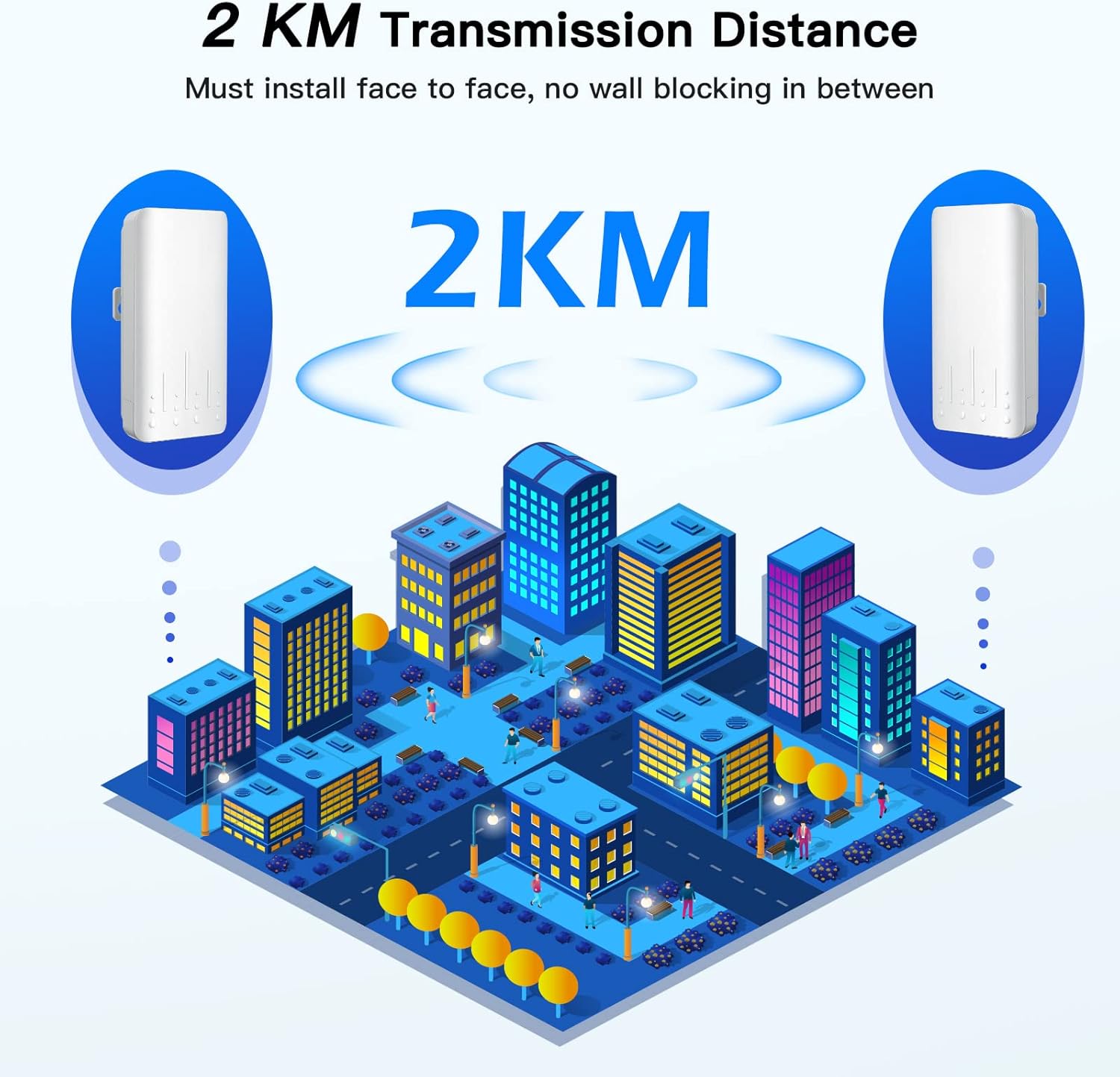
Figure 3: 2KM Transmission Distance capability.
2. Tataiso ea ho seta
2.1 Unboxing le Likahare tsa Pakete
Before beginning installation, please verify all components are present in the package.
Video 1: Unboxing the CPE451 Wireless Bridge.
Pakete hangata e kenyelletsa:
- 2 x UeeVii CPE451 Wireless Bridges
- 2 x PoE Adapters (for power supply)
- 2 x Lithapo tsa Marang-rang
- 2 x Metal Ties (for mounting)
- 1 x Buka ea Mosebelisi

Setšoantšo sa 4: Dikahare tsa Sephutheloana.
2.2 Ho kenya Matla le Kgokelo ya Pele
Connect the PoE adapter to the wireless bridge using a network cable. The network cable serves as both data and power transmission. Plug the PoE adapter into a power outlet.
Video 2: Quick Pairing and Powering On.
2.3 Master/Slave Configuration and Pairing
The CPE451 units need to be configured as a Master Bridge (Transmitter) and a Slave Bridge (Receiver) for point-to-point communication. Each unit has a switch to select its role (A for Master, B for Slave) and a digital display to show the channel number.
- Sete ea Borokho bo Boholo: Move the switch on one unit to 'A'.
- Set Slave Bridge: Move the switch on the second unit to 'B'.
- Beha Mokero o le Mong: Press the 'RST' button on both units within one minute to set them to the same channel number. The pairing process should complete within 2 minutes.

Figure 5: Easy Pairing Process.
2.4 Ho Kenya Lisebelisoa
The CPE451 units are designed for outdoor installation and can be mounted on poles using the provided metal ties. Ensure a clear line of sight between the Master and Slave units for optimal performance.

Setšoantšo sa 6: Example of pole mounting for the CPE451.
3. Litaelo tsa Ts'ebetso
3.1 Connection Topology
The UeeVii CPE451 can be configured in various ways to extend your network:
- Ntlha-ho-Ntho: Connect one Master Bridge to your main router and one Slave Bridge to a device (e.g., PC) or a switch in a remote location.
- Point-to-Multipoint: One Master Bridge can connect to multiple Slave Bridges, extending the network to several remote points.

Figure 7: Connection Topology Examples.
Video 3: Wireless Bridge Special Point - illustrating network extension.
3.2 Extending Network Coverage
The 12dBi high-gain antenna ensures robust signal transmission, allowing you to extend your network to various outdoor and remote environments. Common applications include:
- Extending home network to a barn or garage.
- Providing Wi-Fi to a remote shop or warehouse.
- Connecting surveillance cameras over long distances.

Figure 8: Applications of 12dBi Antenna & WiFi Coverage.

Figure 9: Network extension to an RV garage.


Figure 10: Diverse application scenarios for the CPE451.
3.3 Web Mokhoa oa ho fihlella
To access the device's web interface for advanced configuration, connect a computer directly to the LAN port of the Master or Slave unit (or connect wirelessly if configured). Open a web browser and enter the default IP address (refer to the user manual for the specific IP). The default login credentials are typically Username: admin le Password: admin. It is recommended to change these default credentials for security purposes.
4. Tlhokomelo
To ensure optimal performance and longevity of your UeeVii CPE451 wireless bridge, follow these maintenance guidelines:
- Ho Hloekisa Kamehla: Periodically clean the exterior of the units to remove dust, dirt, and debris. Use a soft, dry cloth. Avoid harsh chemicals or abrasive cleaners.
- Hlahloba Lithapo le Mahokelo: Regularly check all network cables and power connections for any signs of wear, damage, or loose connections. Ensure they are securely fastened and protected from environmental elements.
- Lisebelisoa tsa Firmware: Check the UeeVii official website periodically for firmware updates. Keeping the firmware updated can improve performance, stability, and security.
- Tšireletso ea Tikoloho: Although the devices are IP66 waterproof and designed for outdoor use, ensure they are mounted in locations that minimize direct exposure to extreme weather conditions where possible, such as heavy snow accumulation or prolonged direct sunlight in very hot climates.
5. Ho rarolla mathata
If you encounter issues with your UeeVii CPE451, refer to the following troubleshooting steps:
- Ha ho na Khokahano / Letšoao le Fosahetseng:
- Ensure both Master and Slave units are powered on and their status LEDs are active.
- Verify that the Master and Slave units are configured to the same channel number.
- Check for clear line of sight between the two units. Obstructions like trees, buildings, or hills can significantly degrade signal quality.
- Re-align the units to ensure they are pointing directly at each other.
- Check all Ethernet cable connections.
- Lebelo le Butle la Netweke:
- Confirm that there are no physical obstructions between the units.
- Reduce the distance between the units if possible, or adjust their height for better line of sight.
- Check for potential interference from other 5.8Ghz devices in the area. Try changing the channel number.
- Ensure your connected devices (e.g., router, PC) are capable of 100Mbps speeds to match the CPE451's LAN port.
- Ha e khone ho kena Web Sehokelo:
- Verify your computer's IP address is in the same subnet as the CPE451 (e.g., if CPE is 192.168.1.1, set your computer to 192.168.1.X).
- Ensure you are using the correct default IP address and login credentials (admin/admin).
- Leka e fapaneng web sebatli.
- Sesebediswa Ha se Matla:
- Check the power outlet and the PoE adapter.
- Ensure the Ethernet cable connecting the PoE adapter to the CPE unit is not damaged and is properly seated.
6. Litlhaloso
| Sebopeho | Tlhaloso |
|---|---|
| Brand | UeeVii |
| Nomoro ea Mohlala | EA-451-CPEXNUMX |
| Tekanyetso ea puisano e se nang mohala | Radio Frequency (5.8G) |
| Sekhahla sa phetiso ea waelese | 300Mbps |
| LAN Port Speed | 100Mbps RJ45 |
| Monyetla oa Antenna | 12dBi High Gain |
| Sebaka sa phetiso | Up to 2KM (with clear line of sight) |
| Phepelo ea motlakase | Adapter ea 24V PoE |
| Tekanyetso e thibelang boemo ba leholimo | IP66 e sa keneleng metsi |
| Likarolo Tse Khethehileng | WPS, High-temperature resistance, Lightning Protection, Freeze-Proofing |
| Litekanyo tsa Sehlahisoa | 8.11 x 2.6 x 11.26 lisenthimithara |
| Boima ba Ntho | 1.72 liponto |
| Mokhoa oa tšebetso | RouterOS |
| Mokhoa oa ho Laola | App |
7. Warranty & Ts'ehetso
For any product-related inquiries, technical support, or warranty claims, please contact UeeVii customer service. You can typically find support contact information, including email, on the official UeeVii websetsheng kapa ka hara sephuthelo sa sehlahiswa.
Email Service Customer: support@ueevii.com
Ka kopo, boloka bopaki ba theko ea hau molemong oa tiisetso.