
Selelekela
This manual provides detailed instructions for the BINIZE Portable Carplay Screen Navigation system. It covers setup, operation, and maintenance to ensure optimal performance and user experience.
Boitsebiso ba Tšireletseho
- Netefatsa hore sesebelisoa se kentsoe ka mokhoa o sireletsehileng 'me ha se u sitise view kapa ho kena-kenana le ditaolo tsa koloi.
- Connect the power cord only to a 12V cigarette lighter port.
- Se ke oa leka ho harola kapa ho fetola sesebelisoa.
- Kamehla etelletsa pele ho kganna ka mokhoa o sireletsehileng. O se ke wa sebedisa sesebediswa ka tsela e tla o sitisa tseleng.
Litaba tsa Sephutheloana
Netefatsa hore lintho tsohle li teng ka har'a sephutheloana:
- BINIZE Portable Carplay Screen Navigation Unit
- Cable ea Matla a Koae e Khanyang
- Cable ea Katoloso ea USB
- Audio Output Cable (RCA)
- Mounting Bracket with 3M Adhesive
- Remote Control
- Bukana ea mosebelisi (tokomane ena)
Tlhophiso
1. Ho kenya Sesebelisoa
Khetha sebaka se loketseng dashboard ea hau se sa u sitiseng view kapa ditaolo tsa koloi.

The base of the mounting bracket comes with 3M adhesive. Clean the dashboard surface thoroughly before attaching the base. Securely attach the unit to the bracket.

Adjust the screen angle for optimal viewng.
2. Khokelo ea Matla
Connect the cigarette lighter power cable to the device and insert it into your vehicle's 12V cigarette lighter port. The device will power on automatically.

Ensure the vehicle's voltage pakeng tsa 12V le 14V.
This video demonstrates the initial power-up sequence of the BINIZE Portable Carplay Screen Navigation unit by connecting it to a cigarette lighter port. It shows the "welcome" screen appearing upon successful power-on.
Litaelo tsa Ts'ebetso
1. Initial Setup and Language Selection
Upon first power-on, the device will display the home screen. Navigate to the "Settings" menu to select your preferred language.

2. Dikgetho tsa ho ntsha modumo
The monitor itself does not have internal speakers. Sound is routed through your original car audio system.
Sesebelisoa sa FM
To use the FM transmitter, set the device's FM frequency to match an unused FM channel on your car's stereo.

Ensure both the device and your car stereo are tuned to the same FM frequency for audio output.
RCA Audio Output
For additional audio requirements, such as connecting to a subwoofer or amplifier, use the two RCA ports (White: Audio Out Left, Red: Audio Out Right).
3. Apple CarPlay Connection
To use Apple CarPlay, connect your iPhone to the device using an original Apple data cable via the USB port on the right side of the player.
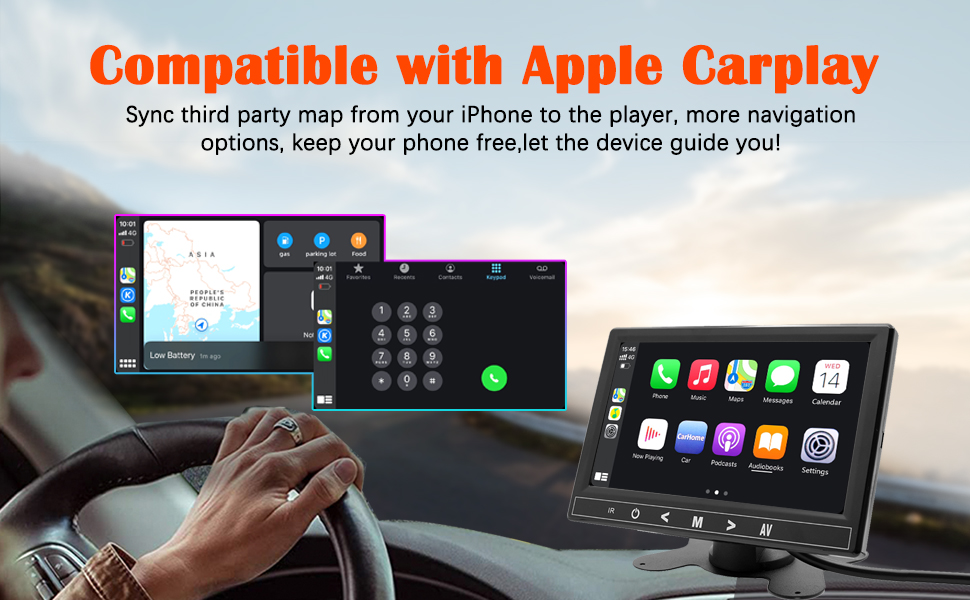
Select "i-Play" in the device settings. Grant any necessary permissions on your iPhone.
This video demonstrates how to connect an iPhone to the BINIZE Portable Carplay Screen Navigation for Apple CarPlay functionality. It shows the steps to select "i-Play" in settings and connect the original data cable.
4. Android Auto Connection
To use Android Auto, connect your Android phone to the device using an original data cable via the USB port on the right side of the player.

Select "A-Auto" in the device settings. Grant any necessary permissions on your Android phone.
This video illustrates the process of connecting an Android phone to the BINIZE Portable Carplay Screen Navigation for Android Auto. It guides the user to select "A-Auto" in settings and connect the data cable.
5. MirrorLink (iPhone)
To mirror your iPhone screen, connect your iPhone to the device using an original Apple data cable via the USB port on the right side of the player.
Select "i-Mirror" in the device settings. Grant permissions on your iPhone. The iPhone screen will be projected onto the player's screen.
This video demonstrates the MirrorLink function for iPhone, showing how to connect the device and mirror the phone's display.
6. MirrorLink (Android Phone)
To mirror your Android phone screen, connect your Android phone to the device using an original data cable via the USB port on the right side of the player.
Select "A-Link" in the device settings. Grant permissions on your Android phone. The Android phone screen will be projected onto the player's screen.
This video demonstrates the MirrorLink function for Android phones, showing how to connect the device and mirror the phone's display.
7. USB Flash Drive Reading
Insert a USB flash drive into the USB extension cable to play music or videos. The device supports various media formats.
8. Ho tjhaja Mohala
The USB extension cable can also be used to charge your mobile phone.
Tlhokomelo
- Keep the screen clean using a soft, dry cloth. Avoid abrasive cleaners.
- Netefatsa hore likhokahano tsohle tsa lithapo li bolokehile.
- Qoba ho beha sesebelisoa mochesong o feteletseng kapa khanya ea letsatsi ka nako e telele.
Ho batle phoso
| Bothata | Lebaka le ka khonehang | Tharollo |
|---|---|---|
| Sesebelisoa ha se sebetse. | No power from cigarette lighter. | Check vehicle's 12V port. Ensure power cable is securely connected. |
| Ha ho tlhahiso ea molumo. | FM frequency not synchronized or incorrect RCA connection. | Match FM frequency on device and car stereo. Verify RCA cable connections. |
| CarPlay/Android Auto ha e hokahane. | Non-original data cable, incorrect settings, or phone permissions. | Use original data cable. Check "i-Play" or "A-Auto" settings. Grant all necessary phone permissions. |
| MirrorLink not working. | Incorrect settings or phone permissions. | Check "i-Mirror" or "A-Link" settings. Grant all necessary phone permissions. |
| Screen freezes or is unresponsive. | Phoso ea nakoana ea software. | Qala sesebediswa hape ka ho ntsha thapo ya motlakase le ho e kenya hape. |
For further assistance, please contact BINIZE customer support.
Litlhaloso
| Sebopeho | Lintlha |
|---|---|
| Brand | BINIZE |
| Nomoro ea Mohlala | B09DSMJ59X |
| Theknoloji ea Khokahano | Bluetooth, RCA, USB |
| Mofuta oa Molaoli | Android, Google Assistant |
| Tšobotsi e Khethehileng | Skrine se thetsoang |
| Lisebelisoa tse lumellanang | Smartphone |
| Mokhoa oa Phatlalatso ea Audio | Setereo |
| Palo ea Likanale | 4 |
| Khouto ea Video | H.264, H.265/HEVC |
| Mokhoa oa ho Laola | Thetsa |
| Theknoloji e se nang mohala | bluetooth |
| Kenyeletso ya Matla | 12V (ka sebonela-mollo sa sakerete) |
Tlhokomeliso: Litlhaloso li ka fetoha ntle le tsebiso pele.
Warranty le Tšehetso
BINIZE products come with a standard manufacturer's warranty. Please refer to the warranty card included in your package for specific terms and conditions.
For technical support, warranty claims, or any other inquiries, please visit the official BINIZE websebaka kapa ikopanye le sehlopha sa bona sa litšebeletso tsa bareki.