
1. Selelekela
This manual provides essential instructions for the safe and efficient use of your Generic charger, designed for Zebra TC51, TC52, TC56, TC57, TC52x, and TC57x Android Scanners. Please read this manual thoroughly before operating the device to ensure proper functionality and longevity.
2. Boitsebiso ba Tšireletseho
- Use only the provided power supply with the charger.
- Se ke oa pepesa tjhaja metsing kapa mongobo o feteletseng.
- Avoid dropping or subjecting the charger to severe impacts.
- Boloka moo bana ba ka fihlang teng.
- Se ke oa leka ho harola kapa ho fetola tjhaja.
3. Likahare tsa Sephutheloana
Netefatsa hore lintho tsohle li teng ka har'a sephutheloana sa hau:
- Generic Charging Cradle
- Power Supply (AC Adapter)

Image: The Generic charging cradle and power supply, shown with a compatible Zebra scanner for illustration.
4. Sehlahisoa Overview
The Generic charger is designed to provide reliable power to your Zebra TC51, TC52, TC56, TC57, TC52x, and TC57x Android Scanners. It features a removable insert to accommodate devices with or without a protective boot/case.

Setšoantšo: E qaqileng view of the Generic charger cradle, highlighting its design.
5. Litaelo tsa ho seta
5.1 Ho hokela tjhaja
- Connect the DC power connector from the power supply to the machine's interface on the charging cradle.
- Plug the power supply into a standard electrical outlet.
5.2 Adjusting for Protective Case (Removable Insert)
The charging cradle features a removable insert (shim) to allow charging of your Zebra scanner with or without a protective boot/case.
- For devices without a protective case: Ensure the insert is in place within the charging cradle.
- For devices with a protective case: Gently remove the insert from the charging cradle. This provides additional space for the device with its case.
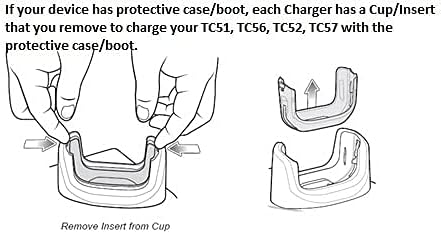
Image: Diagram illustrating the process of removing the insert from the charging cup to accommodate a device with a protective case.

Setšoantšo: Haufi view of the removable insert, highlighting its design and how it fits into the charging cradle.
5.3 Visual Setup Guide
Video: A short demonstration of the charger and its fast-charging capabilities for your workday.
Video: An operational demonstration of the scanner charger cable for Zebra TC51, showing connection and charging status.
Video: A demonstration of the charger cradle for Zebra TC5X series, including how to insert and remove the device for charging.
Video: A visual guide on using the USB charger cable for Zebra TC51, TC510K, TC52, TC56, TC57 models.
6. Litaelo tsa Ts'ebetso
6.1 Ho tjhaja Sesebediswa sa Hao
- Netefatsa hore tjhaja e hoketswe hantle mohloding wa motlakase.
- Carefully place your Zebra scanner into the charging cradle, ensuring the charging contacts align.
- A charging indicator light (usually red or orange) on the scanner or cradle will illuminate to confirm charging has begun.
- The indicator light will change (e.g., to green) or turn off when charging is complete.
7. Tlhokomelo
- Clean the charging contacts on both the cradle and your device regularly with a dry, soft cloth to ensure optimal connection.
- Boloka tjhaja sebakeng se phodileng, se omileng ha e sa sebelisoe.
- Avoid wrapping the cable too tightly to prevent damage.
8. Ho rarolla mathata
8.1 Sesebelisoa se sa Chese
- Sheba Khokahano ea Matla: Ensure the power supply is securely plugged into both the wall outlet and the charging cradle.
- Verify Device Placement: Make sure the Zebra scanner is correctly seated in the cradle and the charging contacts are aligned.
- Inspect Contacts: Clean the charging contacts on both the device and the cradle for any debris or corrosion.
- Removable Insert: If using a protective case, ensure the removable insert has been taken out of the cradle. If not using a case, ensure the insert is properly seated.
- Leka Sebaka se Seng: Test the charger with a different electrical outlet to rule out power source issues.
9. Litlhaloso
| Sebopeho | Tlhaloso |
|---|---|
| Brand | Kakaretso |
| Lisebelisoa tse lumellanang | Zebra TC51, TC52, TC56, TC57, TC52x, TC57x Android Scanners |
| Mofuta oa Sehokelo | 2-Pin |
| Mohloli oa Matla | Motlakase oa Corded |
| Wattage | 15 Watts |
| Khumo Voltage | Li-volts tse 5 |
| Output Current | 3 Amps |
| Tšobotsi e Khethehileng | Removable Insert for Protective Case |
| Theknoloji ea Khokahano | USB |
| Mofuta oa ho Beha | Thaba ea Letlapa |
| Mmala | Ntsho |
10. Boitsebiso ba Tiisetso
Ka kopo sheba sephutheloana sa sehlahisoa kapa sa morekisi. website for specific warranty details. Keep your proof of purchase for any warranty claims.
11. Tšehetso ea Bareki
For further assistance, technical support, or inquiries, please contact the retailer or manufacturer directly. Contact information can typically be found on the product packaging or the seller's online store page.