
Selelekela
This manual provides essential information for setting up, operating, and maintaining your Amazon Fire TV 4-Series 50-inch 4K UHD Smart TV. The Fire TV 4-Series brings vivid 4K Ultra HD, HDR 10, HLG, and Dolby Digital Plus support, offering a clearer and more vibrant picture than 1080p Full HD. Enjoy access to over 1.5 million movies and TV episodes from various streaming services, along with live TV, video games, and music. The integrated Fire TV platform continuously updates with new Alexa skills, features, smart home capabilities, and voice functionality.

Setšoantšo: Pele view of the Amazon Fire TV 4-Series 50-inch 4K UHD Smart TV, showcasing its slim bezel and display.
Se ka Lebokoseng
Carefully unpack the box and ensure all components are present:
- Fire TV 4-Series 50-inch Television
- Sesebelisoa sa ho Ntlafatsa sa Alexa Voice Remote
- Mohala oa Matla
- 2 AAA Batteries (bakeng sa hole)
- 4 Screws (for stand attachment)
- TV Stand (2 legs)
- Tataiso ea ho Qala ka Potlako

Image: All components included in the Amazon Fire TV 4-Series package, laid out for inspection.
Tlhophiso
1. Attaching the TV Stand or Wall Mounting
The TV is designed to be lightweight for easier handling. For the 50-inch model, one person can typically unbox it, but for larger sizes, two people are recommended. The TV stand legs attach easily to the bottom of the television.
- Beha skrini sa TV ka hloko sebakeng se bonolo, se hloekile ho thibela mengwapo.
- Lokisetsa leoto le leng le le leng la ho ema le li-slots tse lumellanang le tlase ho TV.
- Secure each leg with the provided screws.
Alternatively, for wall mounting, the TV supports a VESA Wall Mount Standard of 300 mm x 300 mm. Ensure you use a compatible wall mount (sold separately) and follow its installation instructions carefully.

Image: Visual guide to the TV components and stand assembly.
2. Ho hokahanya Peripherals
Connect your external devices such as cable boxes, gaming consoles, or sound systems to the appropriate ports on the back and side of the TV. The TV features 3 HDMI 2.0 ports and 1 HDMI 2.1 port with eARC, 1 USB port, 1 Ethernet port, and a Digital Optical Audio Port.

Setšoantšo: Ka botlalo view ea likou tsa khokahano ea TV.
3. Matla a Pele a ho Qala le ho Seta Marang-rang
- Hokela thapo ea motlakase ka har'a TV ebe u e kenya leboteng.
- Insert the two AAA batteries into the Alexa Voice Remote Enhanced.
- Press the power button on the remote to turn on the TV.
- Follow the on-screen prompts to select your language and connect to your Wi-Fi network. You can also use an Ethernet cable for a wired connection.
- The TV may download and install software updates. This process can take 10-15 minutes. Allow it to complete without interruption.
- Sign in with your Amazon account. If you do not have one, you will be prompted to create one.
- Configure any desired parental controls or additional channel subscriptions.
Ho tsamaisa TV
Navigation ea Motheo
Use the Alexa Voice Remote Enhanced to navigate the Fire TV interface. The remote features a directional pad for menu navigation, a select button, and dedicated buttons for Home, Back, Menu, and various streaming services.
Using Alexa Voice Remote Enhanced
The included Alexa Voice Remote Enhanced allows you to control your TV and access content using voice commands. Press and hold the Alexa button on the remote, then speak your command. You can ask Alexa to:
- Find and launch movies, TV shows, and apps.
- Control playback (play, pause, fast forward, rewind).
- Adjust TV settings like volume and input source.
- Check weather, sports scores, and other information.
- Laola lisebelisoa tsa lapeng tse tsamaellanang.
The remote can also control certain functions, such as power and volume, on a wide range of compatible IR-enabled devices, soundbars, and A/V receivers. Note that certain functions may not be available on all IR-enabled devices.
Ho fihlella Litaba
The Fire TV interface provides access to a vast library of streaming content. Subscription fees may apply for certain services.

Setšoantšo: Examples of streaming services available on Fire TV.
Khokahano
The Amazon Fire TV 4-Series offers various connectivity options for your home entertainment system:
- Boema-kepe ba HDMI: Likou tse 3 tsa HDMI 2.0 le kou e le 'ngoe ea HDMI 2.1 e nang le eARC bakeng sa likhokahano tsa molumo le video tse nang le tlhaloso e phahameng.
- Ethernet: 1 Ethernet port for a stable wired internet connection.
- USB: 1 USB port for connecting external storage or other USB devices.
- Digital Optical Audio Output: Bakeng sa ho hokela ho li-soundbar kapa li-audio receivers.
- Khokahano e se nang mohala: Supports Wi-Fi for wireless internet access.
- Bluetooth: Bluetooth 5.0 for connecting compatible accessories like headphones.
Litlhaloso
| Sebopeho | Tlhaloso |
|---|---|
| Qeto | 3840 x 2160 (4K UHD) |
| Phahameng ea Matla a Phahameng (HDR) | HDR 10, HLG |
| Mofuta oa Backlight | LED e tobileng |
| Refresh Rate | 60 Hz |
| Boholo ba skrine | 50 inches (49.5 inches viewkhona) |
| Boema-kepe ba HDMI | 3 HDMI 2.0 + 1 HDMI 2.1 e nang le eARC |
| Ethernet Port | 1 |
| Boema-kepe ba USB | 1 |
| Audio Support | Dolby Digital Plus e nang le molumo o kentsoeng ke Dolby |
| Matla a Audio | 8W + 8W |
| Mokhoa oa tšebetso | Lenaneo la TV ea Mollo |
| Product Size (without stand) | 44.2" x 25.6" x 3.5" |
| Boima (ntle le boemo) | 20.6 lb |
| Tekanyetso ea ho Thabisa Leboteng ea VESA | 300 limilimithara x 300 limilimithara |
| Nomoro ea SKU | 4K50N400A |
| Khokahano | Wi-Fi or Ethernet, Bluetooth 5.0 |
| Alexa Voice Remote Enhanced Compatibility | Fire TV 2-Series, Fire TV 4-Series, Fire TV Omni Series, Fire TV Omni QLED Series, Fire TV Cube (3rd Gen) |
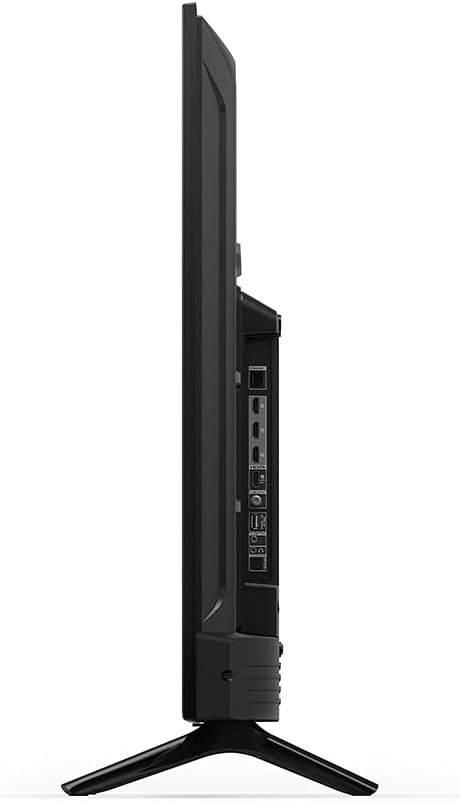
Setšoantšo: Side profile of the TV, highlighting its slimness.
Setšoantšo: Ka morao view of the TV, illustrating the VESA mounting pattern.
Tlhokomelo
Ho hloekisa TV
- Kamehla u tlose TV pele u hloekisa.
- Sebelisa lesela le bonolo, le omeletseng, le se nang lint ho hlakola skrine le khabinete ka bonolo.
- Bakeng sa matšoao a manganga skrineng, ha bobebe dampst lesela le nang le metsi kapa tharollo ea ho hloekisa skrine e etselitsoeng lisebelisoa tsa elektroniki ka ho khetheha. Se ke oa fafatsa mokelikeli ka kotloloho skrineng.
- Qoba ho sebelisa li-cleaner tse khorofo, boka, kapa li-solvent kaha li ka senya qetello.
Lisebelisoa tsa Software
Your Fire TV will periodically receive software security updates to improve performance and add new features. Ensure your TV is connected to the internet to receive these updates automatically. You can also check for updates manually through the TV's settings menu.
Ho batle phoso
If you encounter issues with your Fire TV, refer to the following common solutions:
- Ha ho Matla: Netefatsa hore thapo ea motlakase e hoketsoe ka mokhoa o sireletsehileng ho TV le ka har'a motlakase o sebetsang. Leka mokhoa o mong.
- Ha ho Senepe/Molumo: Verify that the correct input source is selected. Check all cable connections (HDMI, audio) are secure. Restart the TV by unplugging it for 30 seconds and plugging it back in.
- Remoutu ha e arabe: Replace the AAA batteries in the Alexa Voice Remote Enhanced. Ensure there are no obstructions between the remote and the TV. Re-pair the remote if necessary (hold Home button for 10 seconds).
- Mathata a Khokahano ea Marang-rang: Check your Wi-Fi router and modem. Restart your network equipment. Ensure the TV is within range of your Wi-Fi signal or that the Ethernet cable is properly connected.
- Alexa Ha a Arabe: Ensure the remote batteries are fresh. Press and hold the Alexa button firmly when speaking. Check your internet connection.
For more detailed troubleshooting or persistent issues, refer to the online support resources for Fire TV.
Warranty le Tšehetso
Boitsebiso ba Warranty
Your Amazon Fire TV 4-Series 50-inch includes a 1-year limited warranty and service. Optional 3-Year and 4-Year Extended Warranties are available for U.S. customers and can be purchased separately. Use of Fire TV is subject to the terms found on the official Amazon websebaka.
Tšehetso ea Bareki
For additional support, frequently asked questions, or to manage your device, please visit the official Amazon Fire TV support pages online. You can find information specific to your device by visiting the 'Manage Your Content and Devices' section on Amazon.