
1. Selelekela
This user manual provides detailed instructions for the proper use and maintenance of your Zebra DS8178 Wireless 2D/1D Barcode Scanner. Please read this manual thoroughly before operating the device to ensure optimal performance and safety. The DS8178 is designed for efficient and reliable barcode scanning in various environments, offering both 1D and 2D barcode reading capabilities with wireless connectivity.
2. Boitsebiso ba Tšireletseho
Latela mehato e latelang ea tšireletso ho thibela kotsi kapa tšenyo ea sesebelisoa:
- Do not expose the scanner or cradle to extreme temperatures, moisture, or corrosive substances.
- Avoid direct eye exposure to the scanner's light source.
- Use only the specified power adapter and USB cable for charging.
- Se ke oa leka ho harola kapa ho fetola sesebelisoa. Fetisetsa litšebeletso tsohle ho basebetsi ba tšoanelehang.
- Boloka sesebelisoa hole le libaka tse matla tsa makenete.
3. Likahare tsa Sephutheloana
Netefatsa hore lintho tsohle li teng ka har'a sephutheloana sa hau:
- Zebra DS8178 Wireless Barcode Scanner
- USB Communication/Charging Cradle
- Cable ea USB
- Tataiso ea ho Qala ka Potlako (ha e kenyelelitsoe bukeng ena)
4. Sehlahisoa Overview
Familiarize yourself with the components of your Zebra DS8178 scanner and its cradle.

Setšoantšo sa 4.1: Lehlakore view of the Zebra DS8178 Wireless Barcode Scanner, showing its ergonomic design.

Setšoantšo sa 4.2: Pele view of the Zebra DS8178 Wireless Barcode Scanner, highlighting the scanning window and trigger button.

Setšoantšo sa 4.3: Pele view of the USB Communication/Charging Cradle, featuring the pairing button.
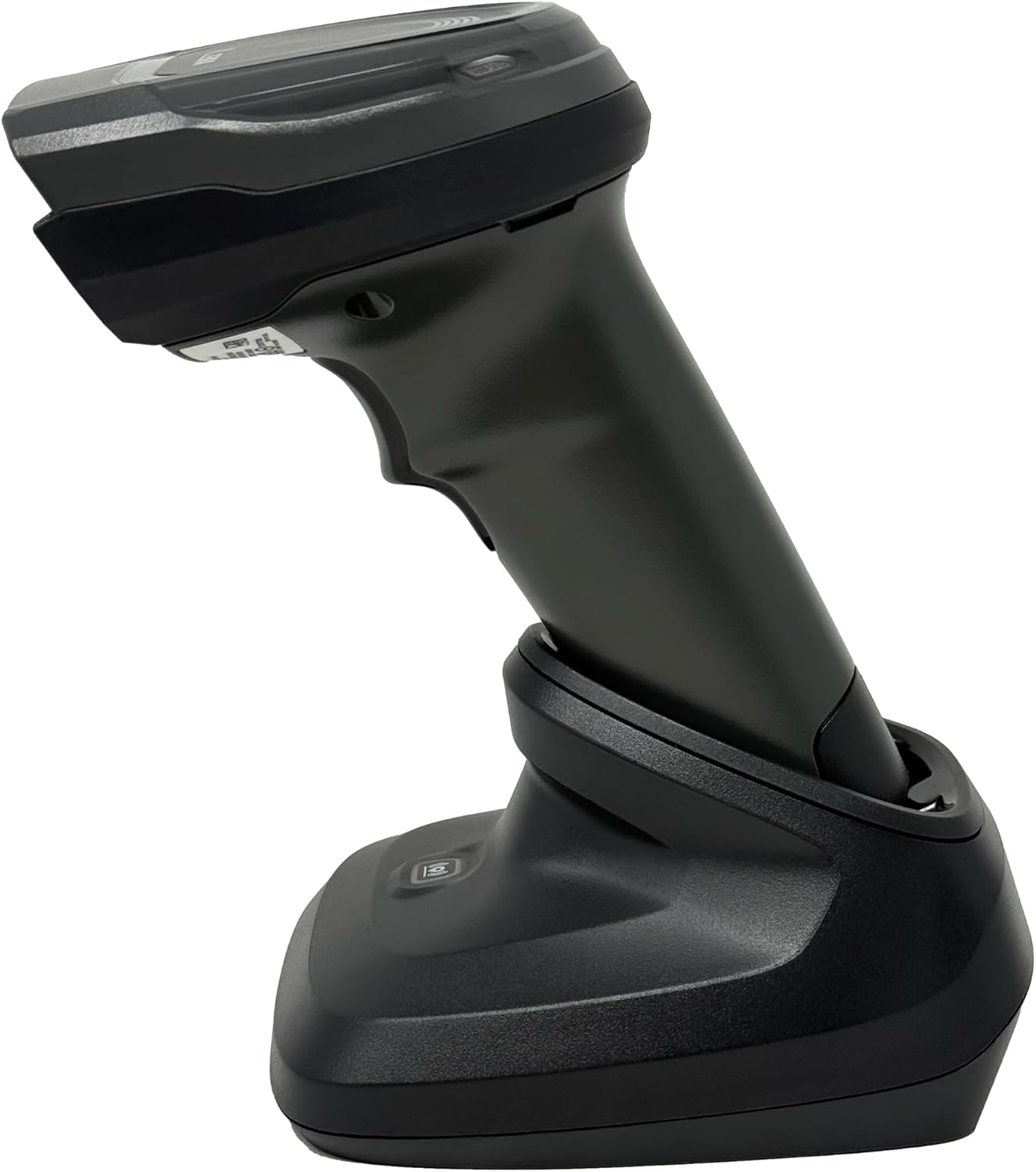
Setšoantšo sa 4.4: The Zebra DS8178 scanner securely docked in its USB cradle, ready for charging or communication.
4.1 Likarolo tsa Scanner
- Fesetere ea Scan: Area through which barcodes are read.
- Qalisa: E kenya tshebetsong lehlasedi la ho skena.
- Lipontšo tsa LED: Provide status feedback (e.g., battery, scan success).
- Kamore ea Battery: Houses the removable/rechargeable battery.
4.2 Cradle Components
- Scanner Slot: Where the scanner docks for charging and communication.
- Boema-kepe ba USB: Connects the cradle to a host device (PC, laptop).
- Konopo ea Pairing: Initiates Bluetooth pairing with the scanner.
- Lipontšo tsa LED: Show cradle status (e.g., power, connection).
5. Seta
5.1 Ho tjhaja sekene
- Connect the USB cable to the cradle's USB port.
- Connect the other end of the USB cable to a powered USB port on your computer or a USB wall adapter.
- Place the DS8178 scanner into the cradle. Ensure it is seated correctly.
- The scanner's LED indicator will show charging status. A full charge typically takes approximately 3-4 hours.
5.2 Connecting the Cradle to a Host Device
The cradle connects to your computer via a standard USB cable.
- Plug the USB cable into the USB port on the back of the cradle.
- Connect the other end of the USB cable to an available USB port on your desktop or laptop computer.
- The operating system should automatically detect and install the necessary drivers.
5.3 Ho hokahanya ha Bluetooth
The DS8178 offers two primary Bluetooth pairing methods: via the cradle or direct to a host device.
5.3.1 Pairing via Cradle (Recommended for PC/Laptop)
- Ensure the cradle is connected to your host device (PC/Laptop) via USB.
- Place the DS8178 scanner into the cradle.
- The scanner will automatically pair with the cradle. Once paired, the scanner can be removed from the cradle and will communicate wirelessly with the host device through the cradle.
- A successful connection is indicated by a specific LED pattern on both the scanner and cradle (refer to the scanner's LED guide for details).
5.3.2 Direct Bluetooth Pairing (for Phones/Tablets or PC/Laptop without cradle)
- Power on the DS8178 scanner.
- Scan the "Pairing Barcode" (usually found in a quick start guide or on the scanner itself) to put the scanner into discoverable mode. Alternatively, press and hold the Bluetooth pairing button on the scanner (if available) or scan a specific Bluetooth pairing configuration barcode.
- On your phone, tablet, or computer, navigate to the Bluetooth settings.
- Batla available devices. The DS8178 should appear in the list (e.g., "Zebra DS8178").
- Select the scanner to initiate pairing. You may be prompted to confirm a passkey or scan a pairing barcode displayed on your screen.
- Once paired, the scanner's LED will indicate a successful connection.
6. Ts'ebetso
6.1 Ho Sekena Li-Barcode
- Point the scan window of the DS8178 scanner at the barcode you wish to read.
- Press and hold the trigger button. A red aiming pattern will appear.
- Center the aiming pattern over the barcode. For 1D barcodes, the aiming line should cross the entire barcode. For 2D barcodes, the aiming pattern should encompass the entire code.
- Once the barcode is successfully read, the scanner will emit an audible beep and/or the LED indicator will flash green.
- Lokolla sesosa.
6.2 Cordless Range
The Zebra DS8178 offers a cordless range of up to 330 feet (100 meters) from its cradle or directly paired host device, depending on environmental conditions and line of sight. Obstructions such as walls or other electronic devices may reduce the effective range.
6.3 Mekhoa ea ho hlahloba
- Mokhoa oa ho qala: The scanner reads a barcode only when the trigger is pressed.
- Presentation Mode (Hands-Free): When placed in the presentation cradle, the scanner can be configured to automatically detect and read barcodes placed within its field of view without requiring a trigger press. This mode is ideal for high-volume scanning applications.
7. Tlhokomelo
7.1 Ho hloekisa Scanner
To maintain optimal scanning performance, keep the scan window clean.
- Use a soft, clean, lint-free cloth dampened with water or a mild cleaning solution (e.g., isopropyl alcohol).
- Gently wipe the scan window and the exterior of the scanner.
- U se ke ua sebelisa lihlatsoi tse khorofo, li-solvent, kapa lik'hemik'hale tse matla.
- Ensure the scanner is powered off before cleaning.
Tlhokomelo ea Battery
The DS8178 features a 2500mAh removable and rechargeable battery. Proper battery care extends its lifespan.
- Tjhaja betri ka botlalo pele o e sebedisa.
- Avoid completely discharging the battery regularly.
- Boloka sekene sebakeng se pholileng, se omileng ha se sa sebelisoe ka nako e telele.
- If the battery performance significantly degrades, it may need replacement. Contact support for genuine replacement batteries.
8. Ho rarolla mathata
| Bothata | Lebaka le ka khonehang | Tharollo |
|---|---|---|
| Scanner not powering on. | Betri e tlase kapa e felile. | Charge the scanner using the USB cradle and cable. |
| Scanner not connecting via Bluetooth. | Not in pairing mode; out of range; interference; host device Bluetooth off. | Ensure scanner is in pairing mode. Check host device Bluetooth settings. Move closer to the host device. Reduce interference. |
| Scanner ha e bale libarcode. | Barcode damaged/poor quality; scan window dirty; incorrect symbology enabled; scanner not aimed correctly. | Try scanning a different barcode. Clean the scan window. Ensure correct aiming. Check scanner configuration for enabled symbologies. |
| No data transmitted to host. | Not paired; application not in focus; incorrect interface settings. | Confirm successful Bluetooth pairing. Ensure the target application (e.g., text editor, POS software) is active and ready to receive input. |
9. Litlhaloso
| Sebopeho | Lintlha |
|---|---|
| Mohlala | DS8178 |
| Brand | Zebra (formerly Symbol) |
| Theknoloji ea Khokahano | Bluetooth, USB Cable, Wireless |
| Lisebelisoa tse lumellanang | Desktop, Laptop, Phones, Tablets |
| Mohloli oa Matla | Battery Powered, Corded Electric, Rechargeable |
| Bokhoni ba Battery | 2500mAh (Removable/Rechargeable) |
| Cordless Range | Ho fihla ho maoto a 330 (100 metres) |
| Bokgoni ba ho Scanning | 1D and 2D Barcodes |
| Angle ea 'Nete ea View | 17 likhato |
| UPC / GTIN | 649661651499 |
10. Tiisetso le Tšehetso
This Zebra DS8178 Barcode Scanner comes with a Tiisetso e lekantsoeng ea matsatsi a 90. This warranty covers defects in materials and workmanship under normal use. It does not cover damage caused by misuse, accidents, unauthorized modifications, or external causes.
For technical support, warranty claims, or to purchase genuine replacement parts (such as batteries), please contact your reseller or visit the official Zebra support website. Please have your model number (DS8178) and any purchase information ready when contacting support.