
1. Selelekela
Thank you for choosing the Symcode 2-in-1 Wireless CCD Barcode Scanner. This device offers both 2.4GHz wireless and USB wired connectivity, providing flexibility for various applications. It is designed for efficient and accurate scanning of 1D barcodes from both printed materials and digital screens. This manual provides detailed instructions on setting up, operating, maintaining, and troubleshooting your barcode scanner.
2. Sehlahisoa Overview
2.1 Likahare tsa Sephutheloana
Ha o qeta ho pakela, ka kopo netefatsa hore lintho tsohle tse thathamisitsoeng ka tlase li teng 'me li maemong a matle:
- 1 x Symcode CCD Barcode Scanner
- 1 x thapo ea USB
- 1 x 2.4GHz Wireless Dongle
- 1 x Bukana ea Mosebelisi ea Senyesemane

Figure 2.1: Package Contents of the Symcode Barcode Scanner.
2.2 Likarolo tsa Scanner
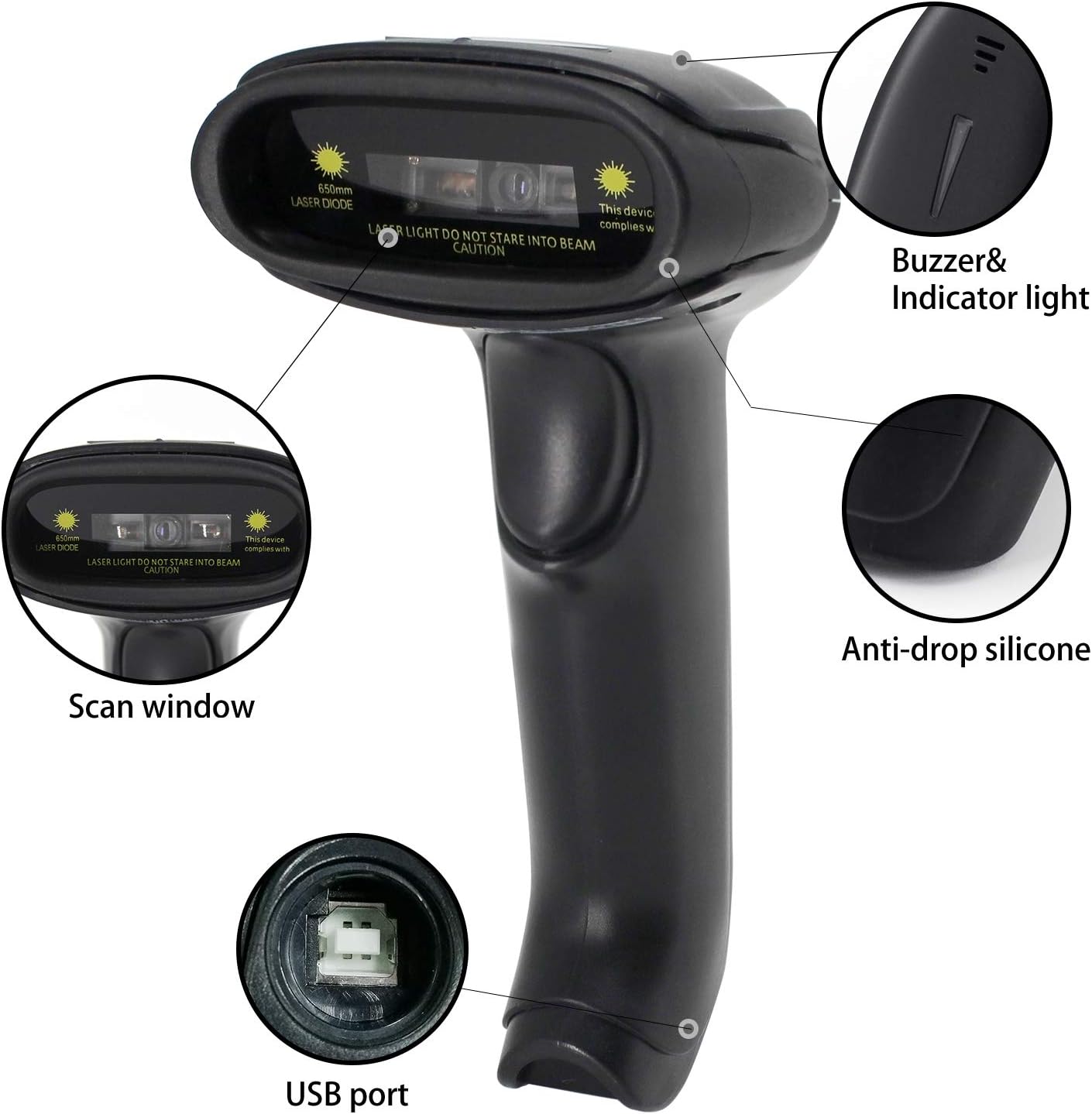
Figure 2.2: Key Components of the Symcode Barcode Scanner.
- Fesetere ea Scan: Area through which the barcode is read.
- Buzzer & Indicator Light: Provides audio and visual feedback for successful scans and status.
- Boema-kepe ba USB: Bakeng sa khokahanyo ea mohala le ho tjhaja.
- Anti-drop Silicone: Provides protection against accidental drops.
2.3 Litekanyo tsa Sehlahisoa
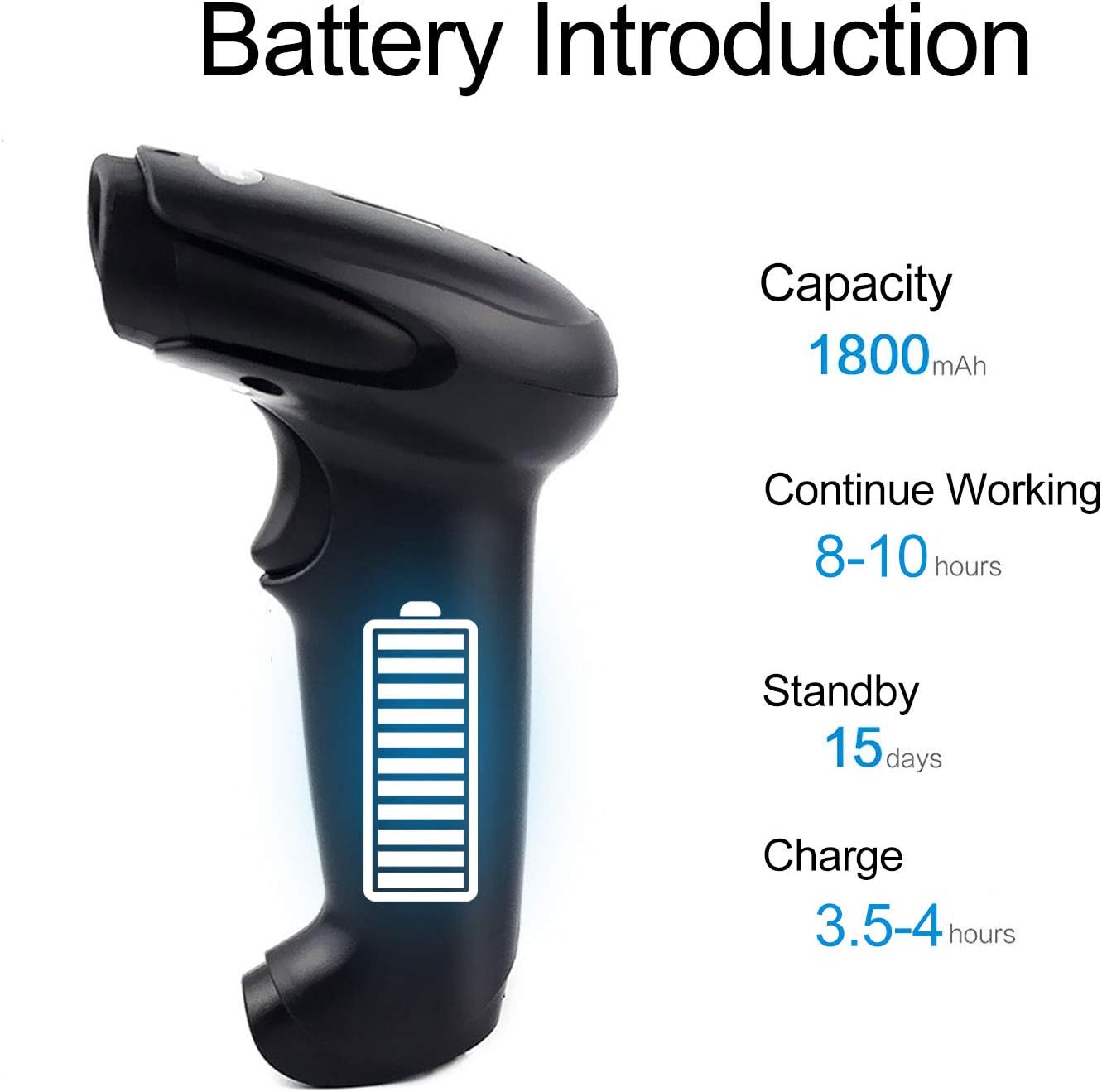
Figure 2.3: Dimensions of the Symcode Barcode Scanner.
3. Seta
3.1 Wired Connection (USB)
- Connect the USB cable to the scanner's USB port.
- Plug the other end of the USB cable into an available USB port on your computer, laptop, or POS machine.
- The scanner is plug-and-play; no additional drivers are required. It will be recognized automatically by Windows, Mac, Android, and Linux systems.
3.2 Wireless Connection (2.4GHz Dongle)
- Insert the 2.4GHz wireless dongle into an available USB port on your computer, laptop, or POS machine.
- Turn on the barcode scanner. It will automatically pair with the dongle.
- The scanner is plug-and-play; no additional drivers are required. It will be recognized automatically by Windows, Mac, Android, and Linux systems.
4. Litaelo tsa Ts'ebetso
4.1 Mokhoa oa Motheo oa ho Skena
- Ensure the scanner is powered on and connected (wired or wireless).
- Supa fensetere ea scan ho barcode eo u lakatsang ho e skena.
- Press the trigger button (if in trigger mode) or position the scanner over the barcode (if in auto-sense or continuous mode).
- A successful scan will be indicated by a beep and a flash of the indicator light. The barcode data will be transmitted to your connected device.
4.2 Mekhoa ea ho hlahloba
The scanner supports three scanning modes:
- Trigger Scan: Press the trigger button to activate the scan beam.
- Auto-sense Scan: Sekenara se lemoha ka bohona khoutu ea khoutu tšimong ea sona ea view and activates the scan beam.
- Skena e Tsoelang Pele: The scan beam remains continuously active, allowing for rapid scanning without pressing the trigger.
Refer to the included user manual (physical copy) for instructions on how to switch between these scanning modes. If you encounter difficulties, please contact Symcode customer support.
4.3 Supported Barcode Types
This CCD barcode scanner is designed to read Li-barcode tsa 1D, whether printed on paper or displayed on digital screens. It does not support 2D barcodes (e.g., QR codes).
Supported 1D barcode symbologies include: EAN-8, EAN-13, Codabar, CODE11, CODE 39, CODE 93, CODE128, China Post, GS1-128, GS1 Limited, GS1 Omnidirectional, UPC-A, UPC-E, ISBN/ISSN, ISBT, Interleaved 2 of 5, Matrix 2 of 5, Industrial 2 of 5, 2 of 5, MSI, Plessey, ITF14.

Figure 4.1: Scanning a barcode from a digital screen.
5. Boitsebiso ba Battery
The Symcode barcode scanner is equipped with a high-capacity rechargeable battery for extended operation.

Figure 5.1: Battery Specifications.
- Bokhoni: 1800 mAh
- Nako e Tsoelang Pele ea Mosebetsi: Lihora tse 8 ho isa ho tse 10
- Nako ea ho ema: 15 matsatsi
- Nako ea Tefiso: Lihora tse 3.5 ho isa ho tse 4
To charge the scanner, connect it to a USB power source using the provided USB cable. The indicator light will show charging status.
6. Khokahano e se nang mohala
The 2.4GHz wireless connection provides reliable data transmission over a significant range.
- Transmission Distance (Indoor): 15-30 meters (in crowded indoor environments)
- Transmission Distance (Outdoor): 30-100 meters (in open outdoor environments)

Figure 6.1: Wireless Transmission Range.
6.1 Mekhoa ea ho sebetsa
The scanner supports two primary operating modes for data handling:
- Tloaelehileng: Data is transferred immediately after each scan.
- Mokhoa oa polokelo: Barcode data is stored internally in the scanner's 16MB memory (capable of storing over 50,000 barcode entries). Data can then be uploaded to the connected device by scanning a specific setting code. This mode is useful for inventory taking or when out of wireless range.
7. Barcode Programming
The Symcode barcode scanner is programmable, allowing customization of its output and behavior. These settings are typically configured by scanning specific programming barcodes found in the full user manual.
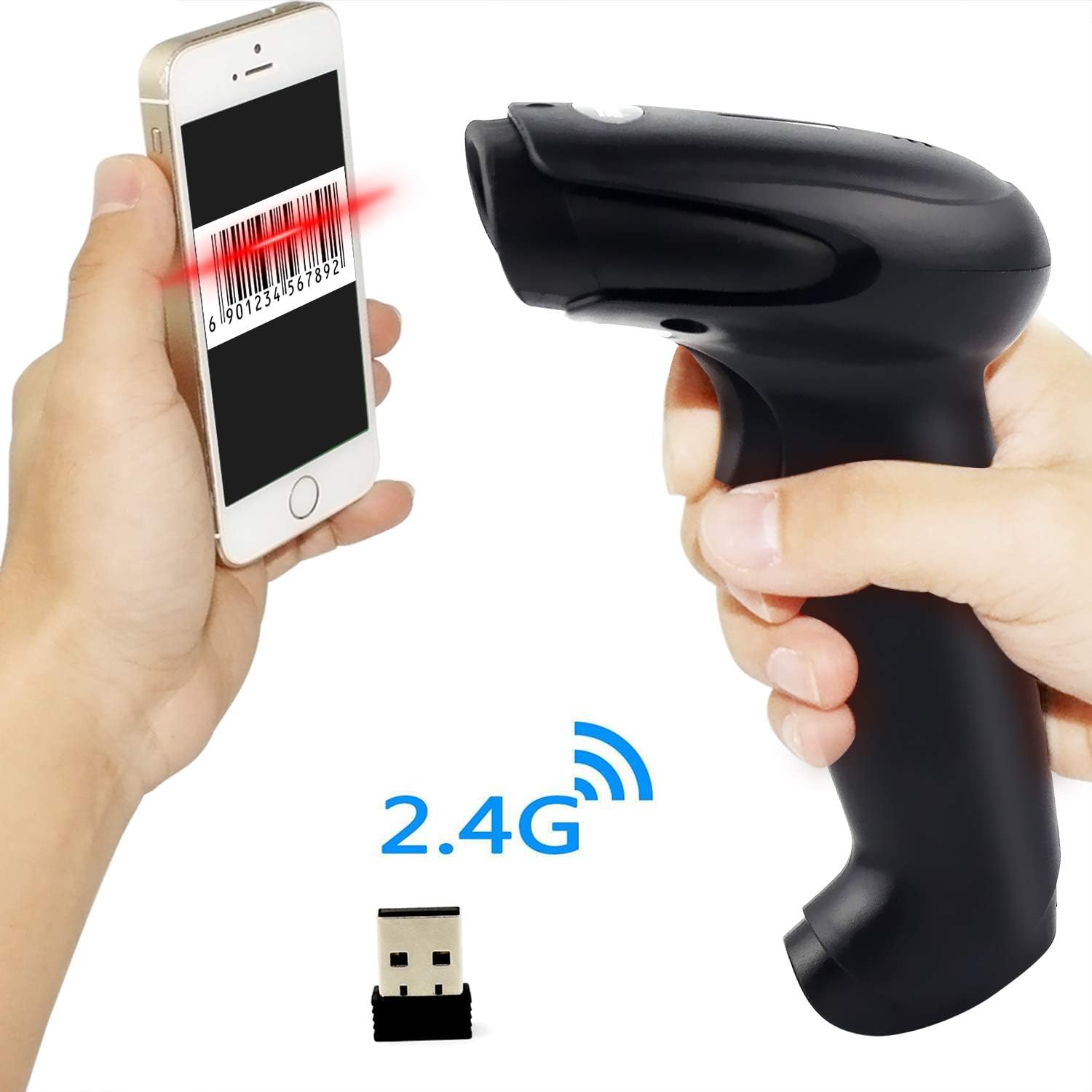
Figure 7.1: Barcode Programming Capabilities.
Programmable features include:
- Phetoho ea nyeoe: Adjusting output to uppercase or lowercase.
- Phetoho ea Bolumo: Changing the sound level of the buzzer.
- Terminator Setting: Adding a specific character (e.g., Enter, Tab) after each scanned barcode.
- Prefix or Suffix Setting: Adding custom characters before or after the scanned data.
- Character Manipulation: Adding or masking specific characters within the barcode data.
For detailed programming instructions, please refer to the comprehensive programming guide included with your scanner or contact Symcode support.
8. Tlhokomelo
Tlhokomelo e nepahetseng e netefatsa nako e telele le ts'ebetso e ntle ea sekene sa hau.
- Ho hloekisa: Use a soft, dry cloth to clean the scanner's exterior. For the scan window, use a lint-free cloth lightly dampened with a non-abrasive cleaner. Avoid harsh chemicals or abrasive materials.
- Polokelo: Store the scanner in a cool, dry place, away from direct sunlight and extreme temperatures.
- Tlhokomelo ea Betri: Avoid fully discharging the battery frequently. If storing for a long period, charge the battery to about 50% and recharge every few months.
9. Ho rarolla mathata
If you encounter issues with your scanner, please refer to the following common problems and solutions:
| Bothata | Seo e ka bang Sesosa / Tharollo |
|---|---|
| Scanner ha e sebetse. | Battery is low or depleted. Charge the scanner for 3.5-4 hours. |
| Scanner does not scan barcodes. |
|
| Ha ho data e fetisetsoang khomphuteng. |
|
| Scanner beeps continuously or behaves erratically. | The scanner might be in an incorrect setting mode. Refer to the full user manual for factory reset instructions or contact support. |
If the problem persists after trying these solutions, please contact Symcode customer support for further assistance.
10. Litlhaloso
| Paramethara | Boleng |
|---|---|
| Mohloli oa Leseli | 632nm Visible LED Light |
| Tsela ea Scan | Trigger / Auto-sense / Continuous |
| Qeto | ≥ 4 mil / 0.1mm @ PCS90% |
| processor | ARM32-bit |
| Lebelo la ho Hlakola | 200 scans/mots |
| Botebo ba Tšimo | 40-500 limilimithara |
| Sesupo | LED le Buzzer |
| Phapang ea khatiso | ≥ 30% |
| Tshebetso Voltage | DC 3.3V-5V |
| Bokhoni ba Battery | 1800 mAh |
| Ts'ebetso e Tsoelang Pele | Lihora tse 8-10 |
| Nako ea ho ema | 15 matsatsi |
| Nako ea Tefiso | Lihora tse 3.5-4 |
| Wireless Transmission (Indoor) | 15-30 limithara |
| Wireless Transmission (Outdoor) | 30-100 limithara |
| Bokhoni ba polokelo | 16MB (over 50,000 barcode entries) |
| Mocheso oa ho sebetsa | -20 ℃ to 50 ℃ (-4 ℉ to 122 ℉) |
| Mocheso oa polokelo | -40 ℃ to 70 ℃ (-40 ℉ to 158 ℉) |
| Mongobo | 5% ho isa ho 95% (ha e fokotsehe) |
| Khanya ea Ambient | Boholo ba 100,000 lux |
| OS e tšehelitsoeng | Windows, Mac, Android, Linux |
11. Tiisetso le Tšehetso
The Symcode barcode scanner comes with a Guarantee ea matsatsi a 180 from the date of purchase, covering manufacturing defects and malfunctions under normal use. Please retain your proof of purchase for warranty claims.
For technical support, warranty service, or any questions regarding your product, please contact Symcode customer service through the platform where you purchased the product or refer to the contact information provided in the physical user manual.