
1. Selelekela
This manual provides essential information for the safe and efficient operation of your iFFALCON 32F2A 32-inch HD Ready Android Smart LED TV. Please read these instructions thoroughly before using the television and retain them for future reference.
The iFFALCON 32F2A is an 80 cm (32 inches) HD Ready Android Smart LED TV designed to offer a comprehensive entertainment experience. It features a 720p resolution display, integrated Android operating system, and smart functionalities like Google Assistant and Chromecast built-in.
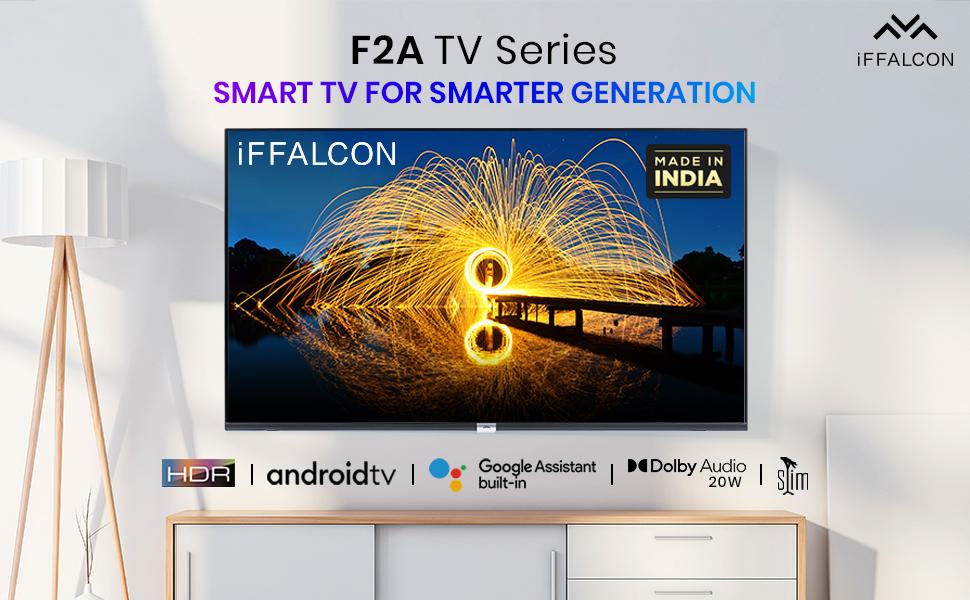
Setšoantšo sa 1.1: Pele view of the iFFALCON 32F2A Smart LED TV displaying the Android TV interface, alongside icons representing key features such as HDR, Android TV, Google Assistant, Micro Dimming, IPQ Engine, Chromecast built-in, AI, and Dolby Audio with 20W speakers.
2. Se ka Lebokoseng
Verify that all components are present and undamaged upon unpacking your new television.
- 1 x iFFALCON 32F2A LED TV
- 1 x Tafole e kaholimo ho Ema
- 1 x Buka ea Mosebelisi
- 1 x Karete ea Tiisetso
- 1 x Taolo ea Remoutu
- 2 x AAA Batteries (bakeng sa taolo e hole)
3. Seta
3.1 Ho phutholla le ho bea
Carefully remove the TV from its packaging. It is recommended to have two people for this process. Place the TV on a stable, flat surface or mount it securely on a wall.
3.2 Ho hokela Setulo sa Tafole se ka Holimo
- Beha skrini sa TV sebakeng se bonolo, se hloekile ho thibela mengwapo.
- Hlophisa li-stands le li-slots tse tsamaellanang le botlaaseng ba TV.
- Secure the stand bases using the provided screws. Ensure they are tightened firmly.
3.3 Ho Beha Lebota (Ha ho boikhethelo)
If you choose to wall mount your TV, please note that the wall mount bracket is not included and must be purchased separately. Follow the instructions provided with your wall mount kit and ensure professional installation for safety.
3.4 Ho hokela lisebelisoa tsa kantle
Your iFFALCON 32F2A TV offers various connectivity options:
- Boema-kepe ba HDMI: Hokela libapali tsa Blu-ray, li-consoles tsa lipapali, kapa li-set-top boxes.
- Boema-kepe ba USB: Hokela lisebelisoa tsa polokelo ea USB bakeng sa ho bapala media.
- Port ea Ethernet: Bakeng sa khokahanyo ea marang-rang ea wired.
- Li-headphone Jack: Bakeng sa ho mamela boinotšing.
3.5 Khokelo ea Matla
Connect the power cord to the TV's power input and then to a suitable AC power outlet (240 Volts, 50 Watts). Ensure the power cable is securely connected.
3.6 Motlakase oa ho Qala le ho Seta Wizate
After connecting power, press the power button on the TV or remote control. The TV will guide you through the initial setup wizard, including language selection, network connection (Wi-Fi or Ethernet), Google account sign-in, and channel scanning.

Image 3.1: A diagram illustrating the physical dimensions of the iFFALCON 32F2A TV, including screen size (32 inches / 79.97 cm diagonal), width (73.20 cm / 29 inch), height (48.20 cm / 19 inch), and depth (17.30 cm / 6.9 inch).
4. Litaelo tsa Ts'ebetso
4.1 Taolo ea Remote
The provided remote control allows you to navigate the TV's interface and access various functions. Insert the two AAA batteries (included) into the remote control, ensuring correct polarity.
- Konopo ea Matla: E bulela kapa e tima TV.
- Likonopo tsa ho Tsamaisa: Use the directional pad and OK button to move through menus.
- Buka ea +/-: E fetola boemo ba molumo.
- Channel +/-: E fetola likanale tsa TV.
- Konopo ea Lehae: E khutlela skrineng sa lapeng sa Android TV.
- Konopo ea ho Khutlela: E khutlela skrineng se fetileng.
- Konopo ea Mothusi oa Google: E kenya tshebetsong taolo ya lentswe.
- Konopo ea Netflix: Direct access to Netflix.
- Amazon Prime Video Button: Direct access to Amazon Prime Video.
- Zee5 Button: Direct access to Zee5.
- TCL Channel Button: Direct access to TCL channel.

Image 4.1: The smart remote control for the iFFALCON TV, highlighting the Google Assistant button and a dedicated hotkey for Netflix for quick access.
4.2 Android TV Interface
Your TV runs on Android 9, providing access to a wide range of apps and services. The home screen displays recommended content, installed applications, and input sources.
- Lisebelisoa: Access pre-installed applications like Netflix, YouTube, Prime Video, Disney+Hotstar, Sun NXT, and Zee5. Download more from the Google Play Store.
- Kenyelletso: Switch between HDMI inputs, USB, and other connected devices.
- Litlhophiso: Customize TV settings such as picture, sound, network, and system preferences.

Image 4.2: The iFFALCON Smart LED TV showcasing its Android TV home screen, featuring prominent app icons for Netflix, YouTube, Prime Video, and other streaming services.

Image 4.3: The iFFALCON Smart LED TV interface, illustrating the availability of popular streaming platforms such as YouTube, Prime Video, Disney+ Hotstar, SonyLIV, Zee5, ALTBalaji, Voot Select, and Eros Now.
4.3 Mothusi oa Google
The built-in Google Assistant allows you to control your TV and smart home devices using voice commands. Press the Google Assistant button on your remote and speak into the microphone.
- Batla Litaba: Say "Play a cartoon movie" or "Batla action films."
- Control TV: Say "Turn up the volume" or "Switch to HDMI 1."
- Get Information: Ask "What's the weather today?" or "How long is Moonlight?"
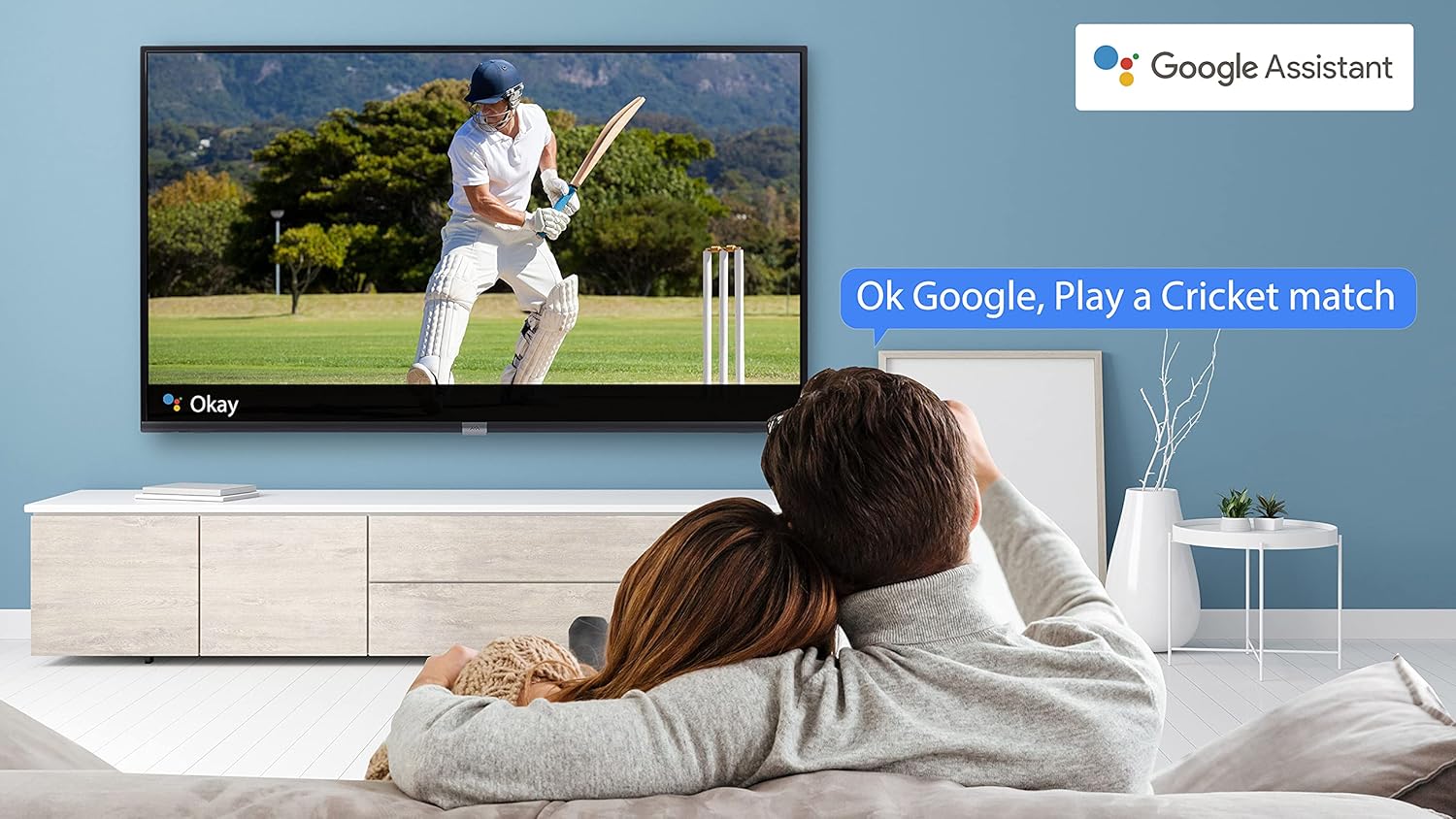
Image 4.4: A couple watching a cricket match on the iFFALCON TV, with a Google Assistant prompt bubble showing "Ok Google, Play a Cricket match," demonstrating voice control functionality.
Image 4.5: The Google Assistant logo, indicating the TV's integrated voice control capabilities.
4.4 Chromecast e hahiloeng
Use Chromecast built-in to cast content from your compatible smartphone, tablet, or computer directly to your TV screen. Ensure your device and TV are connected to the same Wi-Fi network.

Image 4.6: A smartphone displaying a car image, with a casting icon indicating that the content is being mirrored to a larger TV screen, demonstrating the Chromecast built-in feature.
5. Likarolo tsa Bohlokoa
5.1 HDR (High Dynamic Range)
HDR technology enhances contrast, color accuracy, and brightness, delivering a more lifelike and immersive viewing experience with greater detail in both dark and bright scenes.

Image 5.1: A split-screen comparison showing the visual difference between an image without HDR 10 (left, darker, less vibrant) and with HDR 10 (right, brighter, more detailed, and richer colors).
5.2 Micro Dimming
Micro Dimming analyzes the TV content in hundreds of separate zones to adjust brightness and darkness independently. This results in improved contrast and picture quality, especially in scenes with mixed light levels.
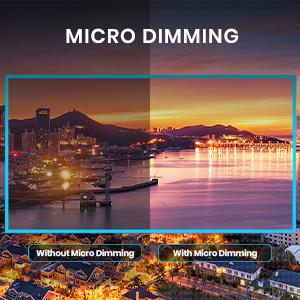
Image 5.2: A split-screen comparison demonstrating the effect of Micro Dimming, with the 'Without Micro Dimming' side appearing less vibrant and the 'With Micro Dimming' side showing enhanced contrast and color saturation in a city night scene.
5.3 IPQ Engine
The IPQ Engine (Image Quality Processing Engine) optimizes picture quality by intelligently adjusting brightness, color range, and contrast, ensuring a more vivid and accurate display.

Image 5.3: A visual representation of the IPQ Engine, highlighting its 'High Brightness Precision Control Technology' and 'Intelligent Color Range Control Technology' for optimized picture quality.
5.4 Dolby Audio
Experience rich, clear, and powerful sound with Dolby Audio. This technology enhances the audio output, providing an immersive listening experience for movies, music, and games.

Image 5.4: The Dolby Audio logo, signifying enhanced sound quality and an immersive audio experience.
5.5 Smart Volume
Smart Volume automatically adjusts the sound level to prevent sudden changes in volume, such as during commercials or when switching channels, ensuring a consistent listening experience.

Image 5.5: An illustration of the Smart Volume feature, showing how it maintains consistent audio levels across different content types, represented by varying sound wave patterns.
5.6 Mokhoa oa Lipapali
Sports Mode optimizes picture and sound settings for sports content, enhancing motion clarity and audio to provide a more engaging viewing experience for live sports.

Image 5.6: A split-screen comparison of a cricket player, showing the 'Without Sports Mode' side with standard clarity and the 'With Sports Mode' side with enhanced motion and detail, indicated by a playback bar.
5.7 Slim Design
The iFFALCON 32F2A features a slim design, allowing it to blend seamlessly into various living spaces and offering a modern aesthetic.

Image 5.7: An illustration emphasizing the slim profile of the iFFALCON TV, with a hand demonstrating its thinness.
6. Tlhokomelo
6.1 Ho hloekisa skrine
Hlakola skrine ka bonolo ka lesela le bonolo le se nang letlapa. Bakeng sa matšoao a manganga, ha bobebe damptn lesela le nang le metsi kapa mochini o hloekisang skrineng. Qoba ho sebelisa lik'hemik'hale tse bohale kapa lintho tse senyang.
6.2 Ho hloekisa Kabinete
Hlakola khabinete ea TV ka lesela le bonolo, le omileng. U se ke ua sebelisa li-cleaner tsa metsi ka ho toba khabineteng.
6.3 Power Cord Care
Regularly check the power cord for any damage. Do not place heavy objects on the cord or expose it to excessive heat.
7. Ho rarolla mathata
Haeba u kopana le mathata ka TV ea hau, sheba mathata a latelang a tloaelehileng le tharollo:
| Bothata | Lebaka le ka khonehang | Tharollo |
|---|---|---|
| Ha ho matla | Thapo ea motlakase e khaotsoe, ho na le bothata ba motlakase | Ensure power cord is securely plugged in. Check if the power outlet is working. |
| Ha ho setšoantšo, empa molumo o teng | Incorrect input source, faulty cable | Verify the correct input source is selected. Check HDMI/AV cable connections. |
| Ha ho na molumo, empa setšoantšo se teng | Volume muted or too low, audio settings issue | Increase volume. Check audio output settings in the TV menu. |
| Remote control ha e sebetse | Dead batteries, obstruction, remote out of range | Replace batteries. Remove obstructions between remote and TV. Ensure remote is within operating range. |
| Ha e khone ho hokela ho Wi-Fi | Incorrect password, router issue, TV too far from router | Re-enter Wi-Fi password. Restart router. Move TV closer to router or use Ethernet. |
Haeba bothata bo ntse bo tsoela pele ka mor'a ho leka litharollo tsena, ka kopo ikopanye le ts'ehetso ea bareki.
8. Litlhaloso
Detailed technical specifications for the iFFALCON 32F2A Smart LED TV:
| Sebopeho | Tlhaloso |
|---|---|
| Brand | iFFALCON |
| Lebitso la Mohlala | 32F2A |
| Boholo ba skrine | 32 Inche (80cm) |
| Bontša Theknoloji | LED, A+ Grade Panel |
| Qeto | HD e Loketse (Lipiksele tse 1366 x 768) |
| Refresh Rate | 60 Hz |
| ViewAngle | 178 likhato |
| Karo-karolelano ea setšoantšo | 16:9 |
| Boemo ba Phapang ea Litšoantšo | 3000:1 |
| Mokhoa oa tšebetso | Android |
| Memori ea RAM e kentsoeng boholo | 1 GB |
| Digital Storage Bokgoni | 8 GB |
| Coprocessor ea Graphics | Mali470x2 |
| Audio Wattage | 16 Watts |
| Sebui se pota-potileng Molumo | Dolby Audio |
| Theknoloji ea Khokahano | Wi-Fi, Ethernet, HDMI, USB |
| Kakaretso ea likou tsa USB | 1 |
| Mohloli oa Matla | AC |
| Moqtage | Li-volts tse 240 |
| Wattage | 50 Watts |
| Litekanyo tsa Sehlahisoa | 48.2 x 73.2 x 18.3 cm, |
| Boima ba Ntho | 3.9 lik'hilograma |
9. Tiisetso le Tšehetso
Your iFFALCON 32F2A TV comes with a warranty. Please refer to the included Warranty Card for detailed terms and conditions, including the warranty period and coverage.
For technical assistance, service requests, or further inquiries, please visit the official iFFALCON support website or contact their customer service helpline. Contact information can typically be found on the Warranty Card or the manufacturer's official websebaka.