
Sehlahisoa se Felletseview
The XIAOMI Redmi 9I is a feature-rich smartphone designed for everyday use. This manual provides essential information for setting up, operating, maintaining, and troubleshooting your device.
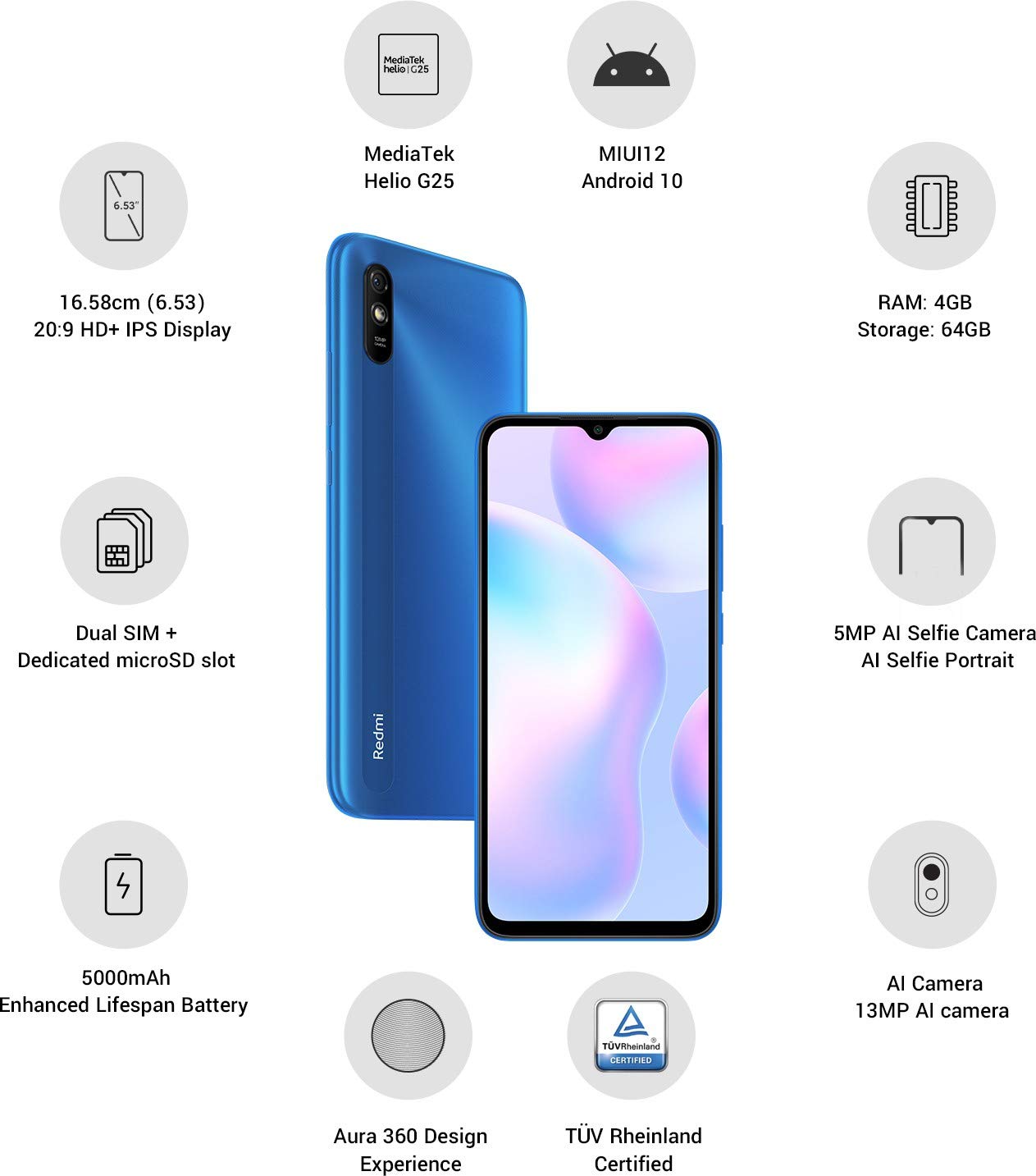
Setšoantšo: Ho felileview of the Xiaomi Redmi 9I highlighting key features such as the 6.53-inch HD+ IPS Display, MediaTek Helio G25 processor, MIUI12 Android 10, 4GB RAM, 64GB Storage, Dual SIM + dedicated microSD slot, 5000mAh battery, 5MP AI Selfie Camera, 13MP AI Camera, Aura 360 Design Experience, and TÜV Rheinland Certification.
Tataiso ea ho seta
1. Unboxing le Tlhahlobo ea Pele
Tlosa lintho tsohle ka hloko ka har'a sephutheloana. Etsa bonnete ba hore likarolo tse latelang li teng:
- XIAOMI Redmi 9I Smartphone
- Adapter ea Matla
- Cable ea Type-C ea USB
- Sesebelisoa sa SIM Ejector
- Tataiso ea ho Qala ka Potlako (haeba e kenyelelitsoe)
2. Inserting SIM Card(s) and MicroSD Card
Locate the SIM card tray on the side of your device. Use the provided SIM ejector tool to open the tray. Insert your Nano SIM card(s) and/or a microSD card into the designated slots. Ensure the cards are correctly oriented as shown in the diagram below. Gently push the tray back into the phone until it clicks into place.

Setšoantšo: Lehlakore view of the Xiaomi Redmi 9I, illustrating the location of the SIM card tray. The tray is designed to hold dual Nano SIM cards and a dedicated microSD card.
3. Ho tjhaja Sesebelisoa
Before first use, fully charge your Redmi 9I. Connect the USB Type-C cable to the phone's charging port (located at the bottom) and the other end to the power adapter. Plug the adapter into a wall outlet. The charging indicator will appear on the screen.

Setšoantšo: Tlase view of the Xiaomi Redmi 9I, showing the USB Type-C charging port and speaker grille.
4. Ho Matlafatsa le Tlhophiso ea Pele
Press and hold the Power button (located on the right side of the device) until the XIAOMI logo appears. Follow the on-screen instructions to complete the initial setup, including language selection, Wi-Fi connection, Google account setup, and security settings.

Setšoantšo: Lehlakore view of the Xiaomi Redmi 9I, clearly showing the power button and volume rocker on the right edge of the device.
Litaelo tsa Ts'ebetso
Navigation ea Motheo
- Thetsa: Tap icons to open apps, select items, or confirm actions.
- Senya: Slide your finger across the screen to scroll, switch between home screens, or navigate within apps.
- Penya: Sebelisa menoana e 'meli ho atametsa kapa ho atometsa linepe le web maqephe.
- Tobetsa nako e telele: Press and hold an item for additional options or to move icons.
Ho letsa le ho Romela Melaetsa
Tap the Phone icon to access the dialer. Enter a number or select a contact. Tap the Messages icon to compose and send text messages.
Ho hokela ho Marang-rang
- WiFi: Eya ho Di-setting > Wi-Fi, turn Wi-Fi on, and select your desired network. Enter the password if prompted.
- Bluetooth: Eya ho Di-setting > Bluetooth, turn Bluetooth on, and pair with compatible devices.
- Lintlha tsa Selefouno (4G): Netefatsa hore SIM card ya hao e ya sebetsa le hore data ya selefounu e kene tshebetsong Di-setting > Di-SIM card le dinetweke tsa mehala.
Ho sebelisa Khamera
Tap the Camera icon to open the camera application. The Redmi 9I features a 13MP rear camera and a 5MP front camera. Switch between modes (Photo, Video, Portrait, etc.) by swiping across the screen. Tap the shutter button to capture photos or start/stop video recording.

Setšoantšo: Ka morao view of the Xiaomi Redmi 9I, showcasing the 13MP AI camera module and the Redmi branding.
Tlhokomelo
Ho Hloekisa Sesebelisoa sa Hau
Use a soft, lint-free cloth to clean the screen and body of your phone. Avoid using harsh chemicals or abrasive materials, which can damage the display or finish. For stubborn smudges, slightly dampst lesela le nang le metsi kapa mochini o hloekisang skrine o etselitsoeng lisebelisoa tsa elektronike.
Lisebelisoa tsa Software
Kamehla hlahloba le ho kenya liapdeite tsa software ho netefatsa ts'ebetso e nepahetseng, ts'ireletso, le phihlello ea likarolo tse ncha. Eya ho Di-setting > Ka fono > Mofuta wa MIUI ho hlahloba lintlafatso.
Tlhokomelo ea Battery
The Redmi 9I is equipped with a 5000 mAh Lithium-Polymer battery. To prolong battery life:
- Qoba mocheso o feteletseng.
- Se ke oa lumella betri hore e tsoe ka botlalo pele o e tjhaja khafetsa.
- Sebelisa tjhaja ea mantlha le thapo.
- Optimize battery usage in Settings > Battery & performance.
Tsamaiso ea polokelo
Your device comes with 64GB of internal storage. To manage storage effectively:
- Hlakola khafetsa ho sa hlokahale files, linepe le livideo.
- Tlosa lisebelisoa tse sa sebelisoeng.
- Sebelisa litšebeletso tsa polokelo ea leru.
- Tsamaea haholo files to an inserted microSD card.
Ho batle phoso
This section addresses common issues you might encounter with your Redmi 9I.
Sesebediswa Ha se Matla
- Ensure the battery is charged. Connect the phone to its charger for at least 30 minutes.
- Tobetsa 'me u tšoare konopo ea Matla bakeng sa metsotsoana e 10-15 ho qobella ho qala bocha.
Khokahano e Fosahetseng ea Marang-rang
- Sheba hore na SIM card ya hao e kentswe hantle.
- Toggle Airplane Mode on and off (swipe down from the top for Quick Settings).
- Qala sesebelisoa sa hau bocha.
- Verify your mobile data plan is active and you are in an area with network coverage.
Applications Crashing or Freezing
- Kwala 'me u bule hape sesebelisoa se nang le bothata.
- Hlakola cache le data ea sesebelisoa (Settings > Apps > Manage apps > [App Name] > Clear data).
- Netefatsa hore sesebelisoa se nchafalitsoe ho mofuta oa sona oa moraorao.
- Qala fono ya hao botjha.
Screen ha e arabele
- Qobella ho qala sesebediswa botjha ka ho tshwara konopo ya Matla.
- If the issue persists, consider a factory reset (Warning: This will erase all data on your phone. Back up important data first. Eya ho Di-setting > Ka fono > Seta fektheri botjha).
Litlhaloso
| Sebopeho | Lintlha |
|---|---|
| Brand | XIAOMI |
| Mohlala | Redmi 9I |
| Mokhoa oa tšebetso | Android 9.0 (MIUI12) |
| RAM | 4 GB |
| Polokelo ea ka hare | 64 GB |
| processor | Snapdragon (2 GHz CPU Speed) |
| Mofuta oa Pontšo | LCD |
| Boholo ba skrine | 6.53 lisenthimithara |
| Khamera e ka morao | 13 MP |
| Khamera e ka pele | 5 MP |
| Bokhoni ba Battery | 5000 limilioneamp Hours (Lithium-Polymer) |
| Slot ea SIM Card | Dual SIM (Nano) |
| Khokahano | 4G, Wi-Fi, Bluetooth, USB Type C |
| GPS | GLONASE |
| Lintho tse bonahalang | Plastiki |
| Boemo ba ho hanyetsa Metsi | Ha e kene metsi |
Boitsebiso ba Warranty
The XIAOMI Redmi 9I comes with a Tiisetso ea lilemo tse 1 ea moetsi from the date of purchase. This warranty covers manufacturing defects under normal use. For detailed terms and conditions, please refer to the warranty card included in your product packaging or visit the official XIAOMI support websebaka.
Tšehetso ea Bareki
If you encounter issues not covered in this manual or require further assistance, please contact XIAOMI customer support. You can typically find contact information (phone numbers, email, chat support) on the official XIAOMI websebaka sa marang-rang kapa ka karolo ea tšehetso ka har'a litlhophiso tsa sesebelisoa sa hau.
Before contacting support, please have your device's model number (Redmi 9I) and serial number ready. The serial number can usually be found in Di-setting > Ka fono > Boemo.