
Selelekela
The Globe Electric 50200 Smart Wi-Fi Light Switch allows you to automate and control your home lighting using the GLOBE SUITE™ App, voice commands, or directly from the switch. This manual provides essential information for installation, operation, and maintenance to ensure safe and efficient use of your smart switch.

Image: The Globe Electric Smart Switch, highlighting its compatibility with various smart home platforms.
Boitsebiso ba Tšireletseho
Before installing or operating the Globe Electric 50200 Smart Wi-Fi Light Switch, please read and understand all safety instructions. Failure to follow these instructions may result in electric shock, fire, or property damage.
- TLHOKOMELISO: Risk of Electric Shock. Installation requires working with high voltage wiring. Always turn off power at the circuit breaker before installation.
- Buisana le setsebi sa motlakase se tšoanelehang haeba u sa kholiseha ka karolo efe kapa efe ea ts'ebetso ea ho kenya.
- Sesebelisoa sena ke sa ts'ebeliso ea kahare feela.
- Ensure the switch is installed in a standard wall box.
- Se ke oa feta boholo ba wattagtekanyo ea 100 watts.
Litaba tsa Sephutheloana
Netefatsa hore likarolo tsohle li teng pele u qala ho kenya:
- Globe Electric 50200 Smart Wi-Fi Light Switch
- Screwless Faceplate
- Wires and Backplate
- Likokoana-hloko (2)
- Wire Nuts (4)
- Wire Label Stickers
Ho seta le ho Kenya
Follow these steps for proper installation of your smart switch. This switch is designed for single-pole indoor use only.
- Tima Matla: Locate your circuit breaker and turn off the power to the switch you are replacing. Verify the power is off using a voltagmohlahlobi.
- Tlosa Old Switch: Carefully remove the existing wall plate and unscrew the old switch from the wall box. Disconnect the wires, noting their connections (e.g., Line, Load, Neutral, Ground). Use the provided wire label stickers if needed.
- Wire the Smart Switch: Connect the wires from your wall box to the corresponding wires on the Globe Electric 50200 Smart Switch using the provided wire nuts.
- Connect the Mola wire (usually black, coming from the breaker) to the Line wire on the smart switch.
- Connect the Laela wire (usually black, going to the light fixture) to the Load wire on the smart switch.
- Connect the E sa nke lehlakore wire (usually white) to the Neutral wire on the smart switch. A neutral wire is required for this smart switch.
- Connect the Fatše wire (usually bare copper or green) to the Ground wire on the smart switch.
- Mount the switch: Gently push the wired smart switch into the wall box. Secure it with the provided screws. Attach the screwless faceplate.
- Khutlisa Matla: Turn the power back on at the circuit breaker. The indicator light on the smart switch should illuminate.
- Khokahano ea App:
- Khoasolla mahala GLOBE SUITE™ App ho tsoa lebenkeleng la lisebelisoa tsa smartphone ea hau.
- Bula sesebelisoa ebe u theha ak'haonte kapa kena.
- Press the restart button located on the right side below the on/off rocker after installation.
- Follow the in-app instructions to add your new smart switch. Ensure your phone is connected to a 2.4 GHz Wi-Fi network during the initial setup. You can switch back to a 5 GHz network afterward if preferred.
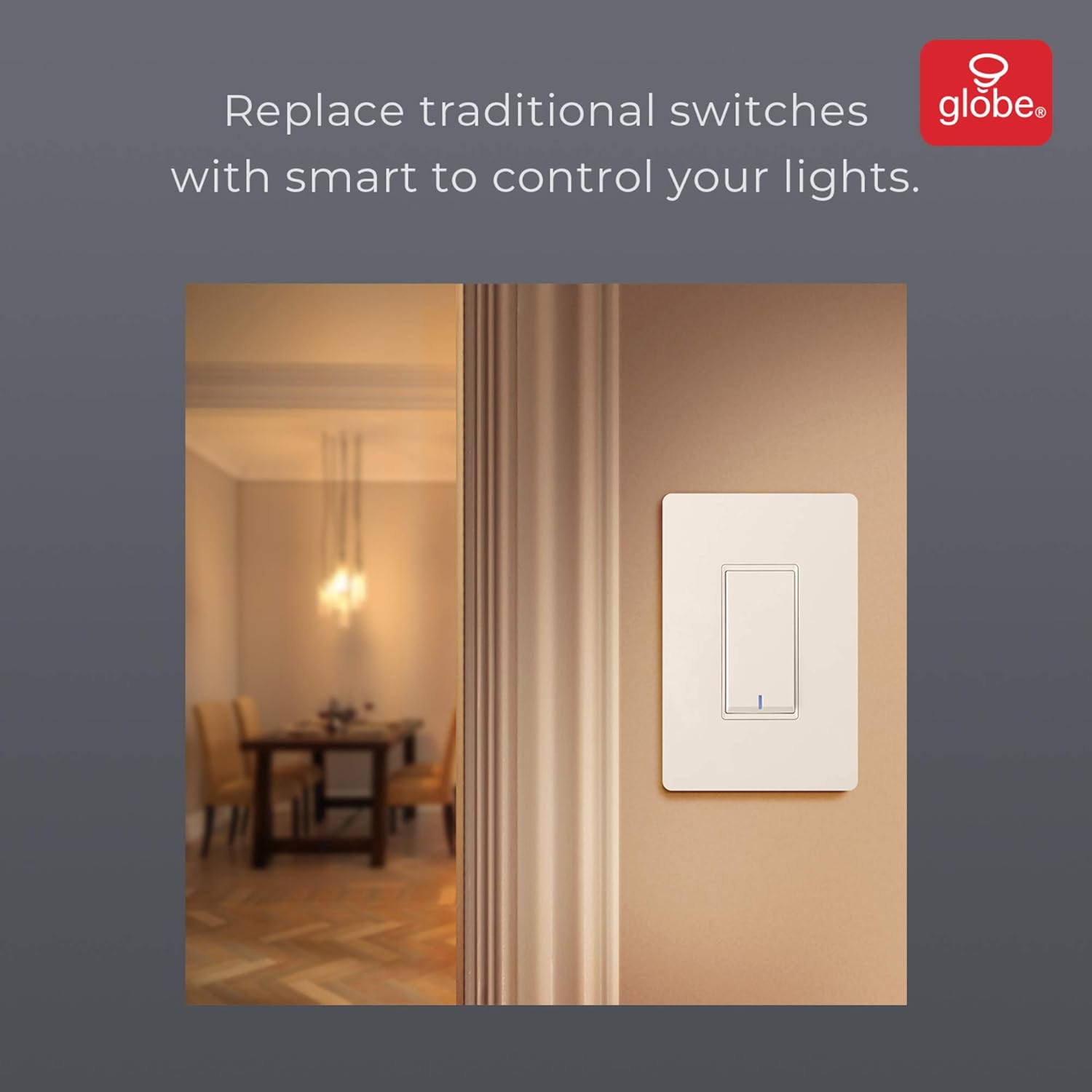
Image: The smart switch installed in a wall, demonstrating its integration into a home environment.
Litaelo tsa Ts'ebetso
Once installed and connected to the GLOBE SUITE™ App, you can operate your smart switch in several ways:
- Tsamaiso ea Tsamaiso: Press the rocker switch directly to turn connected lights on or off.
- Taolo ea App: Use the GLOBE SUITE™ App on your smartphone to turn lights on/off from anywhere with an internet connection.
- Taolo ea Lentsoe: Integrate with Amazon Alexa, Google Assistant, or Siri for hands-free control.
- Example Commands: "Alexa, turn on the living room light," "Hey Google, turn off the kitchen switch," "Siri, activate evening scene."
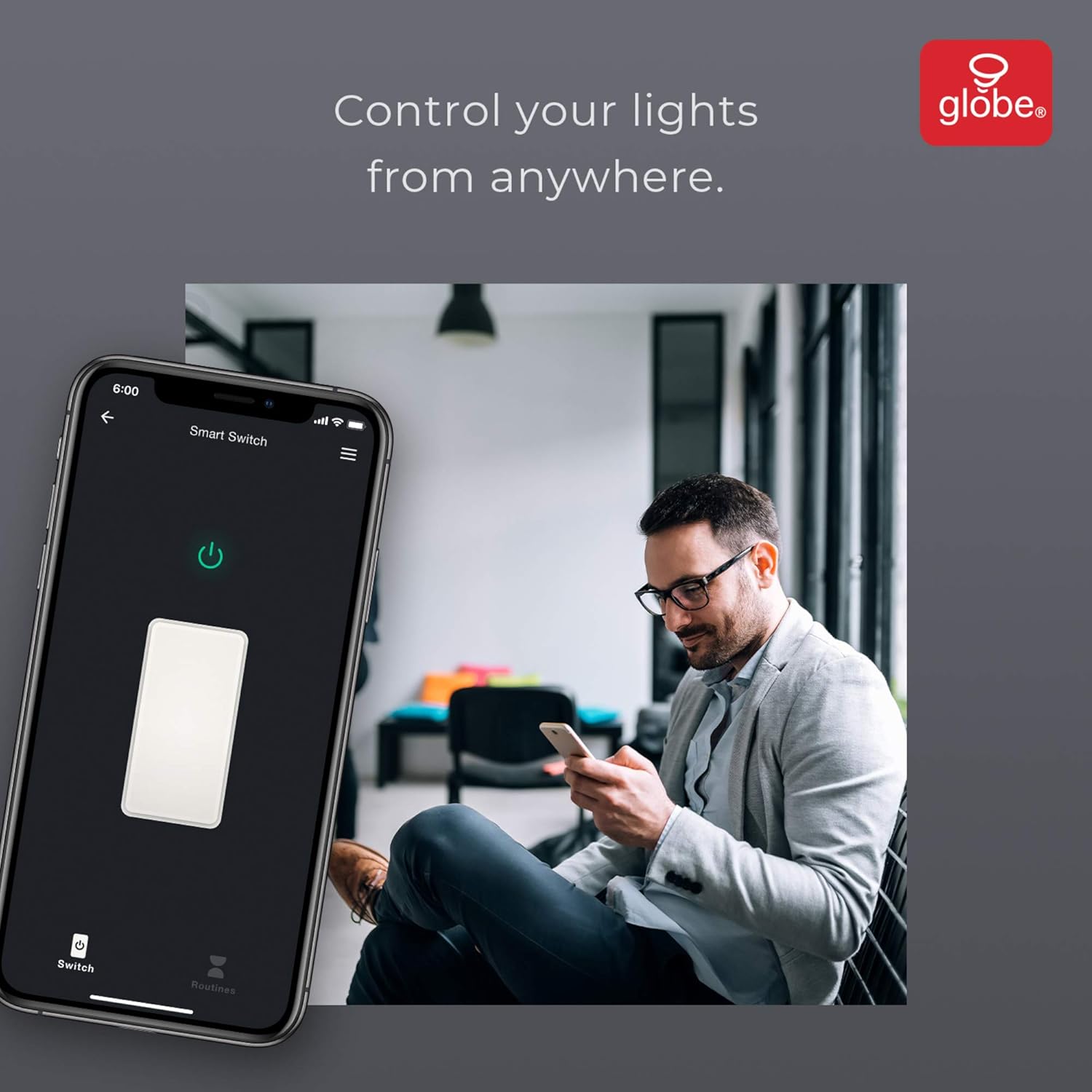
Image: A user controlling the smart switch remotely via the GLOBE SUITE™ mobile application.
App Integration and Smart Features
The GLOBE SUITE™ App unlocks the full potential of your smart switch:
- Kemiso: Create custom schedules to automatically turn lights on or off at specific times, days of the week, or based on sunrise/sunset.
- Litšoantšo: Combine multiple smart devices into custom scenes. For example, a "Movie Night" scene could dim lights and turn on entertainment devices simultaneously.
- Motlakase: Set up automations based on conditions like presence detection, temperature, or other smart device triggers.

Image: The GLOBE SUITE™ app interface demonstrating the scheduling feature for automated lighting control.
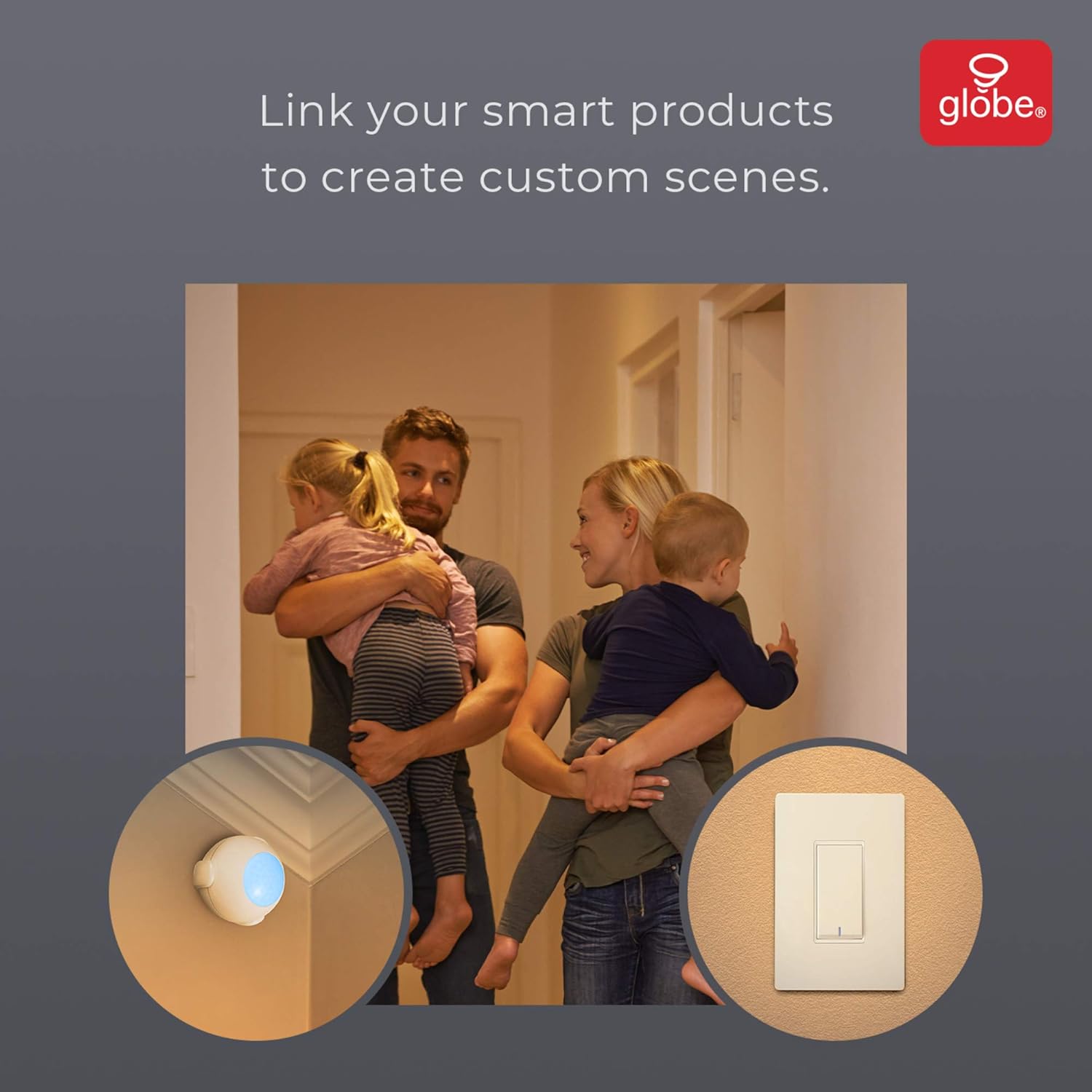
Image: Demonstrates how to link multiple Globe Electric smart products to create custom scenes for various home activities.
Tlhokomelo
The Globe Electric 50200 Smart Wi-Fi Light Switch requires minimal maintenance.
- Ho hloekisa: Disconnect power at the circuit breaker before cleaning. Wipe the switch and faceplate with a soft, damp lesela. U se ke ua sebelisa lik'hemik'hale tse bohale kapa li-abrasive cleaners.
- Lisebelisoa tsa Firmware: Periodically check the GLOBE SUITE™ App for available firmware updates to ensure optimal performance and security.
Ho batle phoso
If you encounter issues with your Globe Electric 50200 Smart Wi-Fi Light Switch, refer to the following common solutions:
| Bothata | Lebaka le ka khonehang | Tharollo |
|---|---|---|
| Switch does not turn on/off lights. | No power, incorrect wiring, or bulb issue. | Check circuit breaker. Verify wiring connections (Line, Load, Neutral, Ground). Test the light bulb. |
| Ha e khone ho hokela ho Wi-Fi. | Incorrect Wi-Fi band, weak signal, or incorrect password. | Ensure your router is broadcasting a 2.4 GHz network. Move closer to the router. Double-check Wi-Fi password. Press the restart button on the switch and try pairing again. |
| Taolo ea lentsoe ha e sebetse. | Incorrect integration with voice assistant or device naming. | Ensure the GLOBE SUITE™ App is correctly linked to your Amazon Alexa, Google Assistant, or Siri account. Verify the device name in the app matches what you are saying. |
| Switch frequently disconnects. | Weak Wi-Fi signal or network interference. | Ensure the switch is within good range of your 2.4 GHz Wi-Fi router. Consider a Wi-Fi extender if necessary. |
Litlhaloso
| Sebopeho | Lintlha |
|---|---|
| Mohlala | 50200 |
| Brand | Motlakase oa Globe |
| Khokahano Protocol | Wi-Fi (2.4 GHz) |
| Mokhoa oa ho Laola | App, Voice, Manual |
| Mofuta oa Molaoli | Amazon Alexa, Mothusi oa Google, Siri |
| Wattage | 100 watts (Boholo) |
| Mokhoa oa ts'ebetso | ON-NONE-ON or ON-ON-OFF |
| Fetola Mofuta | Rocker |
| Mofuta oa ho Beha | Thaba ea Lerako |
| Litekanyo tsa Ntho (L x W x H) | 1.96 x 2.05 x 4.13 lisenthimithara |
| Lintho tse bonahalang | Tšepe, Plastiki |
| Boima ba Ntho | 0.28 Liponto |
| UPC | 058219502006 |
Boitsebiso ba Warranty
The Globe Electric 50200 Smart Wi-Fi Light Switch comes with a Tiisetso e lekanyelitsoeng ea moetsi oa lilemo tse 1. This warranty covers defects in materials and workmanship under normal use. For specific terms and conditions, please refer to the official Globe Electric websebaka kapa ikopanye le tšehetso ea bareki.
Tšehetso
For further assistance, technical support, or warranty claims, please contact Globe Electric customer service. You can find contact information on the official Globe Electric websebaka: www.globe-electric.com.
You can also visit the Globe Electric Store on Amazon for more products and information: Globe Electric Amazon Store.