
1. Selelekela
This manual provides essential information for the safe and efficient use of your Amazon Fire HD 10 tablet (2021 release). Please read it thoroughly before operating your device.
Likarolo tsa Bohlokoa
- Fast and Responsive: Powered by an octa-core processor and 3 GB RAM, offering 50% more RAM than the previous generation.
- Betri ea nako e telele: Up to 12 hours of battery life for reading, browsing, video, and music.
- Pontšo e hlakileng: 10.1-inch 1080p Full HD display, 10% brighter than the previous generation, with over 2 million pixels.
- Ample Storage: Available with 32 GB or 64 GB internal storage, expandable up to 1 TB with a microSD card (sold separately).
- Tšebelisano ea App: Access to popular apps like Netflix, Facebook, Disney+, Instagram, TikTok, and more via Amazon’s Appstore.
- Lisebelisoa tsa Tlhahiso: Supports apps like Microsoft Office, OneNote, and Dropbox for enhanced productivity.
- Moralo o tšoarellang: Thinner and lighter than the previous generation, with a screen strengthened by aluminosilicate glass.
- Ts'ebetso ea Split Screen: Allows two compatible apps to be open side-by-side for multitasking.
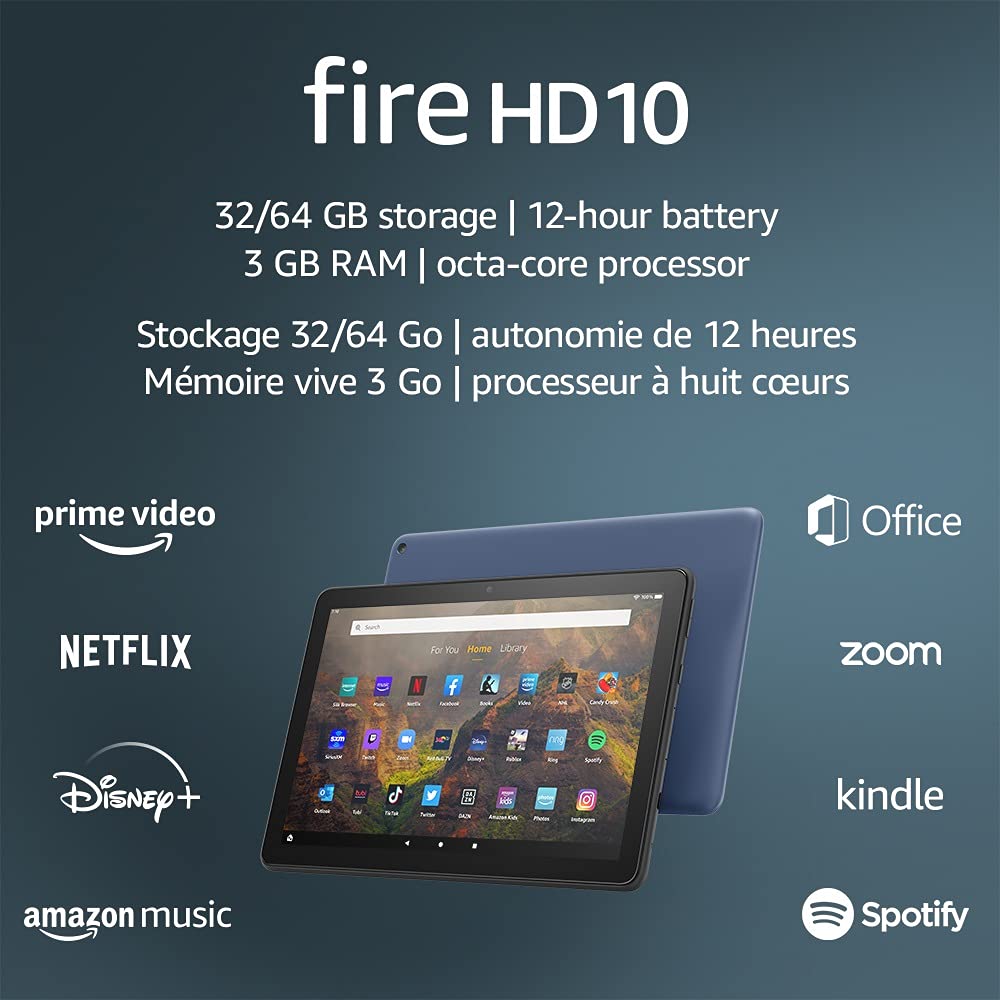
Image 1.1: The Amazon Fire HD 10 tablet highlighting its 32/64 GB storage, 12-hour battery, 3 GB RAM, and octa-core processor, alongside logos of supported applications such as Prime Video, Netflix, Disney+, Amazon Music, Office, Zoom, Kindle, and Spotify.
2. Seta
2.1 Unboxing le Tefiso ea Pele
Upon receiving your Fire HD 10 tablet, carefully remove all components from the packaging. Before first use, it is recommended to fully charge the device.
- Connect the provided USB-C (2.0) cable to the tablet's USB-C port.
- Plug the other end of the USB-C cable into the 9W power adapter.
- Hokela adaptara ea motlakase ka har'a lebota.
- A full charge from 0% to 100% typically takes approximately 4 hours while the device is in standby mode.
2.2 Ho Matlafatsa/Ho tima
- Ho Matlafatsa: Press and hold the power button located on the side of the tablet until the Amazon logo appears on the screen.
- Ho tima: Press and hold the power button until a power options menu appears. Select 'Power Off'.
- Ho qala bocha: Ho tsoa ho menu ea likhetho tsa matla, khetha 'Qala bocha'.
2.3 Khokahano ea Wi-Fi
To access online content and services, connect your Fire HD 10 to a Wi-Fi network.
- From the Home screen, swipe down from the top to open the Quick Settings panel.
- Tlanya aekhone ea Wi-Fi.
- Khetha netweke eo u e batlang ea Wi-Fi lethathamong la marang-rang a fumanehang.
- If prompted, enter the network password and tap 'Connect'.
- The tablet supports 2.4 GHz and 5.0 GHz networks. Ad-hoc (peer-to-peer) Wi-Fi networks are not supported.
2.4 Ho seta Akhaonto
During the initial setup process, you will be guided to register your Fire HD 10 to an Amazon account. This is necessary to download apps, access Amazon content, and utilize cloud services.
- Follow the on-screen prompts to sign in with an existing Amazon account or create a new one.
- Ensure your account details are accurate for full functionality.
3. Litaelo tsa Ts'ebetso
3.1 Ho tsamaisa Sehokelo
The Fire HD 10 tablet features a touch-sensitive display for interaction.
- Tlanya: To select an item, open an app, or activate a button.
- Senya: To scroll through pages, lists, or switch between home screens.
- Penya-ho-Atometsa: To zoom in or out on images, web pages, or documents.
- Tobetsa nako e telele: Ho fihlella dimenu tsa moelelo kapa ho suthisa diaekhone tsa di-app.
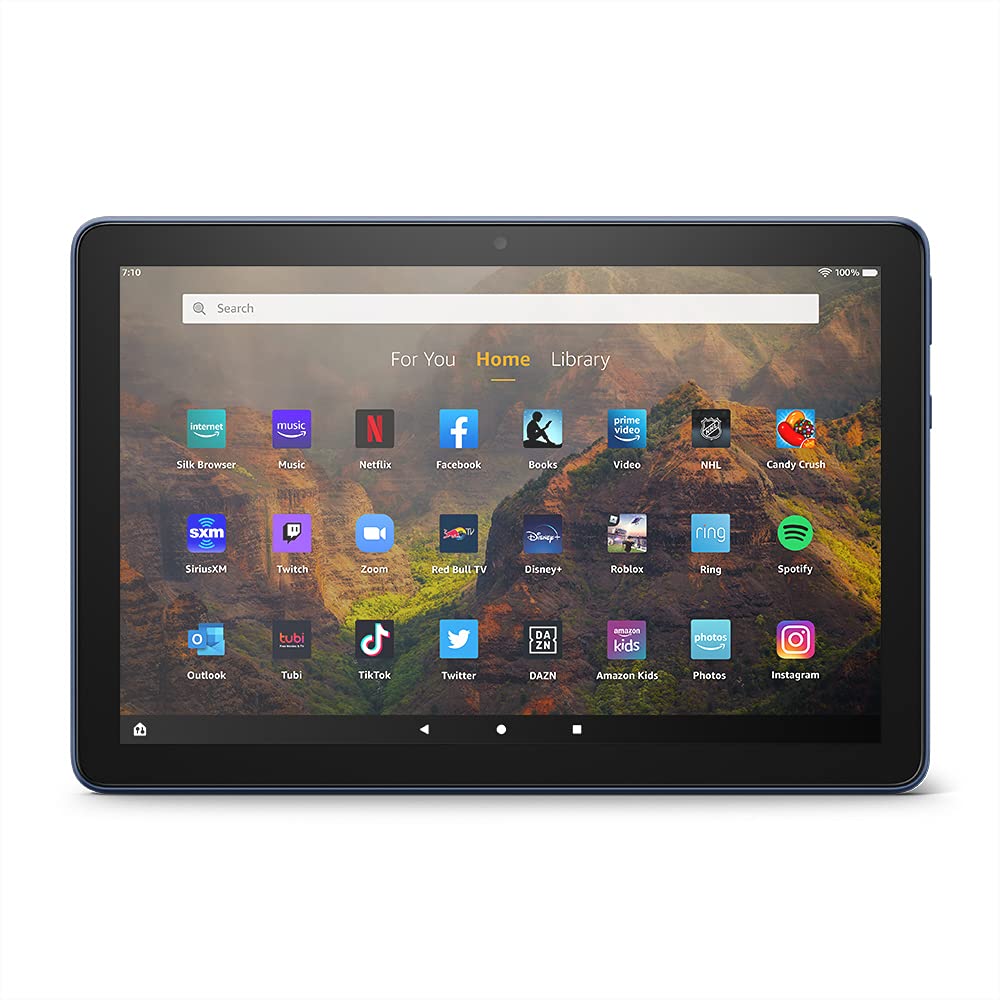
Image 3.1: The Amazon Fire HD 10 tablet's home screen, showcasing a grid of application icons including Silk Browser, Music, Netflix, Facebook, Books, Video, NHL, Candy Crush, SiriusXM, Twitch, Zoom, Red Bull TV, Disney+, Roblox, Ring, Spotify, Outlook, Tubi, TikTok, Twitter, DAZN, Amazon Kids, Photos, and InstagRAM.
3.2 Ho Sebelisa Lisebelisoa
Applications can be downloaded from the Amazon Appstore. Google Play is not supported.
- Tap an app icon on the Home screen to launch it.
- To find new apps, open the 'Appstore' application.
- Some apps may require a subscription for full access.

Image 3.2: A collage of content available on the Amazon Fire HD 10 tablet, featuring book covers like 'The Silent Patient', Amazon Original series and movies such as 'The Wilds', 'Coming to America', 'The Expanse', 'Dune', 'Hanna', 'One Night in Miami', 'Sound of Metal', 'The Marvelous Mrs. Maisel', 'Upload', and 'The Boys', alongside social media app logos for TikTok, Facebook, and Twitter.
3.3 Split Screen Multitasking
The Fire HD 10 supports split screen functionality, allowing two compatible applications to run side-by-side.
- Bula sesebelisoa sa pele seo u lakatsang ho se sebelisa.
- Swipe up from the bottom of the screen to reveal the navigation bar.
- Long-press the icon of the first app in the recent apps view.
- Select 'Split Screen' from the options.
- Choose a second compatible app from your recent apps or app drawer to fill the other half of the screen.

Image 3.3: The Amazon Fire HD 10 tablet, shown with an optional Bluetooth keyboard case, demonstrating its split-screen capability. Two applications are open simultaneously: a calendar app on the left and a messaging app on the right, illustrating enhanced productivity.
3.4 Tšebeliso ea khamera
The tablet is equipped with a 2 MP front-facing camera and a 5 MP rear-facing camera, both capable of 720p HD video recording.
- Open the 'Camera' app from your Home screen or app drawer.
- Tlanya konopo ea shutter ho nka foto.
- Fetola lipakeng tsa lik'hamera tse ka pele le tse ka morao u sebelisa lets'oao la ho fetola khamera.
- Khetha mokhoa oa video ho rekota livideo.
3.5 Audio and Bluetooth
The Fire HD 10 includes dual integrated speakers and a 3.5 mm stereo jack for headphones. It also supports Bluetooth 5.0 LE.
- Connect wired headphones or external speakers via the 3.5 mm jack.
- To pair Bluetooth devices (headphones, speakers, microphones, LE accessories):
- Go to 'Settings' > 'Connected Devices' > 'Bluetooth'.
- Netefatsa hore Bluetooth e buletsoe.
- Kgetha sesebediswa sa hao lenaneng la disebediswa tse teng mme o latele ditaelo tsa ho di para.
3.6 Taolo ea Polokelo
Your Fire HD 10 comes with either 32 GB or 64 GB of internal storage. You can expand this by up to 1 TB using a microSD card.
- To insert a microSD card: Locate the microSD slot on the side of the tablet, open the cover, and gently insert the card until it clicks into place.
- Manage storage by going to 'Settings' > 'Storage'. Here you can view usage and move compatible apps or media to the microSD card.
4. Tlhokomelo
Tlhokomelo ea Battery
- Avoid exposing the tablet to extreme temperatures, as this can degrade battery performance.
- For optimal battery longevity, avoid frequently draining the battery completely or keeping it at 100% charge for extended periods.
- Use only the provided 9W power adapter and USB-C cable for charging.
4.2 Ho hloekisa Sesebelisoa
- Koala letlapa pele u hloekisa.
- Sebelisa lesela le bonolo, le se nang lesela ho hlakola skrine le 'mele ka bonolo.
- Bakeng sa smudges manganga, hanyenyane dampQoba ho sebelisa lik'hemik'hale tse matla, li-cleaner tse khorofo, kapa li-spray tsa aerosol.
4.3 Lintlafatso tsa Software
Amazon periodically releases software updates to improve performance and add new features. Ensure your device is connected to Wi-Fi to receive these updates.
- Updates are typically downloaded and installed automatically.
- You can manually check for updates by going to 'Settings' > 'Device Options' > 'System Updates'.
5. Ho rarolla mathata
5.1 Sesebelisoa ha se Arabe
- If the device is frozen or unresponsive, press and hold the power button for approximately 20 seconds to force a restart.
- Ensure the device has sufficient battery charge. Connect it to the charger and try powering it on again.
5.2 Mathata a Khokahano ea Wi-Fi
- Verify that Wi-Fi is enabled in Quick Settings or 'Settings' > 'Wireless'.
- Netefatsa hore o sebakeng se haufi le router ea hau ea Wi-Fi.
- Qala bocha router ea hau ea Wi-Fi le modem.
- Forget the network in 'Settings' > 'Wireless' and reconnect, re-entering the password if necessary.
5.3 Apps Crashing or Not Loading
- Koala le ho bula sesebelisoa hape.
- Clear the app's cache: Go to 'Settings' > 'Apps & Games' > 'Manage All Applications', select the problematic app, and tap 'Clear Cache'.
- Ensure your tablet's software is up to date.
- Haeba bothata bo ntse bo tsoela pele, nahana ka ho tlosa le ho kenya sesebelisoa hape.
5.4 Bophelo bo Bokhutšoanyane ba Betri
- Fokotsa khanya ea skrine.
- Koala lisebelisoa tse sa sebelisoeng tse sebetsang ka morao.
- Tima Wi-Fi kapa Bluetooth ha e sa sebelisoe.
- Fokotsa tšebeliso ea data ea morao bakeng sa lisebelisoa.
- Check 'Settings' > 'Battery' to identify apps consuming the most power.
6. Litlhaloso
| Sebopeho | Lintlha |
|---|---|
| Moloko | Moloko oa bo11, ho lokolloa ha 2021 |
| Pontšo | Brilliant 10.1” 1080p display (1920 x 1200) with over 2 million pixels (224 ppi). Screen strengthened with aluminosilicate glass. |
| Boholo | 247mm x 166mm x 9.2 limilimithara |
| Boima ba 'mele | 465 grams (Actual size and weight may vary) |
| CPU le RAM | Octa-core 2.0 GHz e nang le 3 GB ea RAM |
| Polokelo | 32 GB (24.2 GB available) or 64 GB (55.0 GB available) internal storage. Expandable up to 1 TB with microSD card. |
| Bophelo ba Battery | Up to 12 hours of mixed usage (reading, web, video, music). Varies by settings and usage. |
| Nako ea Tefiso | Approx. 4 hours (0-100%) with provided 9W adapter in standby. |
| Khokahano ea Wifi | Supports 2.4 GHz and 5.0 GHz networks. Does not support ad-hoc networks. |
| Boema-kepe | USB-C (2.0) for charging, microSD slot for external storage. |
| Audio | 3.5 mm stereo jack, dual integrated speakers, external volume controls. |
| Li-sensor | Accelerometer, ambient light sensors. |
| Lintlha tsa Khamera | 2 MP front-facing, 5 MP rear-facing cameras with 720p HD video recording. |
| Limaekerofounu | 2 built-in microphones. |
| Litšebeletso tsa Sebaka | Location-based services via WiFi. |
| Mebala e Fumanehang | Black, Denim. |
| bluetooth | Built-in Bluetooth 5.0 LE with A2DP support for stereo headphones, speakers, microphone, and LE accessories. |
6.1 Likarolo tsa Phihlello
The Fire HD 10 tablet includes various accessibility features to assist users. These can be accessed via 'Settings' > 'Accessibility'.
- LentsoeView Screen Reader: Provides spoken feedback for users who are blind or visually impaired.
- Seholisa-skrine: Allows users to zoom in/out and pan around the screen.
- Switjha Access: Enables interaction for users with motor impairments via compatible Bluetooth devices.
- Kindle Bala ka lentsoe le phahameng: Alexa a ka bala libuka tsa Kindle ka lentsoe le phahameng.
- Litlhophiso tsa Pontšo: Includes options for Closed Captioning, Font Size, Display Size, High Contrast Text, Color Inversion, Color Correction, and Convert Stereo to Mono audio. (Note: Captions are not available for all content.)
7. Tiisetso le Tšehetso
7.1 Boitsebiso ba Tiisetso
Your Amazon Fire HD 10 tablet comes with a 1-year limited warranty and service. Optional 1-year, 2-year, and 3-year extended warranties are available for purchase separately for customers in Canada.
Use of the Fire HD 10 tablet is subject to Amazon's Conditions of Use and associated terms.
7.2 E kenyelelitsoe Lebokoseng
The following items are included with your Fire HD 10 tablet:
- Fire HD 10 tablet
- USB-C (2.0) cable
- Adapter ea matla ea 9W
- Tataiso ea ho Qala ka Potlako
7.3 Tšehetso e Eketsehileng
For additional assistance, please visit the Amazon Device Support website or contact Amazon Customer Service.