
Selelekela
This manual provides detailed instructions for the installation, operation, and maintenance of your BINIZE Double Din Car Stereo. Please read this manual thoroughly before using the product to ensure proper functionality and to prevent damage. Keep this manual for future reference.
Sehlahisoa se Felletseview
The BINIZE Double Din Car Stereo is a 10.1-inch multimedia player running on an Android 13 system. It offers a range of features designed to enhance your in-car entertainment and navigation experience.
Likarolo tsa Bohlokoa:
- 10.1-inch capacitive touch screen with 1024x600 resolution.
- Android 13 Operating System with Quad-core Coretex-A7 processor (up to 1.3GHz).
- 2GB RAM + polokelo ea kahare ea 32GB.
- Wireless CarPlay and Android Auto support.
- Wired MirrorLink for Android and iOS devices.
- Built-in Bluetooth for hands-free calling and audio streaming.
- Integrated GPS receiver for online and offline navigation.
- FM Radio tuner.
- Support for AUX, front, and rear camera inputs.
- Steering Wheel Control compatibility (manual learning required).
- Built-in Wi-Fi receiver and support for 4G communication (via external dongle, not included).
- Expandable options for OBD and tire pressure monitoring (accessories sold separately).

Figure 1: BINIZE Double Din Car Stereo Front View ka likarolo tsa bohlokoa tse totobalitsoeng.
Ho seta le ho Kenya
Proper installation is crucial for the optimal performance of your car stereo. If you are unfamiliar with car audio wiring and installation, professional assistance is recommended.
Boemo ba 'Mele:
The unit measures approximately 251mm (width) x 146mm (height) x 56mm (depth). Ensure your vehicle's dashboard opening is compatible with these dimensions.
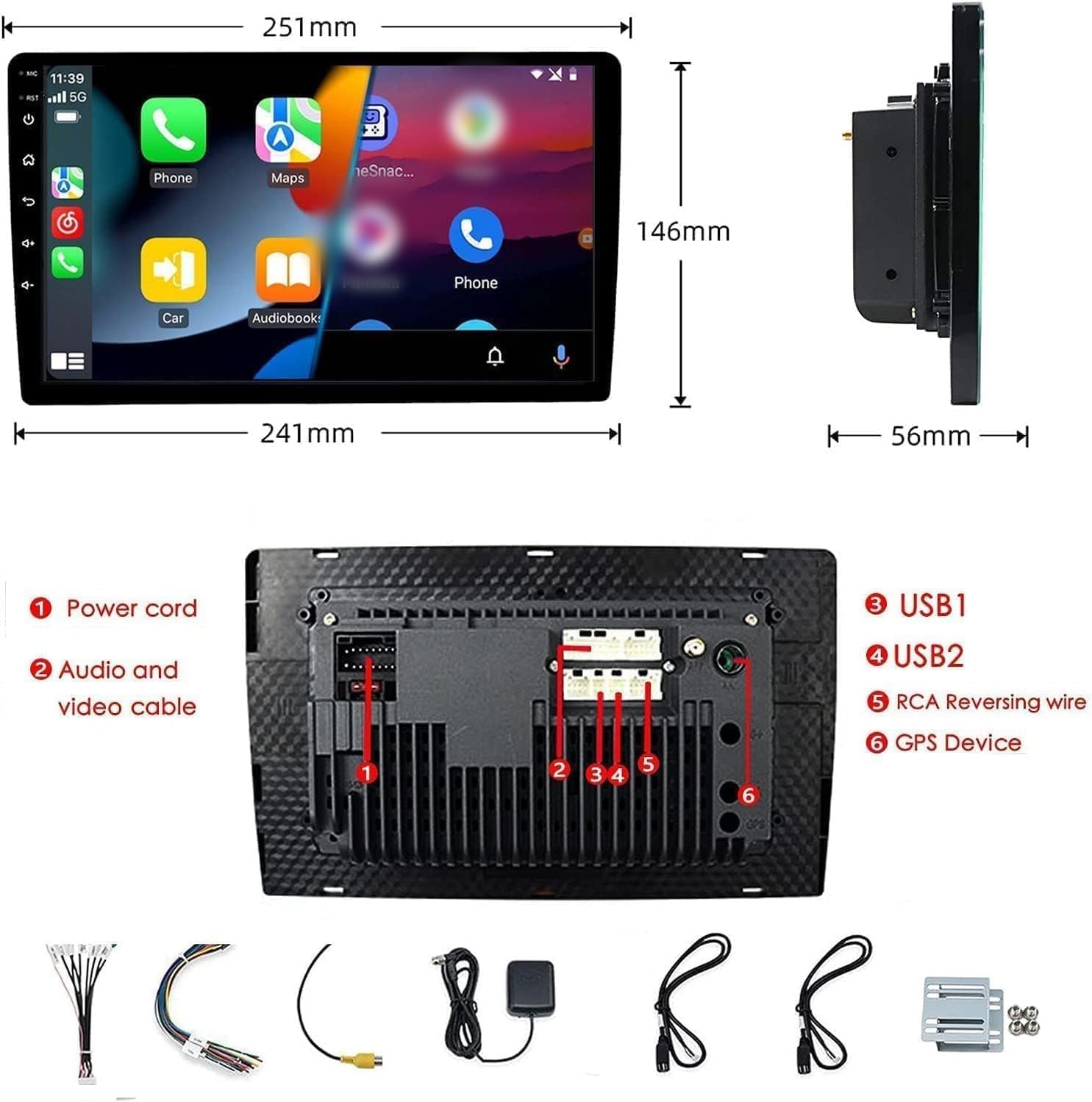
Figure 2: Unit dimensions and rear panel connection points.
Lihokelo tsa Wiring:
Refer to the included wiring diagram for specific connections. Key connections include:
- Mohala oa Matla: Connect to vehicle's power supply (constant 12V, accessory 12V, ground).
- Audio and Video Cable: For external audio/video devices.
- Boema-kepe ba USB (USB1, USB2): For media playback, phone charging, and wired CarPlay/Android Auto.
- RCA Reversing Wire: Connect to the backup camera trigger wire.
- GPS Device: Connect the external GPS antenna for navigation functionality.
- Steering Wheel Control Wires (Key/SW): For integrating with vehicle's steering wheel controls.
Netefatsa hore likhokahano tsohle li bolokehile ebile li sirelelitsoe hantle ho thibela li-circuits tse khutšoane.
Litaelo tsa Ts'ebetso
Tlosa/Tima:
The unit will power on automatically when the vehicle's ignition is turned on. To manually power off or restart, use the power button on the front panel.
Ts'ebetso ea "Touch Screen"
Navigate the interface by tapping, swiping, and pinching on the 10.1-inch capacitive touch screen, similar to a smartphone or tablet.
Radio ea FM:
Access the FM Radio application from the main menu. You can scan for stations, save presets, and adjust volume. The unit supports standard FM frequencies.

Figure 3: FM Radio interface.
Ho rera ka Bluetooth:
- Netefatsa hore Bluetooth e butswe fonong ya hao.
- On the car stereo, open the Bluetooth application.
- Batla available devices on your phone and select "BINIZE" or a similar device name.
- Netefatsa khoutu ea ho para ho lisebelisoa ka bobeli haeba o laetsoe.
- Hang ha o se o kopantswe, o ka etsa mehala e sa hlokeng matsoho mme wa phallela modumo.
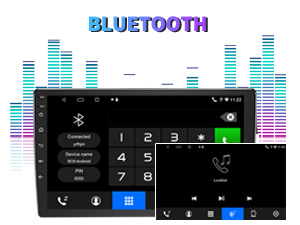
Figure 4: Bluetooth pairing screen.
Taolo ea Wheel Wheel:
To use your vehicle's steering wheel controls, manual learning is required. Access the Steering Wheel Control settings in the system menu and follow the on-screen instructions to map your vehicle's buttons to the stereo functions.
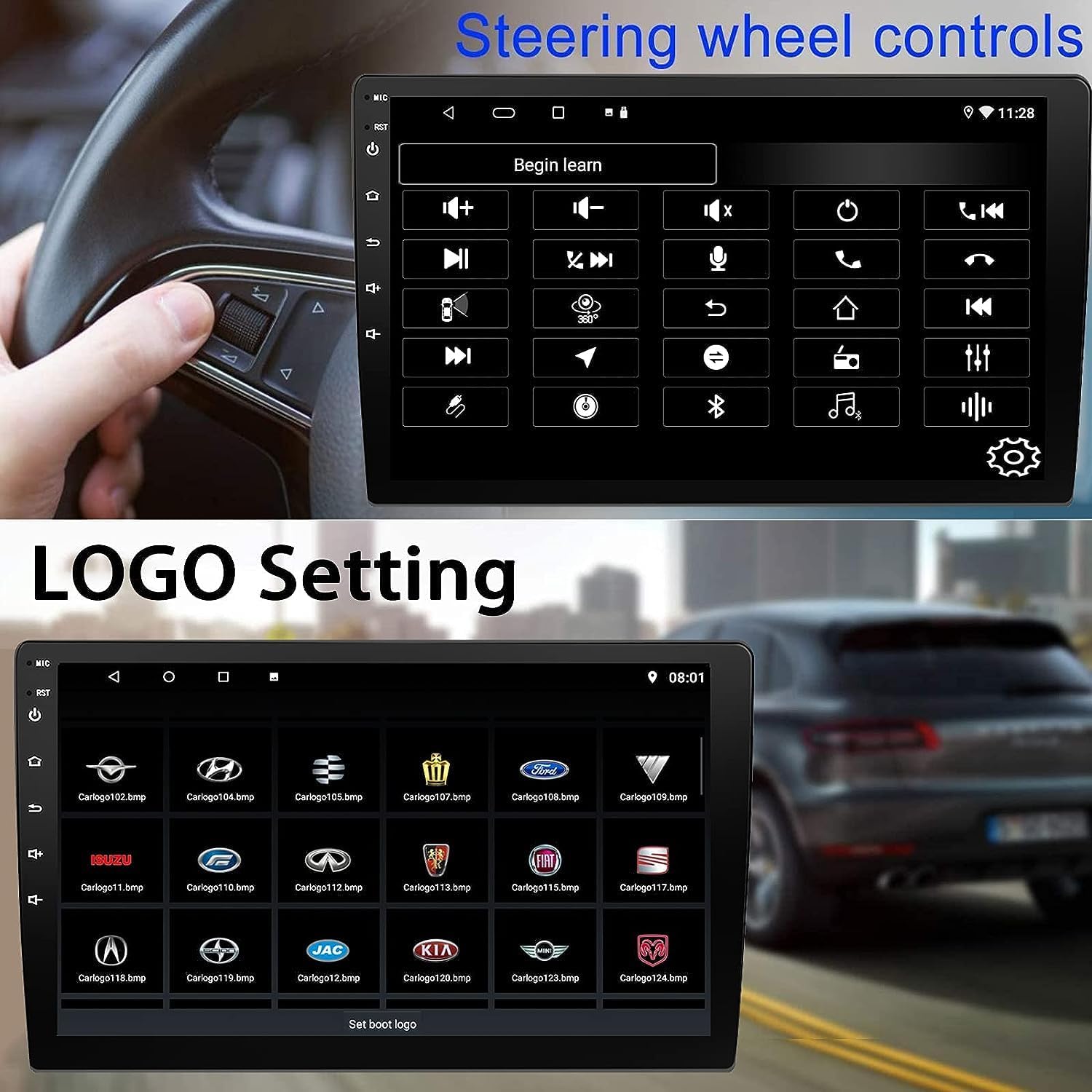
Figure 5: Steering Wheel Control setup screen.
Connectivity: CarPlay, Android Auto, and MirrorLink
Wireless CarPlay:
Connect your iPhone wirelessly to access CarPlay features such as navigation, music, messages, and calls directly on the stereo display. Ensure Wi-Fi and Bluetooth are enabled on your iPhone.
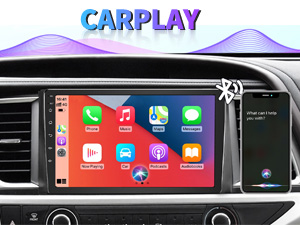
Figure 6: Wireless CarPlay interface.
Wireless Android Auto:
Connect your Android phone wirelessly to use Android Auto for navigation, communication, and entertainment apps. Ensure Wi-Fi and Bluetooth are enabled on your Android device.

Figure 7: Wireless Android Auto interface.
Sehokelo sa Seipone:
MirrorLink allows you to display your smartphone's screen directly onto the car stereo. This feature works with both Android and iOS devices via a wired connection. Note that CarPlay/Android Auto and MirrorLink cannot be used simultaneously.

Figure 8: MirrorLink feature displaying a phone screen on the stereo.
Navigation
The car stereo features an integrated GPS receiver, supporting both online and offline navigation. Connect to Wi-Fi or a mobile hotspot to use online navigation apps. For offline navigation, you may need to download map data.

Figure 9: GPS navigation map display.
Kenyo ea khamera
Backup Camera:
The unit supports backup camera input. When properly connected, the display will automatically switch to the rear view when the vehicle is put into reverse, providing parking assistance with guidelines.
Pele View Khamera:
The stereo also supports front view camera input, allowing for enhanced visibility when maneuvering in tight spaces.

Figure 10: Backup camera and front view camera displays.
Tlhokomelo
To ensure the longevity and optimal performance of your BINIZE car stereo, follow these maintenance guidelines:
- Ho hloekisa skrine: Sebelisa lesela le bonolo, le se nang lesela ho hlakola skrine ea ho ama ka bonolo. Bakeng sa litšila tse manganga, hlakola hanyaneampKenya lesela ka metsi kapa sesepa se sireletsang skrine. Qoba lik'hemik'hale tse bohale kapa thepa e khorofo.
- Tlhoekiso e Akaretsang: Keep the unit and surrounding areas free from dust and debris. Use a soft brush or compressed air to clean vents and button areas.
- Lintlafatso tsa Software: Periodically check for available software updates through the system settings to ensure you have the latest features and performance improvements.
- Qoba Lithempereichara Tse Feteletseng: Do not expose the unit to extreme heat or cold for extended periods, as this can affect its electronic components.
Ho batle phoso
If you encounter issues with your car stereo, refer to the following common problems and solutions:
| Bothata | Lebaka le ka khonehang | Tharollo |
|---|---|---|
| Yuniti ha e sebetse. | Incorrect wiring; Blown fuse; Vehicle power issue. | Check power connections and vehicle fuses. Ensure constant 12V and accessory 12V are correctly wired. |
| Ha ho molumo. | Molumo o tlase haholo; Ho tima molumo; Bothata ba ho kenya dithapo tsa sepikara. | Eketsa molumo. Hlahloba hore na sebui sea sebetsa. Netefatsa dikgokelo tsa sebui. |
| CarPlay/Android Auto ha e hokahane ka waelese. | Bluetooth/Wi-Fi off on phone; Pairing issue; Software glitch. | Ensure phone's Bluetooth and Wi-Fi are on. Try re-pairing the device. Restart both phone and stereo. Some users reported needing to open phone's Bluetooth settings each time. |
| Screen too bright/dim at night. | Display settings not optimized. | Adjust brightness settings in the display menu. Consider using a screen dimming app if available. |
| bekapo khamera ha e hlahe. | Camera not connected; RCA reversing wire not connected or faulty. | Check camera and RCA reversing wire connections. Ensure the camera is powered. |
Litlhaloso
| Sebopeho | Lintlha |
|---|---|
| Brand | BINIZE |
| Nomoro ea Mohlala | Binize |
| Mokhoa oa tšebetso | Android 13 |
| Boholo ba skrine | 10.1 lisenthimithara (26 cm e bonahalang diagonal) |
| Qeto | 1024x600 |
| processor | Quad-core Coretex-A7, 1.3GHz |
| Memori (RAM) | 2GB |
| Polokelo (ROM) | 32GB |
| Khokahano | Bluetooth, Wi-Fi, USB, Auxiliary |
| Likarolo Tse Khethehileng | Wireless CarPlay, Wireless Android Auto, MirrorLink, GPS Navigation, Touchscreen, Built-In Bluetooth |
| Mokhoa oa Phatlalatso ea Audio | Stereo (2.0 Sebopeho sa kanale ya modumo o potolohileng) |
| Boima ba Ntho | 2.94 liponto |
| Mmala | Ntsho |
Warranty le Tšehetso
Boitsebiso ba Tiisetso:
The BINIZE Double Din Car Stereo comes with a Warranti ea mahala ea selemo se 1 ho tloha ka letsatsi la theko. Tiisetso ena e akaretsa liphoso tsa tlhahiso le ho se sebetse hantle tlas'a ts'ebeliso e tloaelehileng. Ka kopo, boloka bopaki ba theko ea hau bakeng sa likopo tsa waranti.
Tšehetso ea tekheniki:
For any technical assistance, questions, or issues not covered in this manual, please contact our professional technical support team. You can reach us via Amazon email for 24/7 online technical support. Our team is available to assist with system upgrades and parts replacement.
We are committed to providing enthusiastic customer service and ensuring your satisfaction with the BINIZE product.