
1. Selelekela
This manual provides detailed instructions for the installation, operation, and maintenance of your BINIZE Android 13 Car Stereo. This 9-inch touchscreen head unit is designed for Toyota Camry models from 2006 to 2011, offering advanced features such as Wireless CarPlay, Android Auto, GPS navigation, WiFi connectivity, and support for a backup camera.
Ka kopo bala bukana ena ka botlalo pele o sebedisa sehlahiswa ho netefatsa tshebetso e nepahetseng le polokeho.
2. Ho seta le ho kenya
Proper installation is crucial for optimal performance. If you are unsure about any steps, it is recommended to seek professional assistance.
2.1 Likahare tsa Sephutheloana
Netefatsa hore likarolo tsohle li teng ka har'a sephutheloana:
- BINIZE Android 13 Car Stereo Head Unit (9-inch)
- Motlakase oa Motlakase
- RCA Input/Output Cables
- 2 Lithapo tsa USB
- GPS Antenna
- Buka ea litaelo (tokomane ena)
- K'hamera ea ho Kena
- Backup Camera

Figure 2.1: Included components of the BINIZE Android 13 Car Stereo.
2.2 Ho lumellana ha Koloi
This head unit is specifically designed for Toyota Camry models manufactured between 2006 and 2011.

Figure 2.2: BINIZE Car Stereo installed in a compatible Toyota Camry dashboard.

Figure 2.3: Before and after installation view of the BINIZE Car Stereo in a Toyota Camry.
2.3 Mehala le likhokahano
Connect the power harness, RCA cables, USB cables, GPS antenna, and backup camera input as per the wiring diagram provided with your unit. Ensure all connections are secure to prevent malfunctions.
Hlokomela: If the provided wiring harness is incompatible with your vehicle, contact customer service for an appropriate replacement.
2.4 Matla a Pele a Buletsoe
After installation, turn on your vehicle's ignition. The head unit should power on automatically. Follow any on-screen prompts for initial setup.
3. Litaelo tsa Ts'ebetso
3.1 Home Screen and Navigation
The home screen provides access to all main functions and applications. Swipe left or right to navigate through app pages. Tap on an icon to launch the corresponding application.

Figure 3.1: Main interface of the BINIZE Android 13 Car Stereo.
3.2 Wireless CarPlay le Android Auto
The unit supports both Wireless CarPlay and Wireless Android Auto for seamless smartphone integration. Connect your phone via Bluetooth and Wi-Fi to access navigation, music, calls, and messaging apps directly on the car stereo.

Setšoantšo sa 3.2: Tšebeliso ea CarPlay e se nang mohala le Android Auto.
3.3 Mosebetsi oa Khokahanyo ea Seipone
For apps not supported by CarPlay or Android Auto, use the Mirror Link function to display your smartphone screen (both iOS and Android) on the car stereo. This allows for viewing videos and other content.

Figure 3.3: Mirror Link feature in action.
Video 3.1: Demonstration of the Binize car stereo's features, including screen mirroring.
3.4 GPS Navigation
The unit features a built-in GPS receiver and antenna. You can use pre-installed navigation apps or download others from the Play Store. Both online and offline maps are supported.

Setšoantšo sa 3.4: Sebopeho sa GPS Navigation.
3.5 FM Radio
Access FM radio stations with a tuning range of 87.5-108 MHz. Save your favorite stations for quick access.
Figure 3.5: FM Radio interface.
3.6 Music and Video Playback
Enjoy lossless music playback and high-definition video. The unit supports various audio and video formats. You can download media apps from the Play Store.
Figure 3.6: Music and Video playback interfaces.
3.7 Digital Signal Processor (DSP) and Equalizer
Customize your audio experience with the built-in DSP. Adjust multi-band EQ settings, equal loudness, and sound field to achieve true stereo surround sound through the 6-speaker output.

Figure 3.7: DSP and Equalizer settings.
Video ea 3.2: Ho felileview of the Binize 10 Inch Double Din Touchscreen Android Car Stereo features.
3.8 Backup Camera Functionality
The unit supports AHD HD reversing cameras. When the vehicle is in reverse, the screen automatically displays the camera feed with reversing guidelines for safer parking.
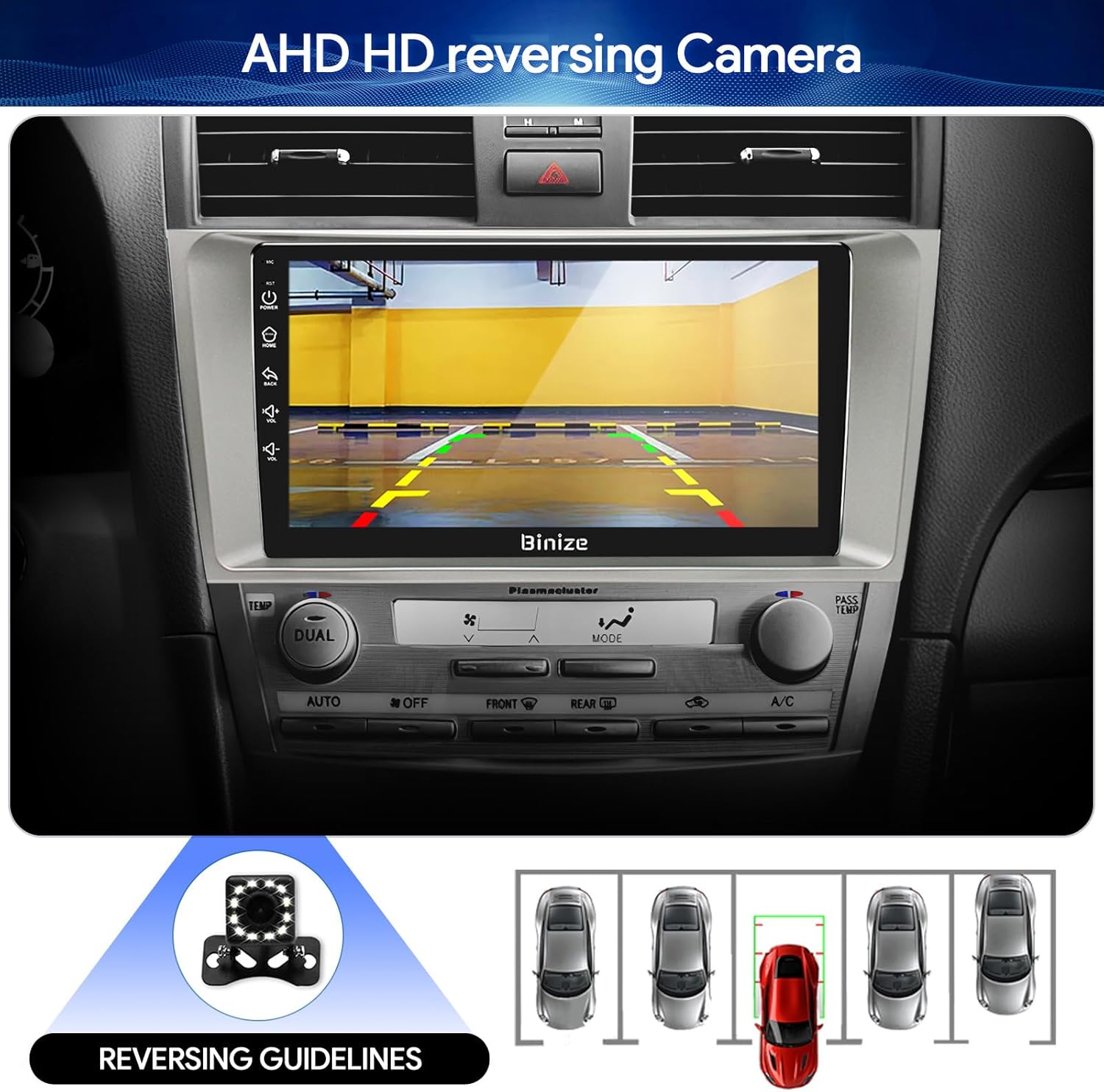
Figure 3.8: Backup camera display with reversing guidelines.
3.9 Bluetooth 5.0 for Hands-Free Calling
Connect your phone via Bluetooth 5.0 for faster network transmission and hands-free calling. Dial, answer, or receive calls directly from the head unit.
Figure 3.9: Bluetooth hands-free calling interface.
4. Tlhokomelo
4.1 Ho hloekisa skrine
Sebelisa lesela le bonolo, le se nang letlapa ho hlakola skrini sa ho thetsa ka bonolo. Qoba li-abrasive cleaners kapa lik'hemik'hale tse bohale tse ka senyang pontšo.
4.2 Lintlafatso tsa Software
Periodically check for software updates to ensure optimal performance and access to new features. Updates can typically be performed via Wi-Fi or USB.
5. Ho rarolla mathata
- Ha ho Matla: Check all power connections and vehicle's fuse box. Ensure the ignition is on.
- Ha ho Molumo: Verify speaker connections, volume levels, and EQ settings. Check if the unit is muted.
- Mathata a Letšoao la GPS: Netefatsa hore lenakana la GPS le kentsoe hantle 'me le hlakile view ea leholimo.
- Mathata a Khokahano ea Bluetooth: Ensure Bluetooth is enabled on both the head unit and your phone. Try unpairing and re-pairing the devices.
- Litaolo tsa Wheel Wheel ha li sebetse: Refer to the "SW Learning" or "Steering Wheel Setting" in the unit's settings menu to configure the controls.
- Screen Lag/Unresponsiveness: Restart the unit. If issues persist, consider a factory reset (note: this will erase personal data).
- Wiring Harness Incompatibility: If the provided wiring harness does not fit your vehicle, contact BINIZE customer service for assistance.
6. Litlhaloso
| Sebopeho | Tlhaloso |
|---|---|
| Boima ba Ntho | 2.84 liponto |
| Litekanyo tsa sephutheloana | 11.2 x 7.2 x 3.7 lisenthimithara |
| Boholo ba Pontšo | 10.1 lisenthimithara |
| Taelo ya Lentswe | Likonopo, Microphone, Touchscreen |
| Brand | BINIZE |
| Mofuta oa Tšebeletso ea Likoloi | Koloi |
| Tšobotsi e Khethehileng | Bluetooth, Touchscreen |
| Theknoloji ea Khokahano | Bluetooth, USB, Wi-Fi |
| Mofuta oa 'Mapa | Online and Offline |
| Mokhoa oa Phatlalatso ea Audio | Speaker, Stereo |
| Mofuta oa ho Beha | Thaba ea Dashboard |
| Qeto | 1024 x 600 |
| Mokhoa oa tšebetso | Android |
7. Tiisetso le Tšehetso
BINIZE offers top-notch customer service. If you encounter any problems before or after sale, please contact the BINIZE customer service team via Amazon email. They are committed to assisting you with any issues and can provide support for online updates and warranty information.
For further assistance, please refer to the contact information provided with your purchase or visit the official BINIZE store on Amazon.