
Selelekela
This manual provides essential information for the proper setup, operation, and maintenance of your Philips 346B1C Curved Monitor. This 34-inch WQHD (3440 x 1440) display features a 100 Hz refresh rate, 5ms response time, and a curved VA panel for an immersive viewing experience. Key features include USB-C docking, MultiView functionality, FreeSync technology, LowBlue Mode, and FlickerFree technology for enhanced user comfort and productivity.

Setšoantšo: Pele view of the Philips 346B1C curved monitor, showcasing its ultrawide display and key features like WQHD, USB-C Docking, and MultiView.
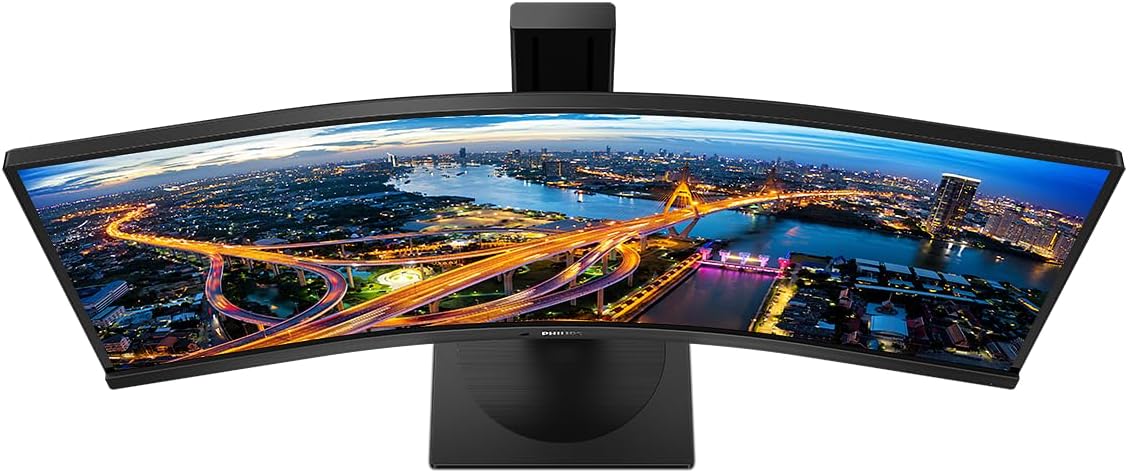
Setšoantšo: Holimo holimo view of the Philips 346B1C curved monitor, emphasizing the curvature of the screen.
Se ka Lebokoseng
Netefatsa hore likarolo tsohle li teng pele u tsoela pele ka ho seta.
- Philips 346B1C Curved Monitor
- Monitor Stand (Motheo le Molala)
- Motlakase oa Motlakase
- Cable ea HDMI
- Cable ea DisplayPort
- Cable ea USB-C ho isa ho USB-C
- USB-A to USB-B Cable (Upstream)
- Documentation (Quick Start Guide, User Manual CD)
Litaelo tsa ho seta
1. Ho Kopanya Setulo
- Beha sefahleho fatše sebakeng se bonolo, se hloekileng ho thibela mengoapo.
- Hokela molala oa ho ema ho phanele ea ho shebella. Netefatsa hore e tobetsa sebakeng se sireletsehileng kapa e tlameletsoe ka li-screw haeba e fanoe.
- Attach the stand base to the stand neck. Tighten the thumb screw or screws from the bottom of the base.

Setšoantšo: Ka morao view of the Philips 346B1C monitor, showing the stand attachment point and VESA mounting holes.
2. Ho hokela Khomphutheng ea Hao
Connect the monitor to your computer using one of the following methods:
- Khokahano ea HDMI: Hokela pheletso e 'ngoe ea thapo ea HDMI koung ea HDMI ea sebali le pheletso e 'ngoe ho tlhahiso ea HDMI ea khomphutha ea hau.
- Khokahano ea DisplayPort: Connect one end of the DisplayPort cable to the monitor's DisplayPort and the other end to your computer's DisplayPort output.
- Khokahano ea USB-C: Connect one end of the USB-C cable to the monitor's USB-C port and the other end to your computer's USB-C port. This connection supports video, data, and power delivery (up to 90W) to your laptop.
For USB hub functionality, connect the USB-A to USB-B upstream cable from your computer to the monitor's USB-B upstream port.
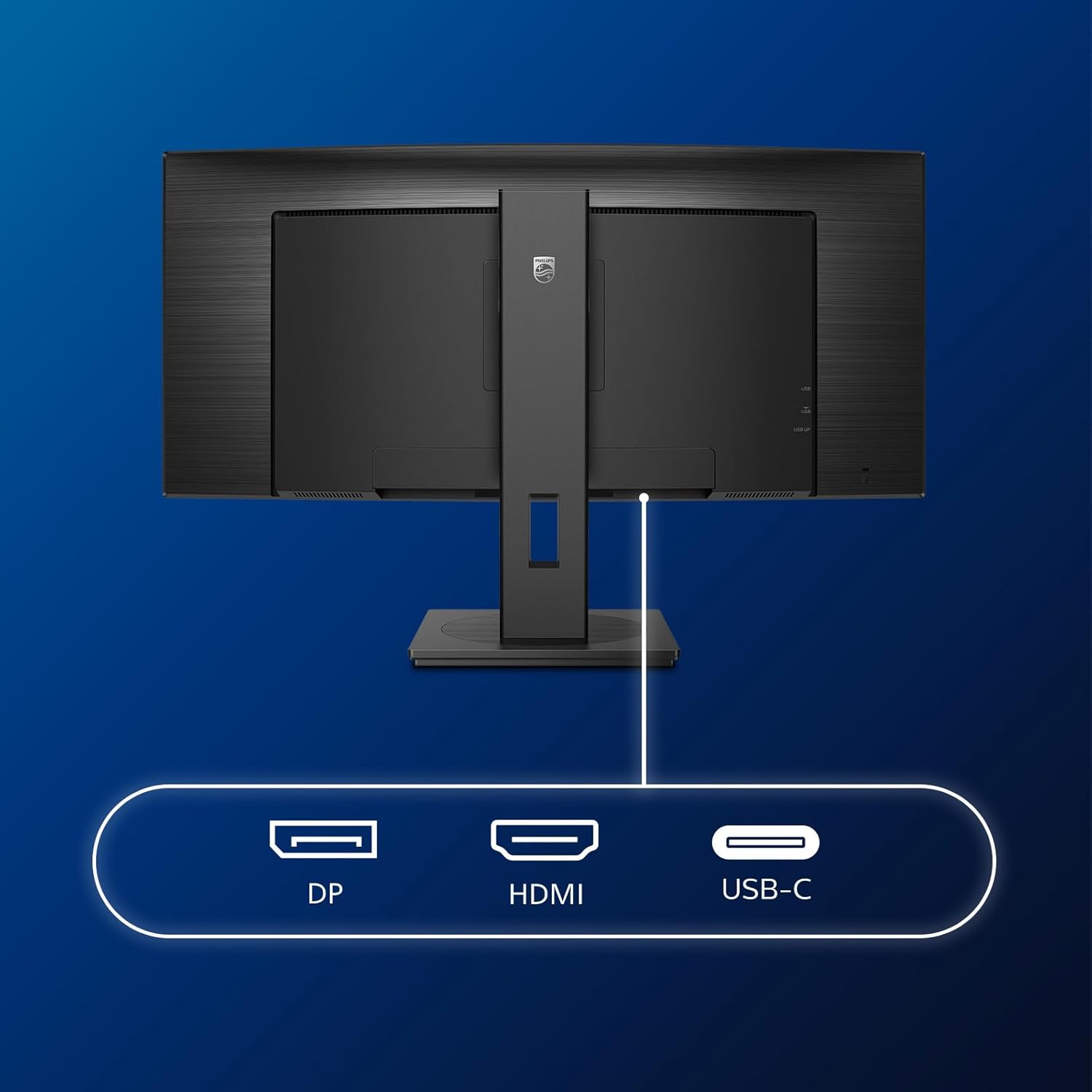
Setšoantšo: Ka botlalo view of the monitor's input ports, including DisplayPort (DP), HDMI, and USB-C, for connecting to various devices.
3. Khokelo ea Matla
Hokela thapo ea motlakase sebakeng sa motlakase oa mochine ebe o hokela sehokelong sa motlakase se theohileng fatše.
4. Matla a Pele a Buletsoe
Press the power button located on the monitor to turn it on. The monitor should automatically detect the input signal. If not, use the On-Screen Display (OSD) menu to select the correct input source.
Litaelo tsa Ts'ebetso
Lenane la Pontšo ea Skrineng (OSD).
The OSD menu allows you to adjust various monitor settings. Use the joystick control located on the back or bottom of the monitor to navigate the menu.
- Khanya/Phapang: Fetola khanya ka kakaretso le phapang ea pontšo.
- Litlhophiso tsa Mebala: Lokisa mocheso oa 'mala hantle, gamma, le sebaka sa 'mala.
- Khetho ea ho Kena: Fetola ka letsoho pakeng tsa di-input tsa HDMI, DisplayPort, le USB-C.
- Molumo: Adjust volume or mute the built-in speakers.
- Mokhoa oa Sets'oants'o: Select from preset picture modes (e.g., Standard, Gaming, Text).
Tse ngataView Tshebetso
The MultiView feature allows you to connect and view content from two different sources simultaneously on the screen. Access this feature through the OSD menu to select Picture-by-Picture (PbP) or Picture-in-Picture (PiP) modes and configure input sources.
USB-C Docking
When connected via USB-C, the monitor acts as a docking station, providing video, data transfer through its integrated USB hub, and power delivery to charge your connected laptop (up to 90W).
SmartErgoBase and Adjustability
The monitor's SmartErgoBase allows for ergonomic adjustments including height, swivel, and tilt to optimize your viewmatšeliso.

Image: Illustrations demonstrating the monitor's adjustable features, including height adjustment, tilt, and swivel capabilities for ergonomic positioning.
Litšobotsi tsa Matšeliso a Mahlo
- Mokhoa oa LowBlue: Reduces harmful shortwave blue light emissions to prevent eye strain. Activate this mode via the OSD menu.
- FlickerFree Technology: Regulates brightness and reduces flicker for more comfortable viewing. This feature is always active.
- PowerSensor & LightSensor: These sensors automatically adjust monitor brightness based on ambient light conditions and user presence, saving energy and reducing eye strain.
Tlhokomelo
Ho hloekisa Monitor
- Ka linako tsohle u ntše polaka pele u hloekisa.
- Sebelisa lesela le bonolo, le se nang lint ha bobebe dampe kentsoeng ka metsi kapa mochini o hloekisang skrine o bobebe, o sa senyeheng.
- Do not use alcohol, solvents, or ammonia-based cleaners, as these can damage the screen surface.
- Hlakola skrine ka bonolo ho tlosa lerōle le litšila.
- Hloekisa sekirini casing ka lesela le bonolo, le omeletseng.
Tlhokomelo e Akaretsang
- Qoba ho beha lintho tse boima holim'a sehlahlo kapa likhoele tsa sona.
- U se ke ua beha sekirini letsatsing le tobileng, mochesong o feteletseng, kapa serameng se feteletseng.
- Etsa bonnete ba hore ho na le moea o nepahetseng ho potoloha mochine.
Ho batle phoso
Haeba u na le mathata ka sesebelisoa sa hau, sheba mehato e latelang e tloaelehileng ea ho rarolla mathata:
| Bothata | Lebaka le ka khonehang | Tharollo |
|---|---|---|
| Ha ho setšoantšo skrineng | Thapo ea motlakase e khaotsoe; thapo ea video e khaotsoe; Ho khethiloe mohloli o fosahetseng oa ho kenya. | Ensure power cable is securely connected; Check video cable connections (HDMI, DP, USB-C); Select correct input source via OSD menu. |
| Setšoantšo se lerootho kapa se sothehile | Incorrect resolution; Graphics driver issue. | Set display resolution to 3440 x 1440; Update graphics card drivers. |
| Ha ho modumo ho tswa dibui | Volume muted or too low; Incorrect audio output selected on computer. | Fetola molumo oa ho shebella ka OSD; Sheba litlhophiso tsa tlhahiso ea molumo oa komporo. |
| Likou tsa USB ha li sebetse | Thapo ea USB e eang holimo ha e ea hokela. | Ensure the USB-A to USB-B upstream cable is connected from the monitor to your computer. |
For further assistance, please refer to the support section or contact Philips customer service.
Litlhaloso
| Sebopeho | Lintlha |
|---|---|
| Brand | Philips |
| Nomoro ea Mohlala | 346B1C |
| Boholo ba skrine | 34 Inche (86cm) |
| Qeto | 3440 x 1440 (WQHD) |
| Aspect ratio | 21:9 |
| Bokaholimo ba Screen | Curved VA Panel |
| Refresh Rate | 100 Hz |
| Nako ea Karabelo | 5 Milliseconds (GtG) |
| Phapang karo-karolelano | 3000:1 (Tlhaloso) |
| Khanya | 300 cd/m² |
| ViewAngle | 178° (H) / 178° (V) |
| Khokahano | 1x HDMI 2.0, 1x DisplayPort 1.2, 1x USB-C 3.2 Gen 1 (upstream, power up to 90W), 1x USB-B (upstream), 4x USB 3.2 (downstream), RJ45 (Ethernet) |
| Adaptive Sync | FreeSync |
| Libui tse ahiloeng | 2x 5W |
| Tšebeliso ea Matla | 5 Watts (Eco mode) |
| Boima ba 'mele | 7.8 Kilograms (with stand) |
Warranty le Tšehetso
Boitsebiso ba Warranty
This Philips monitor comes with a Tiisetso ea lilemo tse 2 ea moetsi. The specific terms and conditions of the warranty can be found in the detailed documentation provided with your product or on the official Philips support website. Your statutory rights as a consumer are not affected by this warranty.
Tšehetso ea Bareki
For technical assistance, product inquiries, or warranty claims, please visit the official Philips support website or contact their customer service department. You may need your monitor's model number (346B1C) and serial number (found on the back of the monitor) when contacting support.
Tšehetso ea Philips Websebaka: www.philips.com/support