
Litaelo tsa Bohlokoa tsa Tšireletso
To ensure safe operation and prolong the life of your monitor, please read and follow these instructions carefully:
- Kamehla hakolla thapo ea motlakase sekoting sa motlakase pele o hloekisa sesini.
- O se ke wa beha sekirini pula kapa mongobo ho qoba ho tshoha ha motlakase.
- Netefatsa hore moea o kenang hantle ho potoloha sekirini ho thibela ho chesa haholo. U se ke ua thibela masoba a moea o kenang.
- Sebelisa feela adaptara ea motlakase le likhoele tse fanoeng ke moetsi.
- Avoid placing heavy objects on the power cord or monitor.
- If the monitor is damaged or malfunctions, do not attempt to repair it yourself. Contact qualified service personnel.
Litaba tsa Sephutheloana
Before proceeding with the setup, please check the contents of your package to ensure all items are present:
- Acer CB272U smiiprx LED Monitor
- Monitor Stand (Base and Arm)
- Mohala oa Matla
- Cable ea HDMI
- Quick Start Guide / Warranty Card
Tlhophiso
1. Ho Kopanya Setulo sa Monitor
- Carefully remove the monitor from its packaging. Place the monitor face down on a soft, clean cloth or surface to prevent scratches to the screen.
- Attach the stand arm to the back of the monitor panel. Ensure it is securely fastened, typically by sliding it into place until it clicks or by tightening screws.
- Connect the stand base to the bottom of the stand arm. Secure the base by tightening the captive screw located underneath the base.

Setšoantšo sa 1: Ka morao view of the Acer CB272U smiiprx monitor with the stand attached, illustrating the assembly points.
2. Connecting the Monitor to Your Computer
- Connect one end of the provided HDMI cable to the HDMI port on the monitor.
- Connect the other end of the HDMI cable to the HDMI output port on your computer or graphics card.
- Plug the power cord into the monitor's power input, then plug the other end into a grounded electrical outlet.

Setšoantšo sa 2: Ka morao e nang le angled view showing the input ports of the monitor, including HDMI and power connections.
Ho sebetsa Monitor
Ho bulela le ho tima
Locate the power button on the monitor's bezel. Press it once to turn the monitor on. The power indicator light will illuminate. Press it again to turn the monitor off.
Adjusting Display Settings (OSD Menu)
The On-Screen Display (OSD) menu allows you to customize various monitor settings. Use the control buttons (usually located on the back or bottom right of the monitor) to navigate the OSD menu. Common adjustments include:
- Khanya/Phapang: Lokisa khanya ka kakaretso le phapang lipakeng tsa libaka tse khanyang le tse lefifi.
- Litlhophiso tsa Mebala: Fetola mocheso oa 'mala, gamma, le maemo a RGB a motho ka mong.
- Mohloli oa Kenyelletso: Manually select the video input (e.g., HDMI).
- Molumo: Laola bophahamo ba modumo bakeng sa dibui tse kentsweng kahare.
Liphetoho tsa Ergonomic
The Acer CB272U smiiprx monitor stand offers multiple ergonomic adjustments to optimize your viewka boiketlo:
- Phetoho ea Bophahamo: Phahamisa kapa u theole sesupo ho fihla boemong ba mahlo.
- Shebisa: Adjust the screen angle forward or backward to reduce glare.
- Swivel: Rotate the monitor horizontally to share your screen or adjust viewing angle.
- Pivot: Rotate the screen to a portrait orientation for document viewho ngola kapa ho ngola khoutu.
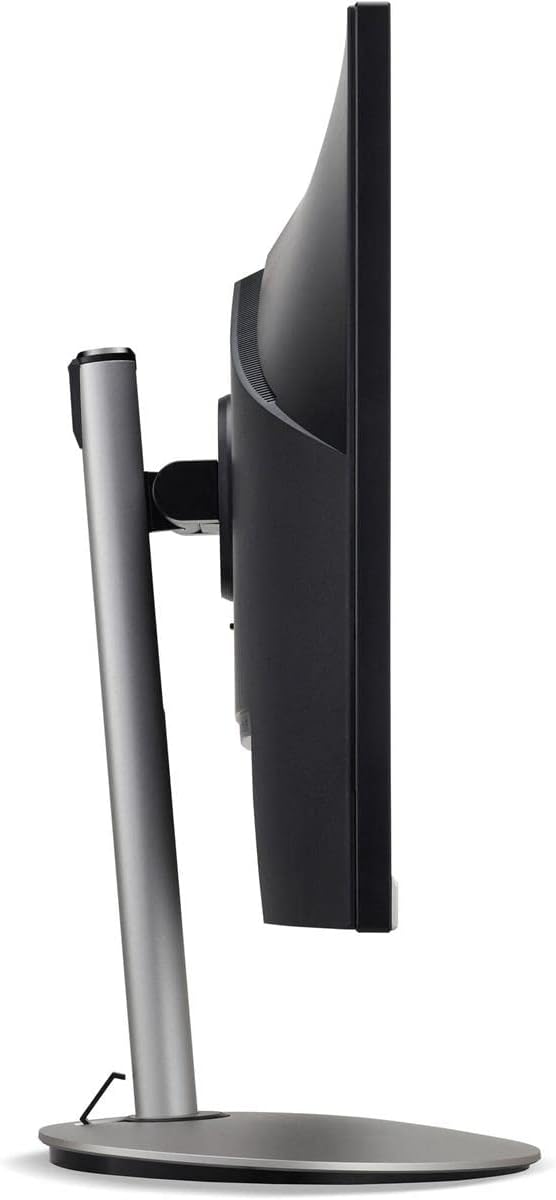
Setšoantšo sa 3: Lehlakore la profile of the monitor, illustrating its adjustable stand for ergonomic positioning.
Tlhokomelo
Cleaning the Monitor Screen and Casing
To clean your monitor, first ensure it is turned off and unplugged from the power outlet. Use a soft, lint-free cloth. For stubborn marks, lightly dampen the cloth with water or a specialized non-abrasive screen cleaner. Do not spray liquid directly onto the screen or casing. Qoba ho sebelisa lik'hemik'hale tse bohale, li-abrasive cleaners, kapa solvents.
Litaelo tsa polokelo
If you need to store the monitor for an extended period, it is recommended to use its original packaging to protect it from dust, moisture, and physical damage. Store in a cool, dry environment away from direct sunlight and extreme temperatures.
Ho batle phoso
Sheba lethathamo le ka tlase bakeng sa litaba tse tloaelehileng le tharollo ea tsona:
| Bothata | Lebaka le ka khonehang | Tharollo |
|---|---|---|
| Ha ho setšoantšo skrineng | Thapo ea motlakase e khaotsoe; thapo ea video e khaotsoe; Ho khethiloe mohloli o fosahetseng oa ho kenya. | Check power and video cable connections; Ensure the monitor is powered on; Select the correct input source via the OSD menu. |
| Setšoantšo se lerootho kapa se sothehile | Incorrect resolution setting; Faulty video cable. | Set the display resolution to 2560 x 1440 at 75 Hz; Try a different HDMI cable. |
| Ha ho modumo ho tswa dibui | Monitor volume too low or muted; Incorrect audio output selected on computer. | Adjust monitor volume via OSD; Unmute audio; Select the monitor as the audio output device in your computer's sound settings. |
| Ela hloko ho panyapanya | Refresh rate mismatch; Interference; Faulty cable. | Ensure refresh rate is set to 75 Hz; Check for nearby electronic devices causing interference; Replace video cable. |
Litlhaloso
Key technical specifications for the Acer CB272U smiiprx LED Monitor:
| Sebopeho | Lintlha |
|---|---|
| Lebitso la Mohlala | CB272U smiiprx |
| Boholo ba skrine | 24.1 lisenthimithara |
| Qeto ea Naha | 2560 x 1440 (WQHD) |
| Refresh Rate | 75 Hz |
| Nako ea Karabelo | 1 Millisecond (VRB) |
| Aspect ratio | 16:9 |
| Mofuta oa Pontšo | LED-backlit LCD / TFT active matrix (IPS) |
| Khanya | 350 cd/m² |
| Phapang karo-karolelano | 1000:1 (E tsitsitseng) |
| Khokahano | HDMI |
| Adaptive Sync | FreeSync |
| Libui tse ahiloeng | Ee |
| Dimensions (WxDxH with stand) | 24.1 ho x 9.2 ho x 20.5 in |
| Boima (ka sethala) | 18.1 Liponto |

Figure 4: Monitor dimensions with stand, indicating width, depth, and height.
Boitsebiso ba Warranty
The Acer CB272U smiiprx LED Monitor comes with a 3-year manufacturer limited warranty. This warranty covers defects in materials and workmanship under normal use. For complete details regarding warranty coverage, limitations, and how to make a claim, please refer to the warranty documentation included with your product or visit the official Acer support websebaka.
Please retain your proof of purchase (receipt or invoice) as it will be required for any warranty service.
Tšehetso ea Bareki
Should you require further assistance, technical support, or wish to download the latest drivers and firmware updates for your monitor, please visit the official Acer support websebaka:
You can also find contact information for Acer customer service in your region on the support websebaka bakeng sa thuso ea motho ka mong.