
Selelekela
Thank you for choosing the EZQuest USB C Hub Docking Station 8-in-1. This manual provides detailed instructions for setting up, operating, and maintaining your device. Please read this manual thoroughly before use to ensure optimal performance and longevity of your product.
Sehlahisoa se Felletseview
The EZQuest USB C Hub Docking Station 8-in-1 is designed to expand the connectivity of your USB-C enabled devices, offering a comprehensive solution for various peripherals and display needs. It features multiple ports for data transfer, video output, network connection, and power delivery.
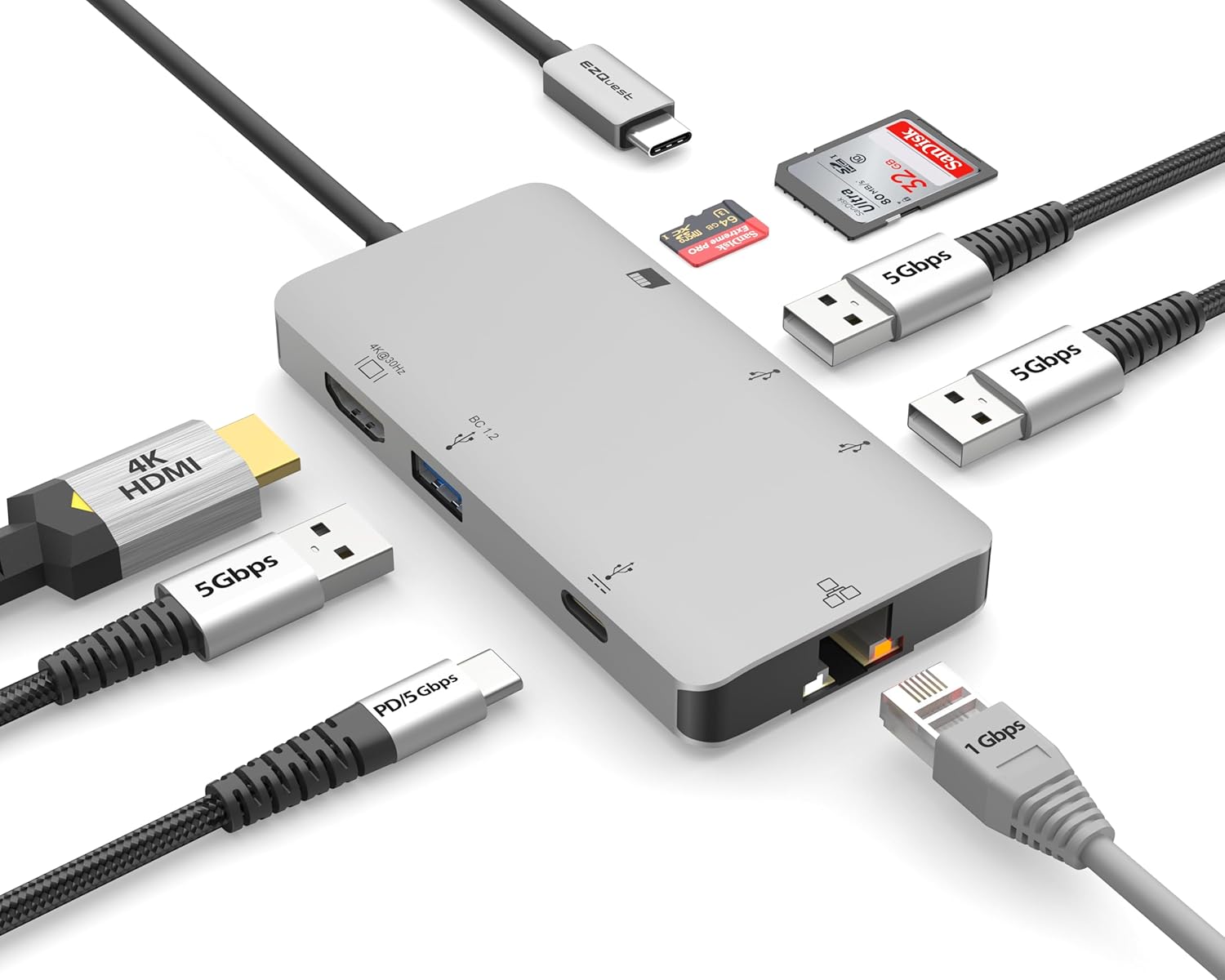
Image: The EZQuest USB C Hub Docking Station 8-in-1, showcasing moralo oa eona o moqotetsane le thapo e kopantsoeng ea USB-C.

Image: A diagram illustrating the 8-in-1 expansion capabilities of the hub, including HDMI, USB-C PD, USB 3.0, Ethernet, and card readers.
Litaelo tsa ho seta
- Hokela ho Sesebediswa sa Moamohedi: Plug the integrated USB-C cable of the EZQuest hub into an available USB-C/Thunderbolt 3/4 port on your laptop, tablet, or smartphone.
- Phano ea Motlakase (Boikhethelo): For charging your host device, connect your USB-C power adapter to the USB-C Power Delivery port on the hub. The hub supports up to 100W input with 85W pass-through charging.
- Pontšo ea HDMI: Connect an HDMI cable from your monitor to the HDMI port on the hub for 4K 30Hz video output.
- Khokahano ea Ethernet: For a stable wired network, connect an Ethernet cable to the Gigabit Ethernet port on the hub.
- Li-peripheral tsa USB: Connect your USB-A devices (e.g., mouse, keyboard, external hard drive) to the three USB-A 3.0 ports.
- SD/Micro SD Cards: Insert your SD or Micro SD cards into the respective slots for data transfer.

Image: A user connecting the EZQuest USB C Hub to a laptop's USB-C port.

Image: Illustrates connecting a power adapter to the hub for pass-through charging of a laptop.
Litaelo tsa Ts'ebetso
Pontsho e Hlahisang (HDMI)
The HDMI port supports 4K resolution at 30Hz. Connect an HDMI-enabled display to extend or mirror your desktop for enhanced productivity or multimedia viewing. Ensure your display and device support 4K 30Hz for optimal performance. Note that the USB-C ports on the hub are for data and power delivery, not for connecting a monitor.
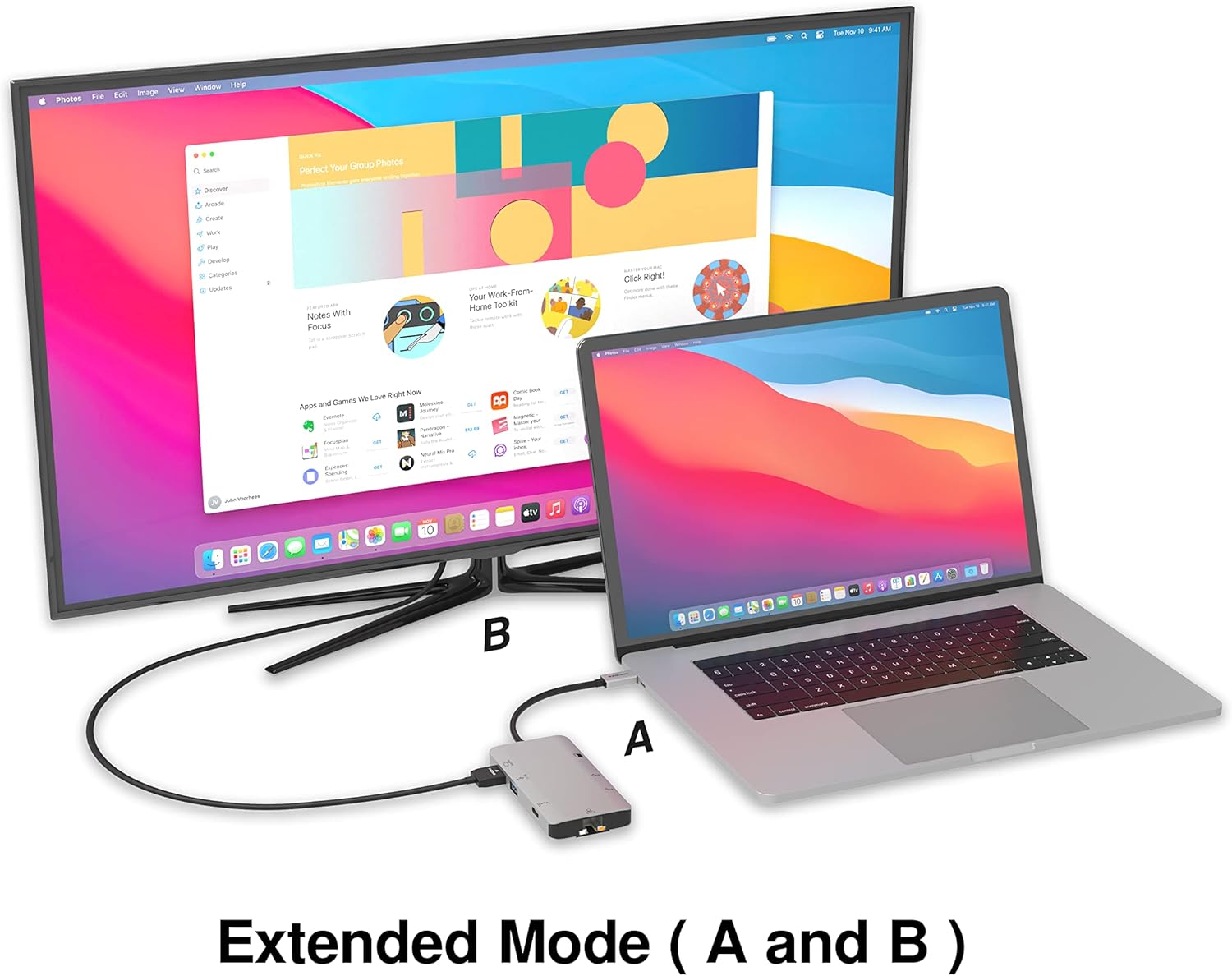
Image: A laptop connected to an external monitor via the hub, demonstrating extended display mode.
Data Transfer (USB-A & SD/Micro SD)
The three USB-A 3.0 ports offer data transfer speeds up to 5Gbps. The SD and Micro SD card slots allow for simultaneous read and write operations, facilitating quick file transfers from memory cards.

Image: Various devices like USB drives, SD cards, and an Ethernet cable connected to the EZQuest hub.
Network Connection (Gigabit Ethernet)
The Gigabit Ethernet port provides a stable and high-speed wired internet connection, ideal for large downloads, uploads, or streaming where Wi-Fi might be unreliable. An LED indicator confirms network activity.
Kabo ea Matla
The USB-A ports distribute power efficiently. One USB-A port with BC1.2 outputs 5V/1.5A (7.5W), while the other two USB-A ports deliver 5V/0.9A (4.5W) each. The total shared power when all ports are in use is 10 watts.

Image: A diagram detailing the power output and data transfer speeds of the USB-A ports on the hub.
Likarolo le Li-Ports
| Mofuta oa Port | Bongata | Tshebetso |
|---|---|---|
| HDMI | 1 | 4K @ 30Hz Video Output (Extended/Mirror Mode) |
| USB-C Power Delivery/Data | 1 | Up to 100W Power Input (85W Pass-Through), 5Gbps Data Transfer |
| USB-A 3.0 | 3 | 5Gbps Data Transfer (One port BC1.2 5V/1.5A, two ports 5V/0.9A) |
| Gigabit Ethernet | 1 | 10/100/1000 Mbps Wired Network Connection with LED Indicator |
| Sebali sa Karete ea SD | 1 | SDHC/SDXC Read/Write |
| Sebali sa karete ea Micro SD | 1 | Micro SDHC/SDXC Read/Write |
Ho lumellana
This USB C Hub is compatible with a wide range of devices:
- Computers featuring USB-C, USB 4, Thunderbolt 4, or Thunderbolt 3 ports.
- USB-C smartphones and tablets equipped with OTG (On-The-Go) support.
Unsupported Device:
- The USB-A ports on this docking station do not support Apple SuperDrive. For connecting an Apple SuperDrive, an alternative adapter (e.g., EZQuest X40100 USB-C to USB-A Female Mini Adapter) directly to your Mac is recommended.
Ho batle phoso
- Ha ho Pontsho:
- Ensure your host device's USB-C port supports video output (DisplayPort Alternate Mode).
- Check all cable connections (USB-C from hub to device, HDMI from hub to monitor).
- Verify your monitor input source is set correctly to HDMI.
- Leka thapo e fapaneng ea HDMI kapa sekirini haeba e fumaneha.
- Mathata a ho tjhaja:
- Ensure your USB-C power adapter is connected to the hub's USB-C PD port.
- Verify your power adapter provides sufficient wattage (up to 100W recommended for laptops).
- Check if the host device's USB-C port supports Power Delivery.
- Phetisetso ea Lintlha e Butle:
- Ensure you are using USB 3.0 compatible devices and cables for optimal speeds.
- The total shared power for USB-A ports is 10W; excessive power draw from multiple devices may affect performance.
- Ethernet ha e sebetse:
- Check the Ethernet cable connection to both the hub and your router/modem.
- Netefatsa di-setting tsa netweke sesebedisweng sa hao sa moamoheli.
- Ensure the LED indicator on the Ethernet port is active.
- SD/Micro SD Card Not Recognized:
- Netefatsa hore karete e kentsoe ka botlalo ka har'a sekotjana se nepahetseng.
- Try reinserting the card or using a different card.
- Hlahloba hore na karete e senyehile kapa e senyehile.
Litlhaloso
| Sebopeho | Lintlha |
|---|---|
| Nomoro ea Mohlala | X40030 |
| Litekanyo tsa Sehlahisoa | 0.81 x 1.63 x 0.2 lisenthimithara |
| Boima ba Ntho | 1.6 lik'hilograma |
| Sesebelisoa sa Hardware | Mofuta oa USB oa C |
| HDMI Output | 4K @ 30Hz |
| Kenyo ea USB-C PD | Ho fihlela ho 100W |
| Sephetho sa USB-C PD | Ho fihlela ho 85W |
| USB-A 3.0 Data Speed | 5Gbps |
| Lebelo la Ethernet | 1 Gigabit (10/100/1000 Mbps) |
| Card Reader Support | SDHC, SDXC, Micro SDHC, Micro SDXC |
| Lintho tse bonahalang | Anodized Aluminum Housing |
Tlhokomelo
- Ho hloekisa: Use a soft, dry cloth to clean the hub. Avoid liquid cleaners or aerosols.
- Polokelo: Boloka setsi sebakeng se phodileng, se omeletseng hole le letsatsi le mocheso o feteletseng.
- Ho tšoara: Avoid dropping the device or subjecting it to strong impacts. Do not attempt to disassemble the hub.
Warranty le Tšehetso
The EZQuest USB C Hub Docking Station 8-in-1 comes with a Tiisetso e sa Tšoenyeheng ea Selemo se 1. This warranty covers manufacturing defects and ensures peace of mind regarding your investment.
For technical support, warranty claims, or any product-related inquiries, please visit the official EZQuest website or contact their customer service team through the contact information provided with your product packaging.