
Selelekela
This manual provides essential information for the setup, operation, and maintenance of your Apple Watch Series 3 (GPS + Cellular, 42mm). Please read this guide thoroughly to ensure proper use and to maximize the features of your device.

The Apple Watch Series 3 features a Space Gray Aluminum Case and a Black Sport Band, offering advanced connectivity and health tracking capabilities.
Se ka Lebokoseng
Netefatsa hore lintho tsohle li teng ka har'a sephutheloana sa sehlahisoa sa hau:
- Apple Watch Series 3 (GPS + Cellular, 42mm)
- Black Sport Band (either S/M or M/L length)
- 1m thapo ea ho tjhaja Magnetic
- Adapter ea Matla a USB

Included components: Apple Watch, Sport Band, Magnetic Charging Cable, and USB Power Adapter.
Tlhophiso
- Ntlafatsa Apple Watch ea hau: Connect the magnetic charging cable to the back of your Apple Watch and plug the USB power adapter into a power outlet. Allow the watch to charge until it powers on.
- Pair with iPhone: Ensure your iPhone is updated to the latest iOS version and has Bluetooth enabled. Open the Apple Watch app on your iPhone and follow the on-screen instructions to pair your watch.
- Cellular Setup (GPS + Cellular models only): During the pairing process, you will be prompted to set up cellular service. This requires an active cellular plan with a compatible carrier. Follow the steps provided by your carrier through the Apple Watch app.
- Iketsetse Litlhophiso: After pairing, customize your watch face, notifications, and app preferences through the Apple Watch app on your iPhone.
Operating Your Apple Watch Series 3
Navigation ea Motheo
- Moqhaka oa Dijithale: Rotate to scroll, zoom, or adjust values. Press once to go to the watch face or app launcher. Double-press to switch between your last two apps. Press and hold for Siri.
- Konopo ea Lehlakoreng: Press once to open the Dock (recent apps). Double-press for Apple Pay. Press and hold for Emergency SOS or to power off.
- Skrine se thetsoang: Tap to select, swipe to navigate, force touch for additional options.
Likarolo tsa Bohlokoa
- GPS + Cellular: Make calls, send messages, and stream music directly from your watch, even without your iPhone nearby. Requires a cellular plan.
- Ts'ebetso ea ho Lata: Monitor your daily movement, exercise, and standing goals with the Activity rings.
- Tlhokomelo ea Palo ea Pelo: The optical heart sensor continuously measures your heart rate throughout the day and during workouts.
- Swimproof: Designed for shallow water activities like swimming in pools or the ocean. Not recommended for scuba diving, waterskiing, or other high-velocity water activities.
- Emergency SOS: Press and hold the side button to quickly call emergency services.
- Music, Podcasts, and Audiobooks: Store and play media directly from your watch, or stream with a cellular connection.
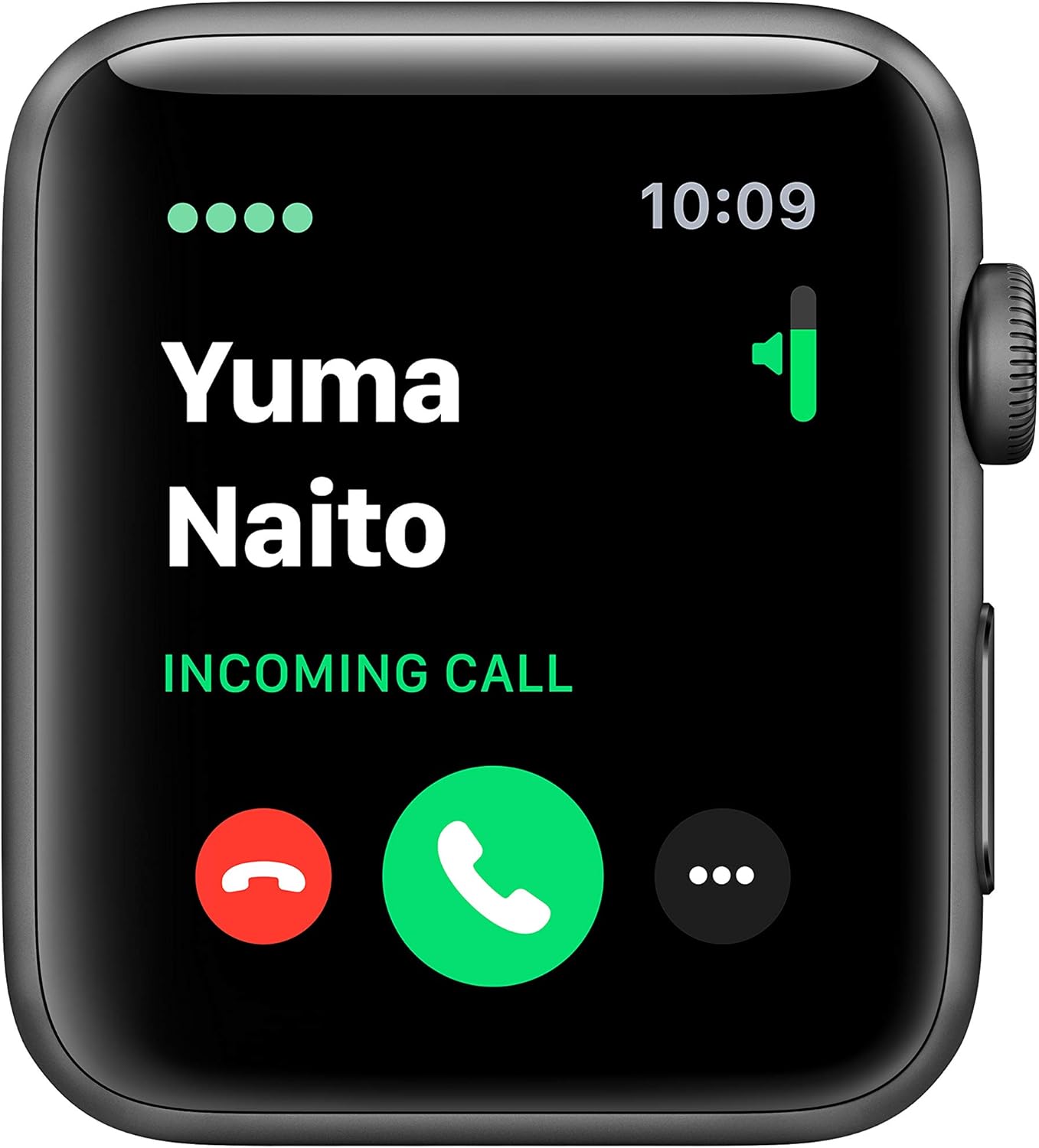
The cellular feature allows you to receive calls directly on your Apple Watch.

Track your fitness progress with detailed activity metrics displayed on the watch face.

Monitor your heart rate with the built-in optical heart sensor.
Tlhokomelo
To ensure the longevity and optimal performance of your Apple Watch Series 3, follow these maintenance guidelines:
- Ho hloekisa: Regularly clean your Apple Watch and band with a soft, lint-free cloth. If necessary, lightly dampen the cloth with fresh water. Avoid using harsh chemicals or abrasive materials.
- Mathata a Metsi: The Apple Watch Series 3 is swimproof. After exposure to chlorinated or salt water, rinse the watch with fresh water and dry it thoroughly. Avoid exposing the watch to soaps, shampoos, conditioners, lotions, and perfumes, as these can negatively affect water seals and acoustic membranes.
- Tlhokomelo ea Sehlopha: Clean your band according to its material. Sport Bands can be wiped clean with a damp lesela.
- Polokelo: Store your Apple Watch in a cool, dry place when not in use.
Ho batle phoso
Mathata a Tloaelehileng le Litharollo
- Watch Not Powering: Ensure the watch is sufficiently charged. Connect it to the magnetic charging cable and a power adapter for at least 30 minutes.
- Mathata a ho Kopanya: Make sure your iPhone's Bluetooth is on and both devices are close to each other. Restart both your iPhone and Apple Watch. If issues persist, unpair the watch from your iPhone (if previously paired) and attempt to pair again.
- Cellular Connectivity Problems: Verify that your cellular plan is active and correctly provisioned for your Apple Watch. Ensure the watch is not in Airplane Mode. Contact your carrier if the issue persists after restarting both devices and checking settings in the Apple Watch app.
- Litekanyo tse sa Nepahaleng tsa Sekhahla sa Pelo: Ensure the back of the watch is clean and making good contact with your wrist. Tighten the band slightly if it's too loose.
- Ho Hlakola Battery ka Potlako: Review your notification settings and background app refresh in the Apple Watch app on your iPhone. Reduce screen brightness.
Litlhaloso
| Sebopeho | Lintlha |
|---|---|
| Lebitso la Mohlala | Letoto la 3 |
| Ntho Nomoro ea Mohlala | MTGT2LL/A |
| Brand | apole |
| Theknoloji ea Khokahano | Bluetooth, Cellular, GPS, Wi-Fi |
| Tekanyetso ea puisano e se nang mohala | 802.11b, 802.11g |
| Mokhoa oa tšebetso | watchOS |
| Boholo ba skrine | 42 limilimithara |
| Boholo ba Nyeoe | 42 limilimithara |
| Boima ba Nyeoe | 34.9g |
| Litekanyo (Sehlahisoa) | 12.95 x 2.93 x 2.26 lisenthimithara |
| Boima ba Ntho | 1.92 lik'hilograma |
| Bophelo ba Battery | Ho fihlela lihora tse 18 |
| Likarolo Tse Khethehileng | GPS, GLONASS, Galileo, QZSS, Barometric altimeter, Optical heart sensor, Accelerometer, Gyroscope, Ion-X strengthened glass, Ceramic and sapphire crystal back |
| Ho hanyetsa Metsi | Swimproof (up to 50 meters) |
| Letsatsi le Fumanang Pele | La 30 Mphalane, 2018 |
Warranty le Tšehetso
Your Apple Watch Series 3 is covered by a limited warranty. For detailed warranty information, please refer to the documentation included with your product or visit the official Apple support websebaka.
For technical assistance, troubleshooting, or service, please contact Apple Support:
- Ts'ehetso ea Marang-rang: Etela support.apple.com/watch
- Tšehetso ea Mohala: Refer to Apple's regional support numbers available on their websebaka.
Always ensure you are consulting official Apple resources for the most accurate and up-to-date support information.