
1. Selelekela
This manual provides essential instructions for the setup, operation, maintenance, and troubleshooting of your IBM Lenovo Preferred Pro USB Wired Keyboard and Mouse Set. Please read this manual thoroughly before using the product to ensure proper functionality and longevity.
2. Sehlahisoa Overview
The IBM Lenovo Preferred Pro USB Wired Keyboard and Mouse Set offers a reliable input solution for your computer. The keyboard features a standard layout with a numeric keypad, while the mouse is a 2-button optical mouse with a scroll wheel. Both devices connect via a standard USB interface, providing plug-and-play compatibility with most operating systems.

Setšoantšo sa 2.1: Holimo view of the IBM Lenovo Preferred Pro USB Wired Keyboard.
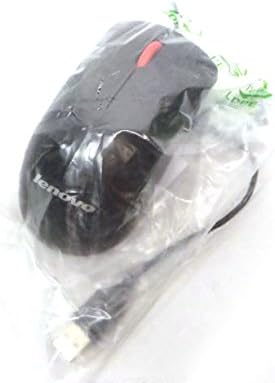
Setšoantšo sa 2.2: Holimo view of the Lenovo USB 2-Button Optical Mouse.
Likarolo tsa Bohlokoa:
- USB Wired Connectivity: Ensures a stable and reliable connection.
- Plug-and-Play: No additional drivers typically required for basic functionality.
- Standard Keyboard Layout: Full-size keyboard with numeric keypad.
- Optical Mouse: Precise tracking with a scroll wheel for easy navigation.
3. Seta
Follow these steps to connect your keyboard and mouse to your computer.
- Tlosa Lisebelisoa: Tlosa keyboard le mouse ka hloko sephuthelong sa tsona.
- Identify USB Connectors: Locate the USB connectors at the end of the keyboard and mouse cables.
- Hokela Khomphutha: Insert the USB connector of the keyboard into an available USB port on your computer. Repeat this step for the mouse.
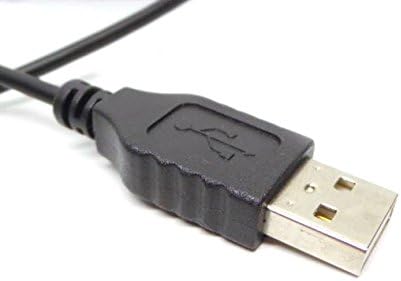
Figure 3.1: Close-up of a standard USB Type-A connector, used for connecting the keyboard and mouse.
Your computer should automatically detect and install the necessary drivers for the keyboard and mouse. No additional software installation is typically required for basic functionality.
4. Litaelo tsa Ts'ebetso
4.1 Tšebeliso ea Keyboard
- Ho ngola: Use the alphanumeric keys for text input.
- Linotlolo tsa Mosebetsi (F1-F12): These keys perform various functions depending on the application or operating system.
- Letlapa la Linomoro: Use the dedicated numeric keypad for efficient data entry. Ensure the "Num Lock" indicator light is on.
- Linotlolo tse Khethehileng: Utilize keys like "Print Screen", "Scroll Lock", "Pause/Break", "Insert", "Home", "Page Up", "Delete", "End", and "Page Down" for their respective functions.
4.2 Mouse Usage
- Motsamao: Move the mouse across a flat surface to control the cursor on the screen.
- Tlanya ka ho le letšehali: Press the left button to select items, open links, or activate functions.
- Tobetsa ka ho le letona: Press the right button to open context menus.
- Scroll Wheel: Sututsa lebili la ho skrola hodimo kapa tlase ho tsamaya ditokomaneng kapa web pages. The scroll wheel may also function as a middle click button.
5. Tlhokomelo
Proper care and maintenance will extend the life of your keyboard and mouse.
- Ho hloekisa:
- Disconnect devices from the computer before cleaning.
- Sebelisa bonolo, damp cloth with a mild cleaning solution (e.g., water or isopropyl alcohol) to wipe surfaces.
- Avoid excessive moisture, especially near keycaps and optical sensors.
- Use compressed air to remove dust and debris from between keyboard keys.
- Polokelo: Store the devices in a clean, dry environment away from extreme temperatures and direct sunlight.
- Qoba ho Tšela: Keep liquids away from the keyboard and mouse to prevent damage.
6. Ho rarolla mathata
If you encounter issues with your keyboard or mouse, refer to the following common problems and solutions:
| Bothata | Lebaka le ka khonehang | Tharollo |
|---|---|---|
| Keyboard/Tweba ha e arabe | Khokahano e hlephileng ea USB, boema-kepe ba USB bo fosahetseng, bothata ba mokhanni. |
|
| Keys not working or typing incorrectly | Debris under keys, software conflict, keyboard settings. |
|
| Sesupa-tsela sa toeba sea tsitsa kapa ha se sisinyehe | Dirty optical sensor, unsuitable surface, software issue. |
|
If the problem persists after trying these solutions, contact customer support or your reseller for further assistance.
7. Litlhaloso
| Sebopeho | Lintlha |
|---|---|
| Keyboard Model Numbers | 54Y9400, 41A5289, SK-8825, KB1021 |
| Mouse Model Numbers | 45J4888, 25011476, 45J4889, M-U0025-O |
| Brand | IBM / Lenovo |
| Mmala | Ntsho |
| Theknoloji ea Khokahano | USB Wired |
| Mofuta oa Keyboard | Preferred Pro USB Wired Keyboard |
| Mofuta oa Toeba | 2-Button Black Red Scroll Wheel Optical Mouse |
| Litekanyo tsa sephutheloana | 22 x 10.2 x 4.7 lisenthimithara (hoo e ka bang) |
| Boima ba Ntho | Ponto e le 'ngoe (e ka bang) |
| Moetsi | Lenovo |
8. Tiisetso le Tšehetso
For warranty information, please refer to the documentation provided at the time of purchase or contact your reseller. IBM and Lenovo products typically come with a standard manufacturer's warranty.
For technical support or further inquiries, please contact the product's manufacturer or the authorized reseller from whom you purchased the item. Keep your purchase receipt and product model numbers handy for faster service.