
1. Selelekela
This manual provides instructions for the StarTech.com DisplayPort to DVI-D Adapter, model DP2DVI2. This adapter allows you to connect a DVI-D monitor to a DisplayPort-enabled computer or device. It is a passive video converter designed for ease of use and portability.

Image 1.1: The DisplayPort to DVI-D adapter connecting a computer to a monitor.
Likarolo tsa Bohlokoa:
- DisplayPort 1.2 HBR2 to DVI-D (digital only) single-link adapter.
- Supports resolutions up to 1920x1200 or 1080p at 60Hz.
- HDCP 1.4 e lumellana.
- Features a 6-inch (15cm) attached cable for added flexibility.
- Passive video converter, requiring a DisplayPort++ (DP++) port on the source device.
- Includes a latching DisplayPort connector for secure connection and supports DVI screw-locking cables to prevent accidental disconnection.
- Plug-and-play functionality, requiring no software or driver installation.
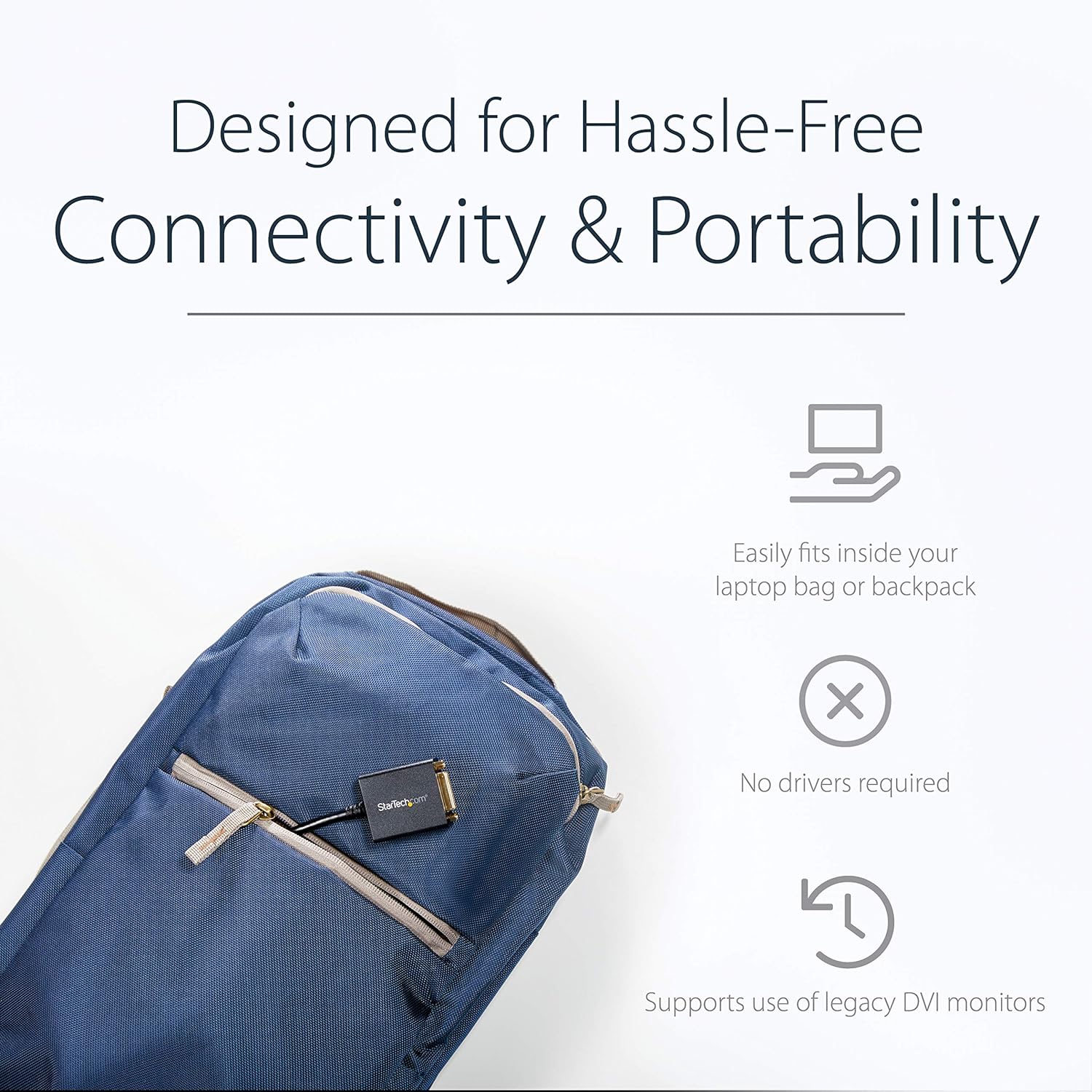
Image 1.2: The compact adapter fits easily into a laptop bag, highlighting its portability.
2. Likahare tsa Sephutheloana
Netefatsa hore sephutheloana sa hau se na le lintho tse latelang:
- 1 x StarTech.com DisplayPort to DVI-D Adapter (DP2DVI2)

Image 2.1: The adapter shown in its retail packaging, displaying product information and warranty details.
3. Setšoantšo sa Setšoantšo sa Sehlahisoa
The following diagram illustrates the connectors on the DisplayPort to DVI-D adapter.

Setšoantšo sa 3.1: E qaqileng view of the adapter, highlighting the DisplayPort (male) and DVI (female) connectors.
4. Litaelo tsa ho seta
Ho hokela Adapter
Follow these steps to connect your DisplayPort-enabled device to a DVI monitor:
- Connect the DisplayPort male connector of the adapter to the DisplayPort output on your computer or video source. Ensure the latching connector is securely engaged.
- Connect a DVI-D cable (not included) from your DVI monitor to the DVI-D female port on the adapter. If your DVI cable has screw locks, secure them to the adapter for a stable connection.
- Power on your computer and monitor. The display should automatically detect the signal.

Image 4.1: An illustration of the adapter connecting a desktop computer's DisplayPort to a DVI monitor.
5. Litaelo tsa Ts'ebetso
Tlhophiso ea Pontšo
Once connected, your operating system should automatically detect the DVI monitor. You can configure display settings such as resolution, extended desktop, or duplicate display through your computer's display settings.
- Windows: Right-click on the desktop and select "Display settings" or "Screen resolution."
- macOS: Go to "System Preferences" > "Displays."
Liqeto tse tšehelitsoeng
This adapter supports PC resolutions up to 1920x1200 and HDTV resolutions up to 1080p at 60Hz.

Image 5.1: A visual representation of the adapter providing a clear, high-definition picture on a large display.
6. Ho rarolla mathata
No Display Signal
- Netefatsa Likhokahano: Ensure all cables (DisplayPort, DVI, and power for both devices) are securely connected.
- Source Compatibility: Confirm your computer's DisplayPort supports DP++ (DisplayPort++), as this is a passive adapter. Active adapters are required for DisplayPort sources that do not support DP++.
- Lekola Kenyo: Check that your monitor is set to the correct DVI input source.
- Qeto: Try a lower resolution on your computer if the monitor does not display an image. The monitor might not support the current output resolution.
- Bolelele ba Cable: Ensure the DVI cable length does not exceed 25 feet (7.6 meters), as longer cables can degrade signal quality.
Mathata a Boleng ba Litšoantšo
- Boleng ba Cable: Use a high-quality DVI-D cable to ensure optimal signal transmission.
- Resolution Mismatch: Adjust the display resolution on your computer to match your monitor's native resolution for the clearest picture.
7. Litlhaloso
| Brand | StarTech.com |
| Lebitso la Mohlala | DisplayPort to DVI Video Adapter Converter (DP2DVI2) |
| Mofuta oa Sehokelo | DisplayPort Male to DVI-D Female |
| Mofuta oa Cable | DVI, DisplayPort |
| Liqeto tse tšehelitsoeng | Up to 1920x1200 / 1080p at 60Hz |
| Ts'ehetso ea HDCP | Yes (HDCP 1.4) |
| Bolelele ba Cable | 6 inches (15 cm) attached cable |
| Mmala | Ntsho |
| Boima ba Ntho | Li-ounces tse 1.51 (0.04 lik'hilograma) |
| Litekanyo tsa Sehlahisoa | 10 x 1.7 x 0.7 lisenthimithara (25.4 x 4.3 x 1.8 cm) |
| Passive Adapter | Requires DP++ port |
8. Tiisetso le Tšehetso
This StarTech.com product is backed by a 3-year warranty. For technical support, troubleshooting, and additional resources, please visit the official StarTech.com websebaka kapa ikopanye le litšebeletso tsa bareki.
For more information, you can visit the product page: http://startech.com/q/DP2DVI2
Video 8.1: An official product video from StarTech.com demonstrating the features and use of the DisplayPort to DVI-D adapter.