
1. Selelekela
This user manual provides comprehensive instructions for the setup, operation, and maintenance of your new Microsoft Wired Keyboard, Mohlala ANB-00021. Please read this manual thoroughly before using the product to ensure optimal performance and longevity.

Figure 1: Microsoft Wired Keyboard (Model ANB-00021)
This image displays the Microsoft Wired Keyboard from an angled perspective, showcasing its full layout, including the numeric keypad and special function keys. The keyboard is black with a standard QWERTY layout and a wired USB connection.
2. Likarolo tsa lihlahisoa
The Microsoft Wired Keyboard is designed for efficiency and durability, offering a comfortable typing experience. Key features include:
- Black, English/International Layout: Standard QWERTY layout suitable for various regions.
- Khokahano ea USB: Simple and reliable wired connection.
- Ultra-Flat Design: Slim profile for a modern aesthetic and comfortable wrist position.
- Short Key Travel: Responsive keys with a short actuation distance for efficient typing.
- Ha e khone ho phatloha: Designed to withstand minor spills, protecting internal components.
- Li-Hotkeys tse inehetseng: Includes 5 special keys for quick access to common functions.
- Calculator Key: Instant access to the calculator application.
- Gently Inclined Key Block: Ergonomic design for reduced strain during extended use.
- Classic Keyboard Layout: Familiar and intuitive key arrangement.
- Hokela le ho Bapala: No software installation required; simply connect and use.
3. Seta
Setting up your Microsoft Wired Keyboard is a straightforward process due to its Plug and Play functionality.
- Hlakola Keyboard: Tlosa keyboard ka hloko ho tsoa sephutheloana sa eona.
- Connect to a USB Port: Locate an available USB port on your computer (desktop PC, laptop, or compatible device). Insert the USB connector of the keyboard firmly into the USB port.
- Tsebiso ea Sisteme: Your operating system (Windows, macOS, Linux, etc.) will automatically detect and install the necessary drivers. This process usually takes a few seconds.
- E Loketse ho Sebelisa: Once the drivers are installed, the keyboard is ready for immediate use. No additional software or configuration is typically required.
For optimal performance, ensure the USB cable is not kinked or strained.
4. Litaelo tsa Ts'ebetso
The Microsoft Wired Keyboard operates like any standard QWERTY keyboard, with additional convenience features.
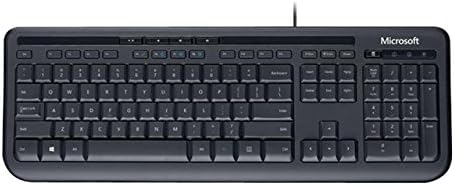
Setšoantšo sa 2: Ho ea holimo view of the keyboard layout
Setšoantšo sena se fana ka tlhaloso e hlakileng ea ho tloha holimo ho ea tlase view of the Microsoft Wired Keyboard, highlighting the full QWERTY key layout, function keys, numeric keypad, and the row of special hotkeys located above the function keys.
Standard Key Functions
- Linotlolo tsa Alphannumeric: Used for typing letters, numbers, and symbols.
- Linotlolo tsa Mosebetsi (F1-F12): Perform various tasks depending on the active application or operating system.
- Letlapa la Linomoro: Located on the right, for efficient data entry.
- Linotlolo tsa ho Tsamaisa: Arrow keys, Home, End, Page Up, Page Down for cursor movement and scrolling.
- Modifier Keys: Shift, Ctrl, Alt, Windows key for combination shortcuts.
Special Keys (Hotkeys)
The keyboard features a row of dedicated hotkeys above the function keys for quick access to multimedia and system functions:
- Linotlolo tsa Taolo ea Mecha: Play/Pause, Stop, Previous Track, Next Track.
- Linotlolo tsa Taolo ea Molumo: Mute, Volume Down, Volume Up.
- Calculator Key: Instantly launches the system's calculator application.
- Other Programmable Keys: Some models may include additional keys that can be customized through operating system settings or Microsoft keyboard software (if available).
Familiarize yourself with these keys to enhance your productivity.
5. Tlhokomelo
Proper care and maintenance will extend the life of your Microsoft Wired Keyboard.
- Ho hloekisa:
- Hakolla keyboard khomphuteng ea hau pele u hloekisa.
- Sebelisa lesela le bonolo, le se nang lint ha bobebe dampe tšetsoeng ka metsi kapa tharollo e bonolo ea ho hloekisa e sa halefeng.
- Wipe the surface of the keys and the keyboard casing.
- Bakeng sa lerōle le litšila pakeng tsa linotlolo, sebelisa moea o hatelitsoeng.
- Se ke oa immerse the keyboard in water or use harsh chemicals.
- Khanyetso ea Splash: While the keyboard is splash-resistant, it is not waterproof. Avoid exposing it to excessive liquids. In case of a spill, disconnect immediately, wipe dry, and allow to air dry completely before reconnecting.
- Polokelo: Ha e sa sebelisoe ka nako e telele, boloka keyboard sebakeng se hloekileng, se omileng hole le mocheso o feteletseng.
- Tlhokomelo ea Lithapo: Avoid sharp bends or kinks in the USB cable to prevent damage.
6. Ho rarolla mathata
If you encounter issues with your keyboard, refer to the following common problems and solutions:
| Bothata | Lebaka le ka khonehang | Tharollo |
|---|---|---|
| Keyboard ha e arabe | Loose USB connection, incorrect USB port, driver issue. | Ensure the USB cable is securely plugged into a working USB port. Try a different USB port. Restart your computer. |
| Specific keys not working | Debris under the key, key mechanism damage. | Use compressed air to clear debris. If the key is physically damaged, contact support. |
| Hotkeys not functioning | Software conflict, operating system settings. | Ensure your operating system is up to date. Check keyboard settings in your OS control panel. |
| Unexpected behavior after liquid exposure | Internal components affected by liquid. | Immediately disconnect the keyboard. Allow it to dry completely for at least 24-48 hours in a well-ventilated area before attempting to reconnect. If issues persist, the keyboard may be damaged. |
If the problem persists after trying these solutions, please refer to the Support section.
7. Litlhaloso
Detailed technical specifications for the Microsoft Wired Keyboard (Model ANB-00021):
| Tšobotsi | Lintlha |
|---|---|
| Nomoro ea Mohlala | ANB-00021 |
| Brand | Microsoft |
| Theknoloji ea Khokahano | USB (Mohala) |
| Keyboard Tlhaloso | Standard QWERTY, USB |
| Tšobotsi e Khethehileng | E hananang le ho phatloha |
| Mmala | Ntsho |
| Nomoro ea Linotlolo | 600Note: This number is as per product specifications and may refer to total keypresses lifespan or a specific internal metric, not physical keys.) |
| Keyboard Backlighting | None (Single Color support listed, but typically implies no backlighting for this model) |
| Setaele | Ea kajeno |
| Lintho tse bonahalang | Plastiki |
| Litekanyo tsa Sehlahisoa (L x W x H) | 8.66 x 3.15 x 1.18 inches (hoo e ka bang 22 x 8 x 3 cm) |
| Boima ba Ntho | Boima ba lik'hilograma tse 0.59 (lik'hilograma tse ka bang 1.31) |
| Lisebelisoa tse lumellanang | Laptop, PC, Tablet, Smartphone (via appropriate adapters if needed) |
| Moetsi | Microsoft |
| Letsatsi le Fumanang Pele | La 9 Hlakubele 2011 |
8. Tiisetso le Tšehetso
For warranty information and technical support regarding your Microsoft Wired Keyboard, please refer to the official Microsoft support channels.
- Ts'ehetso ea Marang-rang: Visit the official Microsoft Support website for FAQs, troubleshooting guides, and driver downloads.
- Ikopanye le Tšehetso: For direct assistance, contact Microsoft customer service through their provided contact methods (phone, chat, email).
- Bopaki ba ho Reka: Kamehla boloka bopaki ba ho reka bakeng sa likopo tsa waranti.
Specific warranty terms and conditions may vary by region and purchase date. Please consult the documentation included with your product or the Microsoft websebaka sa marang-rang bakeng sa lintlha tse nepahetseng ka ho fetisisa le tse nakong tsa waranti.